Signing In To Warmly
Last updated: December 2, 2025
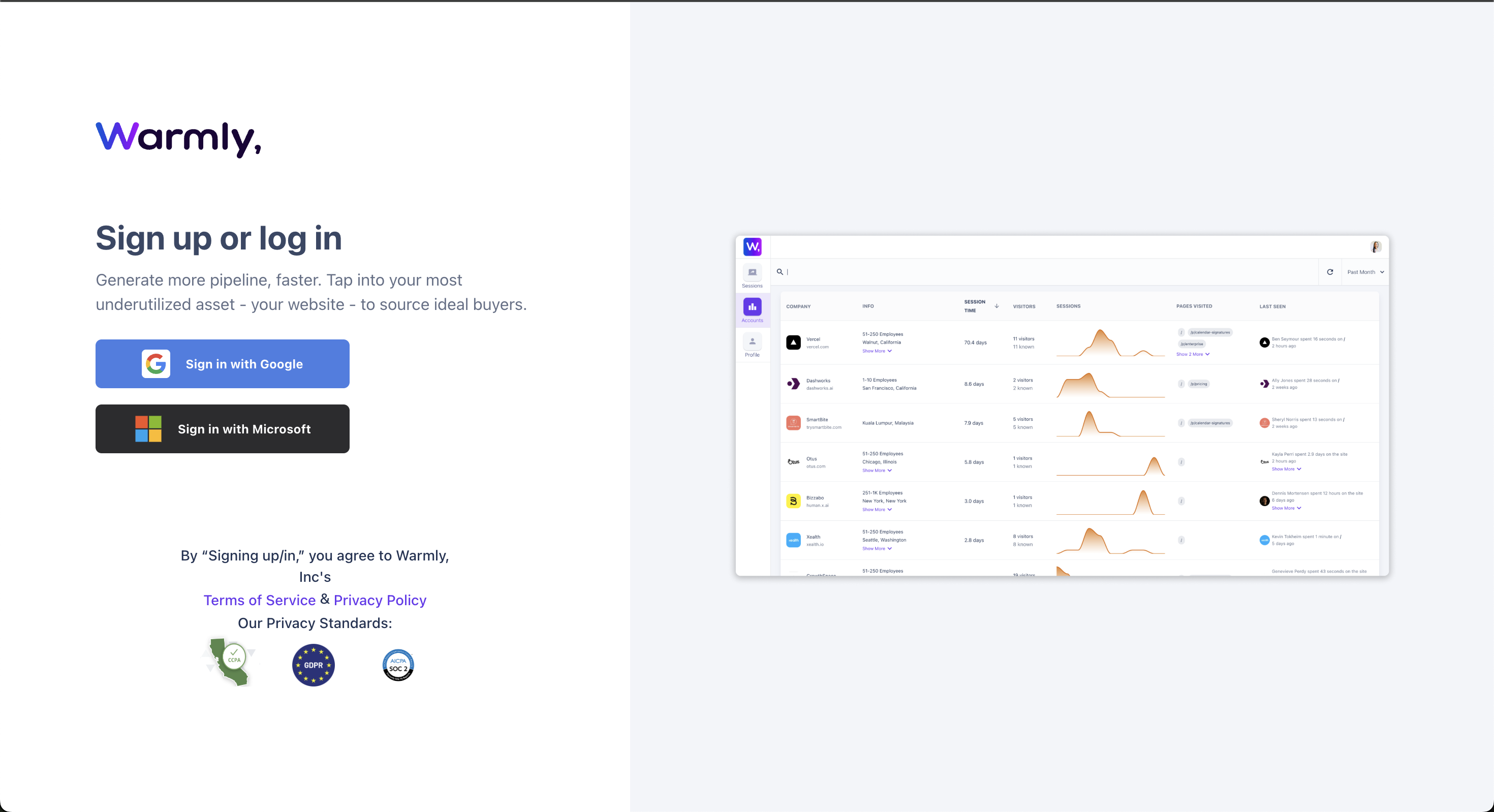
Note: Warmly currently supports login only through Google or Microsoft accounts.
Please read the below instructions to understand how to sign into Warmly for the first time.
Signing in with your company Google/Microsoft account
If you log in using a Google or Microsoft account associated with your company domain, you will be automatically added to your company’s Warmly organization.
No further setup is required - you can begin using Warmly and start inviting teammates right away.
Signing in with a personal Google/Microsoft account
If you log in for the first time using a personal Google or Microsoft account, Warmly will not be able to detect which company you are associated with. In this case:
You’ll need to contact the Warmly team.
We will manually create a Warmly organization for your company.
Once created, we’ll add you to that organization, and you’ll be able to invite the rest of your team.
If your company email is not a Google/Microsoft account
If your work email is not managed through Google or Microsoft - and you also do not have a personal Google/Microsoft account - you will need to create a temporary Google or Microsoft account to access Warmly.
If you’re unsure how to proceed, reach out to the Warmly team and we’ll guide you through it.
Note: When you see the banner below, don't worry! This is normal for customers who have just set up their account. Follow the steps outlined here to activate your account!

➡ Next Steps:
Have questions or feedback? Reach out to your CSM or email us at [email protected]