Understanding How Warmly Writes Data to Your CRM
Last updated: March 7, 2026
Note: CRM integrations are not available on the Free plan.
Warmly doesn’t just identify who’s on your website, it can turn that activity into real, actionable CRM data.
Instead of leaving valuable buying signals trapped in dashboards or alerts, Warmly writes rich visitor intelligence directly into your CRM, where your sales, marketing, and RevOps teams already operate. The result: better context, faster follow‑up, and fewer blind spots across your pipeline.
This article explains:
The three categories of data Warmly can write to your CRM
The three writeback workflows that control when and why data is written to your CRM
How to configure each one to keep your CRM clean, relevant, and sales‑ready
What Data Can Warmly Write Back?
Warmly writes three distinct categories of data during a CRM write. Depending on the workflow and configuration, all three can be written in a single write event.
Data Category | What It Includes | Where It Lives in Your CRM |
Standard Object Data | Contact and company attributes such as name, email, job title, company domain, LinkedIn URL, industry, and other firmographic/demographic fields | Lead, Contact, and Account/Company objects |
Warmly Data | Engagement and intent data generated by Warmly - website visits, sessions, page views, referral sources, chat interactions, identification metadata | Custom fields that Warmly creates on your CRM objects (prefixed with |
Custom CRM Field Data | Values you explicitly map in Warmly, including hard‑coded values and user inputs captured via chat | Any custom fields you sync and mapped values to in the CRM integration settings |
How do these work together?
For example, when an identified website visitor is written to your CRM:
A Contact (or Lead in Salesforce) is created or updated with standard fields such as name, email, and job title. At the same time, the associated Company record is created or updated and automatically linked to that contact.
Warmly Custom Fields on that record are populated with session data - the pages they visited, how they arrived on your site, when were they last seen on your site, etc.
Any custom field mappings you've configured are also written as part of the same event.
Important: If you enable the “Write back Warmly website visitor data” toggle for any CRM object (Account, Lead, or Contact), all required Warmly custom fields must exist on that object in your CRM. If any of these fields are missing or have been deleted, the entire write operation for that record will fail, meaning Warmly will not be able to update any fields on that record. Warmly automatically creates these fields when you first connect your CRM, but if a field is later removed or the initial setup did not complete successfully, write-backs will fail until the missing field is restored.
Warmly offers three distinct workflows for writing data to your CRM. Each workflow serves a different use case, is configured in a different area of the platform, and has its own independent functionality.
1. Website Visitor
What it does: Automatically syncs identified website visitors - both companies and individual contacts - to your CRM that were spotted on your site.
When to use it: You want a passive, always-on sync that ensures every qualified visitor who lands on your website is captured in your CRM, whether or not they fill out a form or engage with chat.
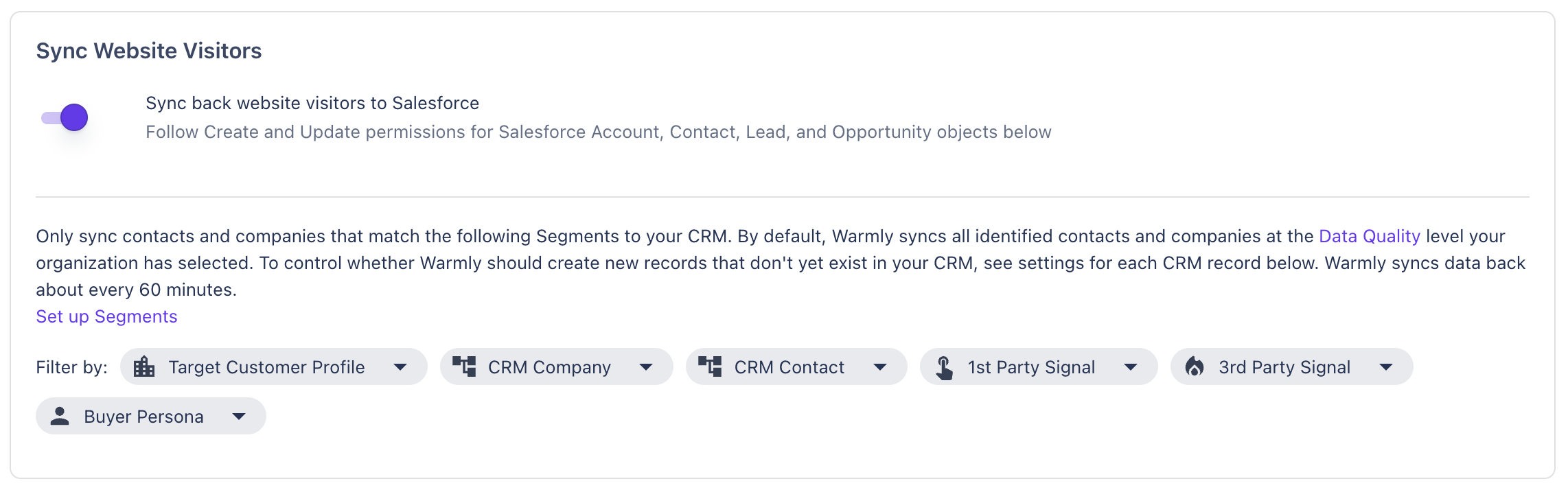
How to enable it:
Go to Settings → CRM Integration
In Sync Website Visitors, enable Sync back website visitors to Salesforce (or Hubspot)
Apply a Segment to filter which visitors are written back
Filtering with Segments: You can (and should) apply segments to ensure only visitors that match your ICP criteria are synced. Without segments, every identified visitor would be written to your CRM - which can quickly create noise.
Example:
Company size ≥ 50 employees
Industry = Cloud Services
Buyer persona = VP+ in Sales or Marketing
Only visitors matching this segment will be written to your CRM.
2. Inbound Agent (Chat Lead)
What it does: Syncs website visitors who specifically engaged with your chat to your CRM. These are visitors who sent a message, requested a demo, or otherwise interacted with your chat.
When to use it: You want to capture high-intent, leads who actively engaged in a conversation — distinct from passive website visitors.
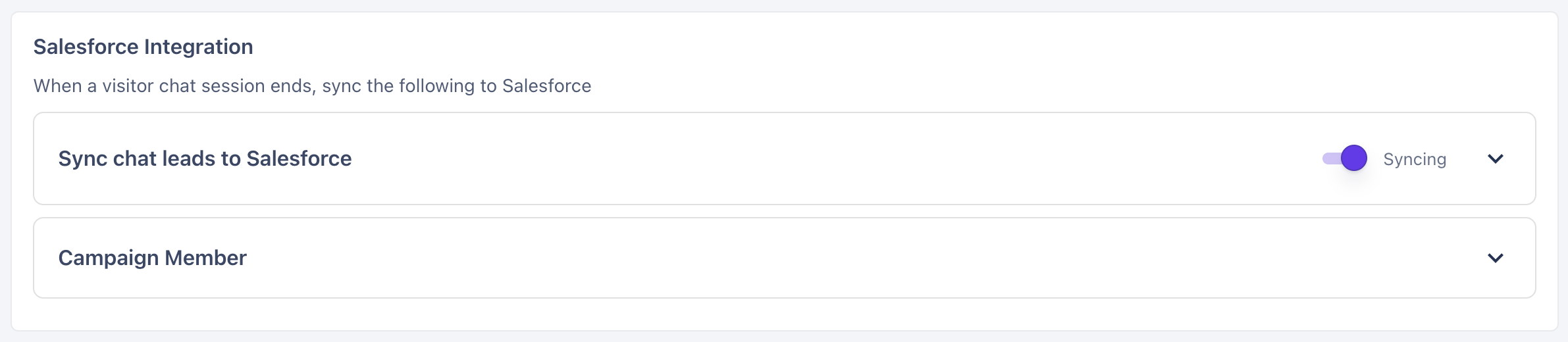
How to enable it:
Navigate to Inbound Agent → Chat -> Settings
Enable Sync chat leads
Apply a Segment to filter which chat-engaged visitors are written back
Filtering with Segments: Just like Website Visitor Writeback, you can apply segments to Chat Lead Writebacks to ensure only ICP-fit chat leads are synced. This is especially useful if your chatbot is deployed on high-traffic pages where non-ICP visitors may also engage.
3. Outbound Agent (Orchestrator)
What it does: Syncs specific prospects, contacts, companies, or other visitors to your CRM as part of an Orchestration workflow. This includes leads sourced from 2nd party signals (social media activity, job changes, etc.) and 3rd party signals (Bombora research intent) — not just your own website visitors.
When to use it: You want granular, workflow-level control over exactly which records get written to your CRM and when. This is ideal for syncing outbound prospects, signal-triggered leads, or any audience that goes beyond your direct website traffic.
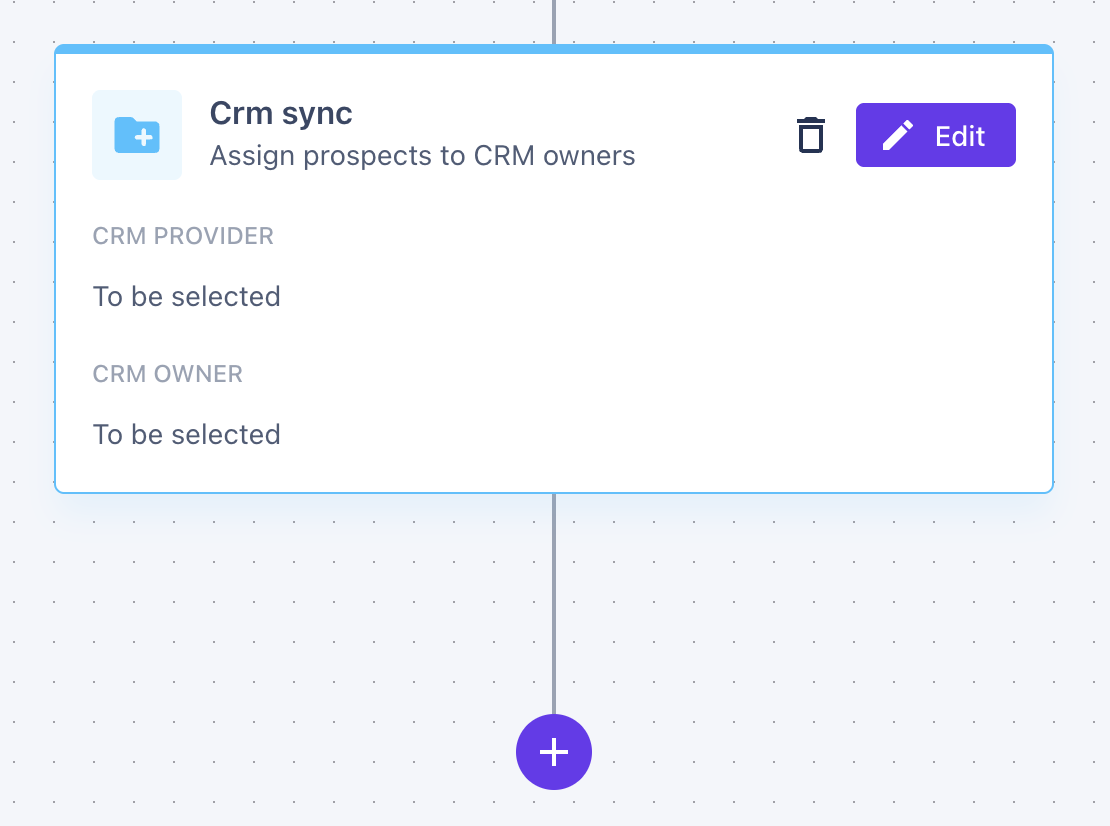
How to enable it:
Navigate to Outbound Agent
Create a new Orchestration or edit an existing one
Add a Sync to CRM step
When the Orchestration runs, any qualifying person or company will be created or updated in your CRM.
Filtering with Segments: You can apply segments in the Audience and People steps of an orchestration. Only records that meet your ICP criteria progress to CRM sync, sales engagement sequences, or other outbound actions.
Configuring CRM Object Settings
For each CRM object type (Lead, Contact, Account/Company), you can configure how Warmly interacts with it. These settings are found in Settings → CRM Integration under each object type.
For each object, you can control:
Create: Whether Warmly is allowed to create new records of this type
Update: Whether Warmly is allowed to update existing records of this type
Custom Field Mapping: Which custom fields Warmly should read from, what values to write to them
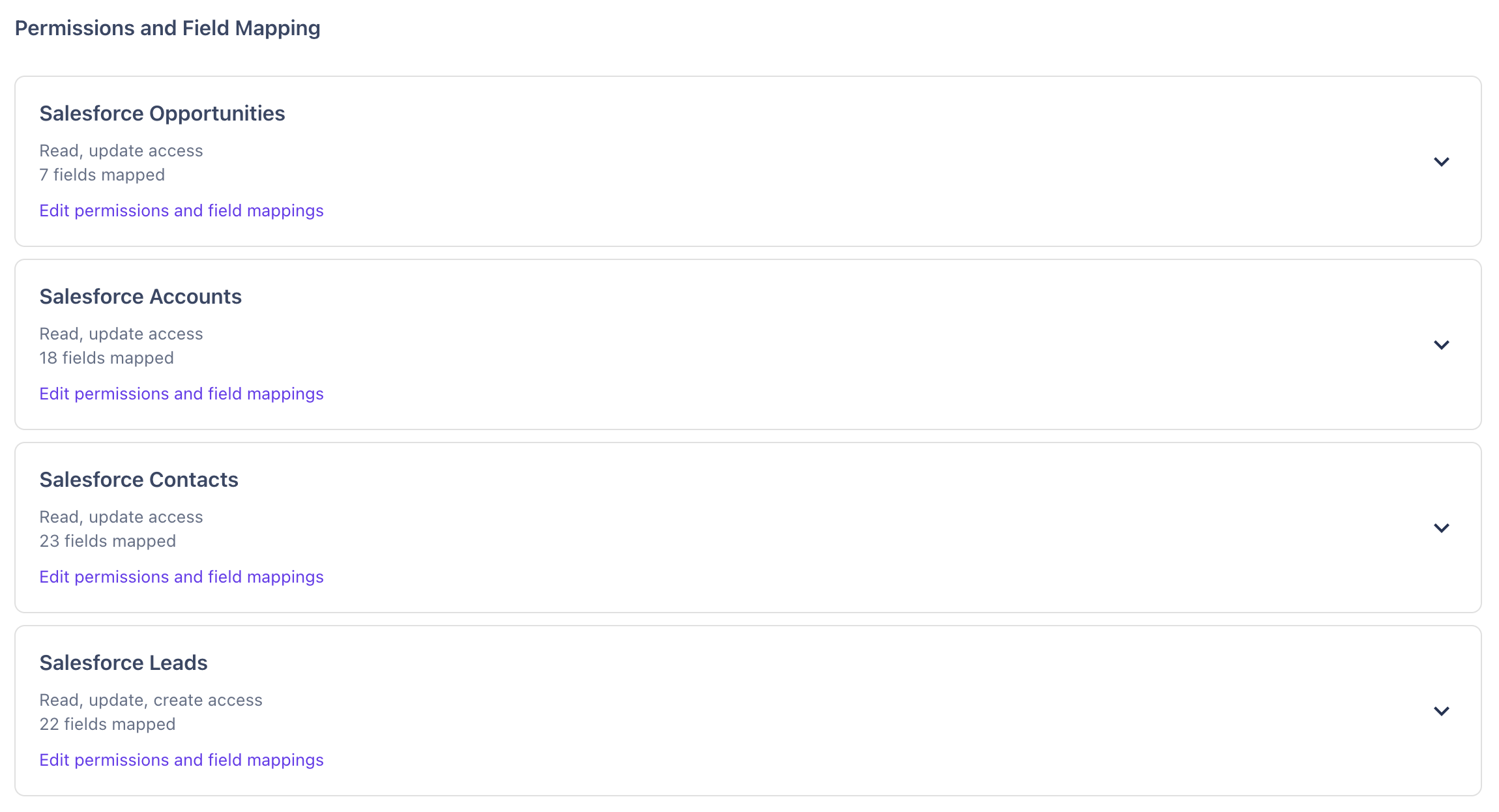
Important: These object-level configurations are global - they apply across all three writeback workflows. For example, if Lead creation is disabled here, no workflow — Website Visitor, Inbound Agent or Outbound Agent — will be able to create new Leads.
How Segments Work Across Workflows
The key rule: Segments applied to one workflow have no impact on another workflow.
For example:
A segment applied to the Website Visitor workflow does not affect which records the Outbound Agent writes to your CRM
Segments inside an Orchestration do not change Website Visitor or Inbound Agent (Chat lead) behavior
Each workflow operates independently. Configure each one according to the specific audience you want that workflow to capture.
Best Practices
Use object settings as your safety net. If you only want Warmly to update existing records (not create new ones), disable record creation at the integration level. This acts as a global guardrail regardless of what individual workflows are configured to do.
Start narrow, then expand. When enabling any writeback workflow for the first time, apply a tight Segment that mirrors your core ICP. Monitor the records being created in your CRM for a week, then gradually broaden your filters as you gain confidence in data quality.
Mirror your ICP across workflows. Since each workflow's filters are independent, make sure your ICP criteria are consistently applied to Website Visitor Writeback, Chat Lead Writeback, and any Orchestrations with a Sync to CRM step. Inconsistent filtering are the most common cause of CRM noise.
Related Articles / Next Steps
Have questions or feedback? Reach out to your CSM or email us at [email protected]