Warmly Implementation Documentation: Slack
Last updated: March 11, 2026
Note: This is available to all Warmly users.
Warmly’s Slack integration makes it easy for your team to get real-time alerts whenever someone visits your website. By using segments, you can filter out noise like low-intent or non-ICP visitors - and prioritize the visits that matter most.
Here’s a quick guide to help you get your first Slack alert up and running in just a few clicks!
⚠ Before You Begin
Please make sure of the following:
Ensure that your slack channels are public channels.
We do not support private channels. Here's a step-by-step guide on how to convert a channel to public.You must have the right permissions.
The person performing the migration should be a Slack Admin or have permission to install apps. Failure to do so will result in this error:{"statusCode":500,"error":"Internal Server Error","message":"Error creating slack notification - Unauthorized"}
❓What can our integration access?
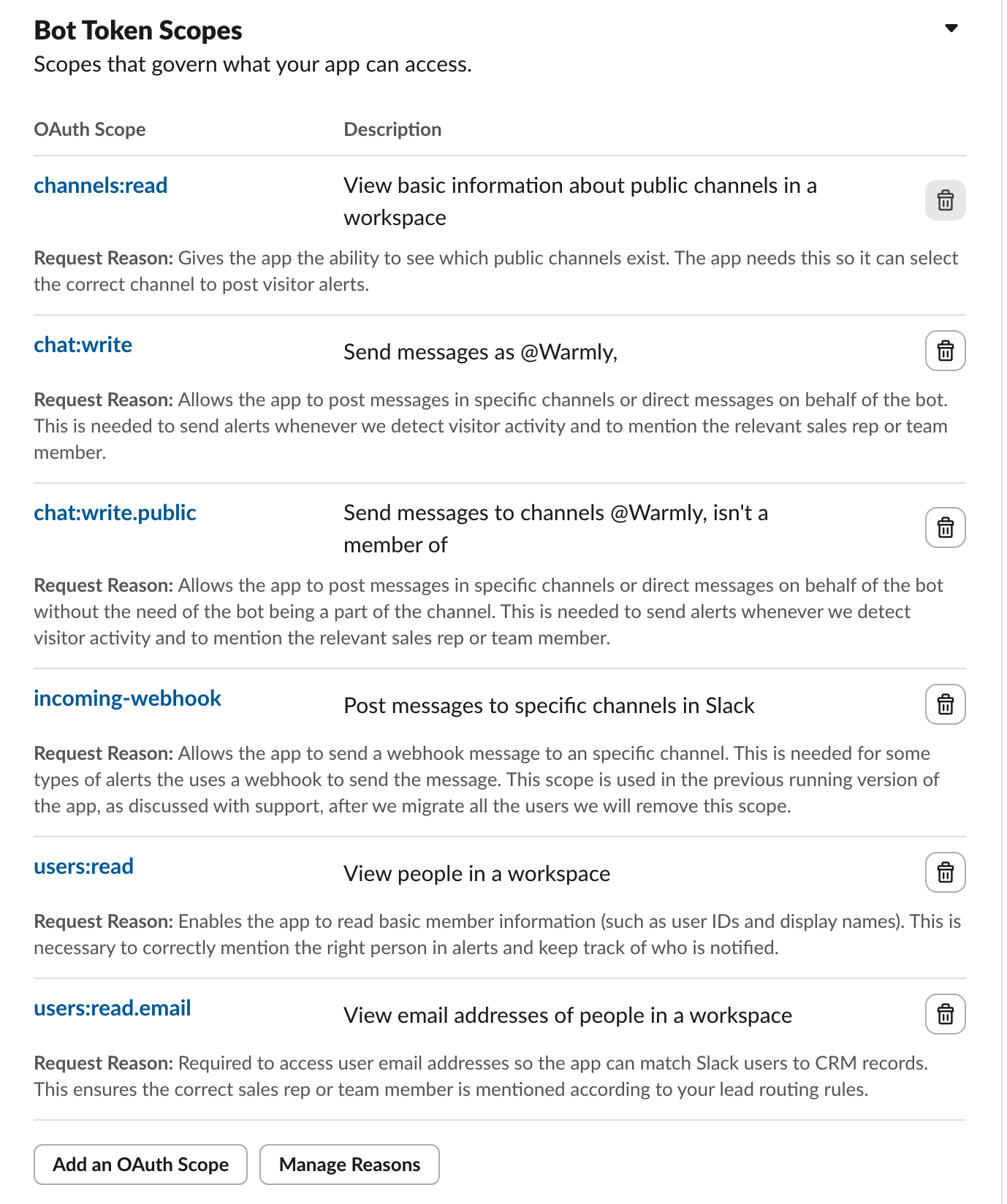
🛠 Step-by-Step Instructions
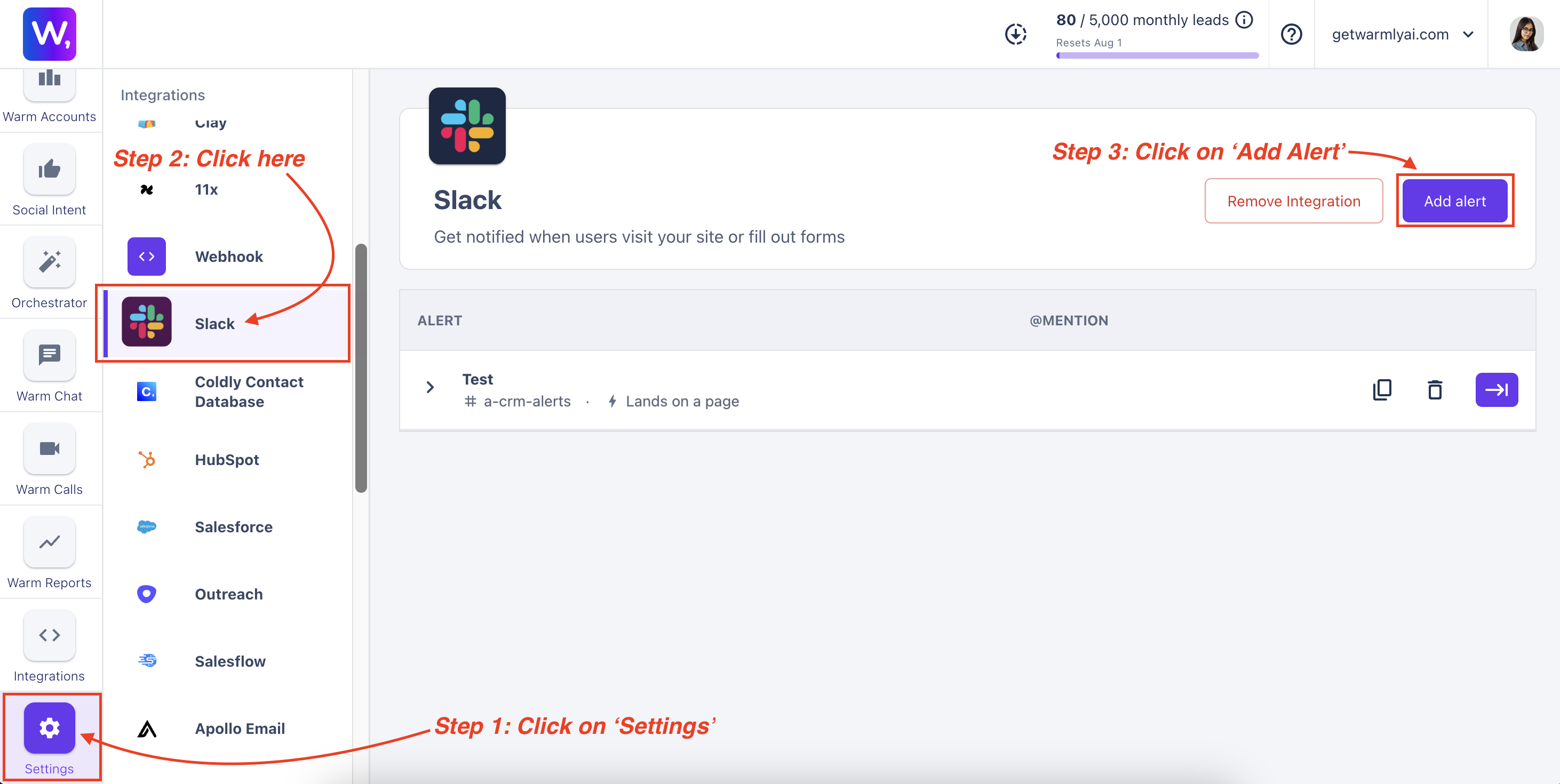
Step 1: Connect Slack to Warmly
Go to Settings in the left-hand sidebar.
Scroll down to the Integrations section and click on Slack.
Allow Warmly to access your Slack workspace.
Step 2: Click on 'Add Alert'
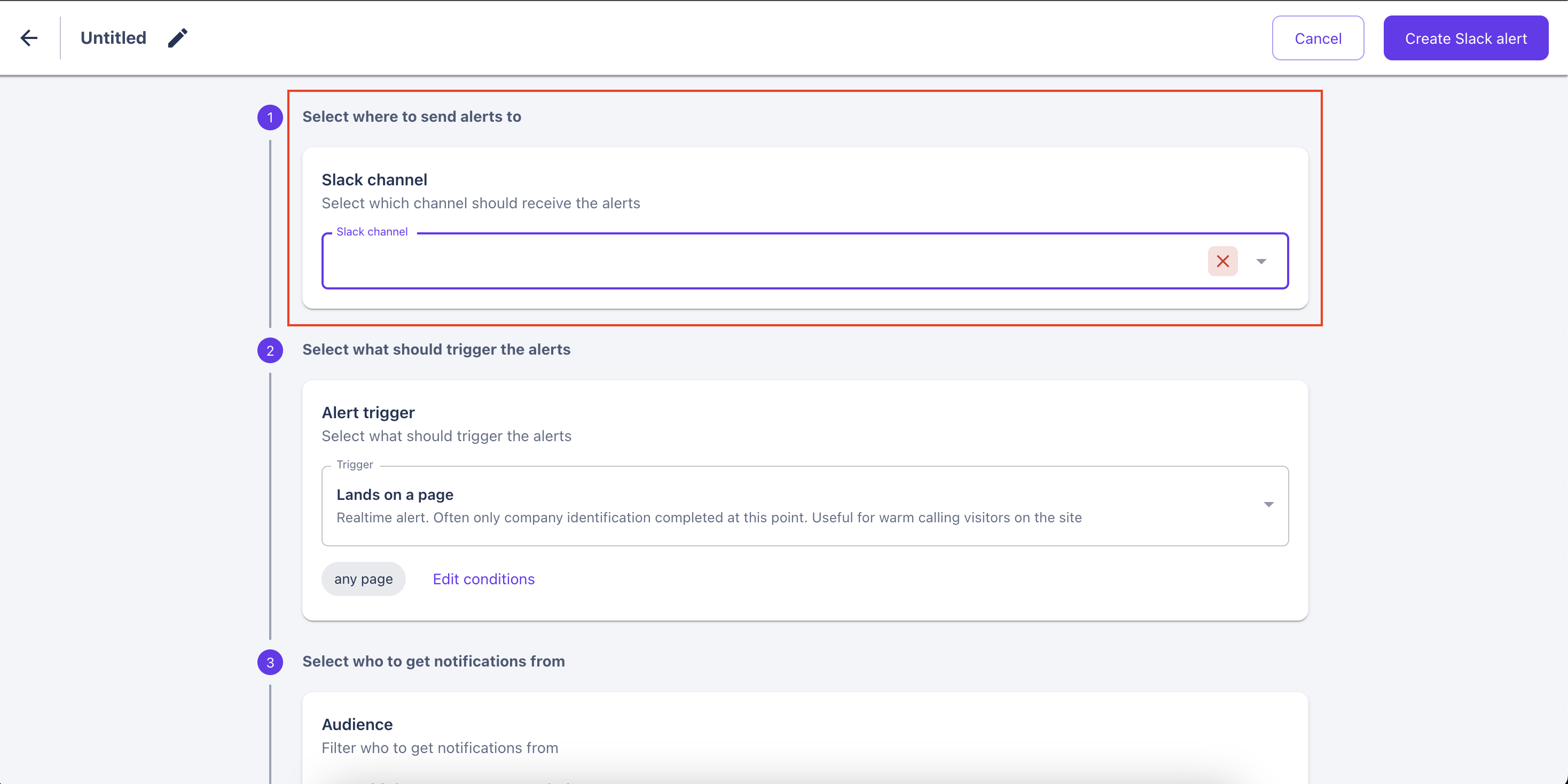
Step 3: Select a Slack Channel to send alerts to
Once you connect your Slack workspace to Warmly, you’ll see a dropdown with all your public Slack channels.
Note: You can only pick one channel per alert.
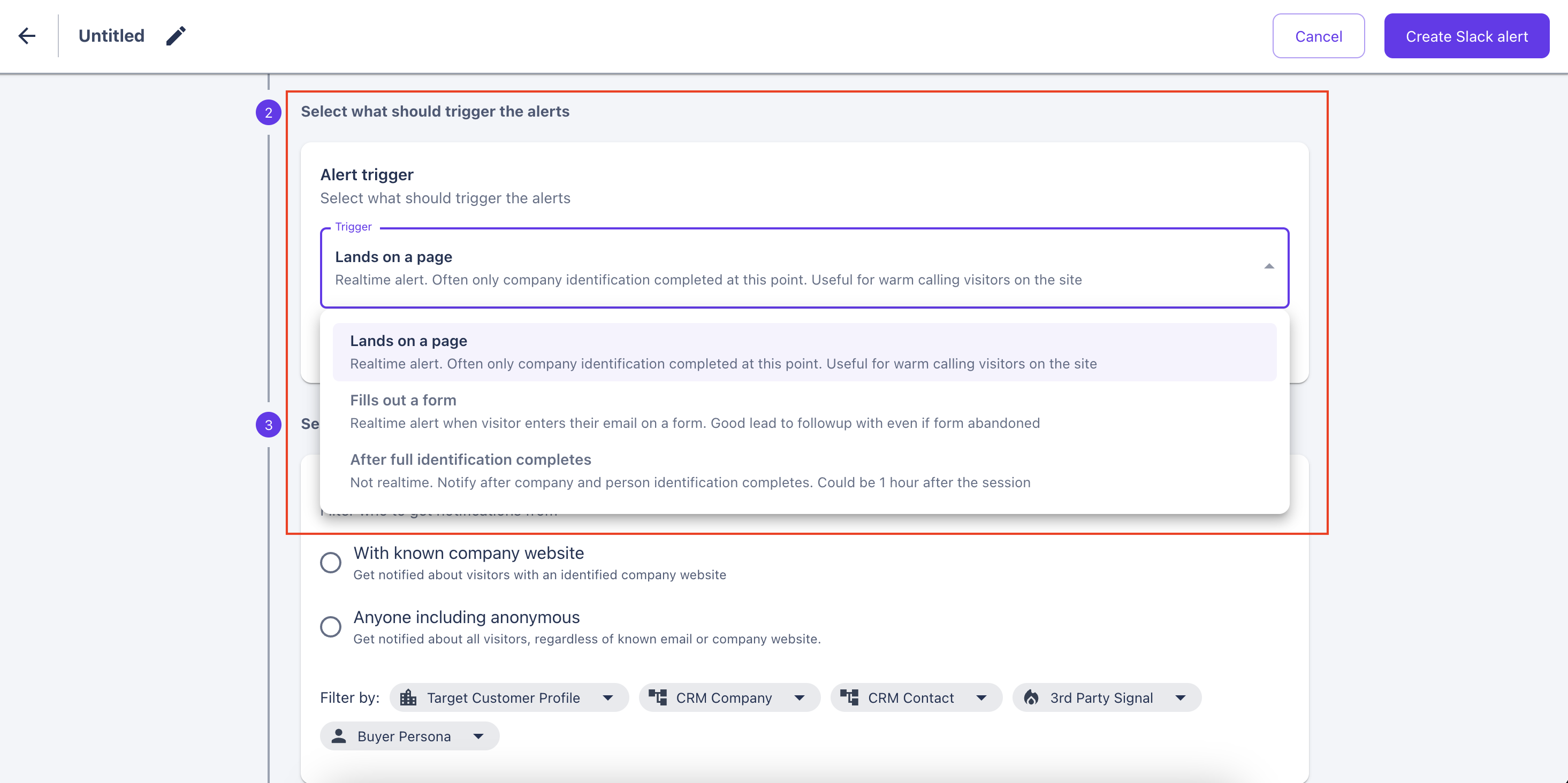
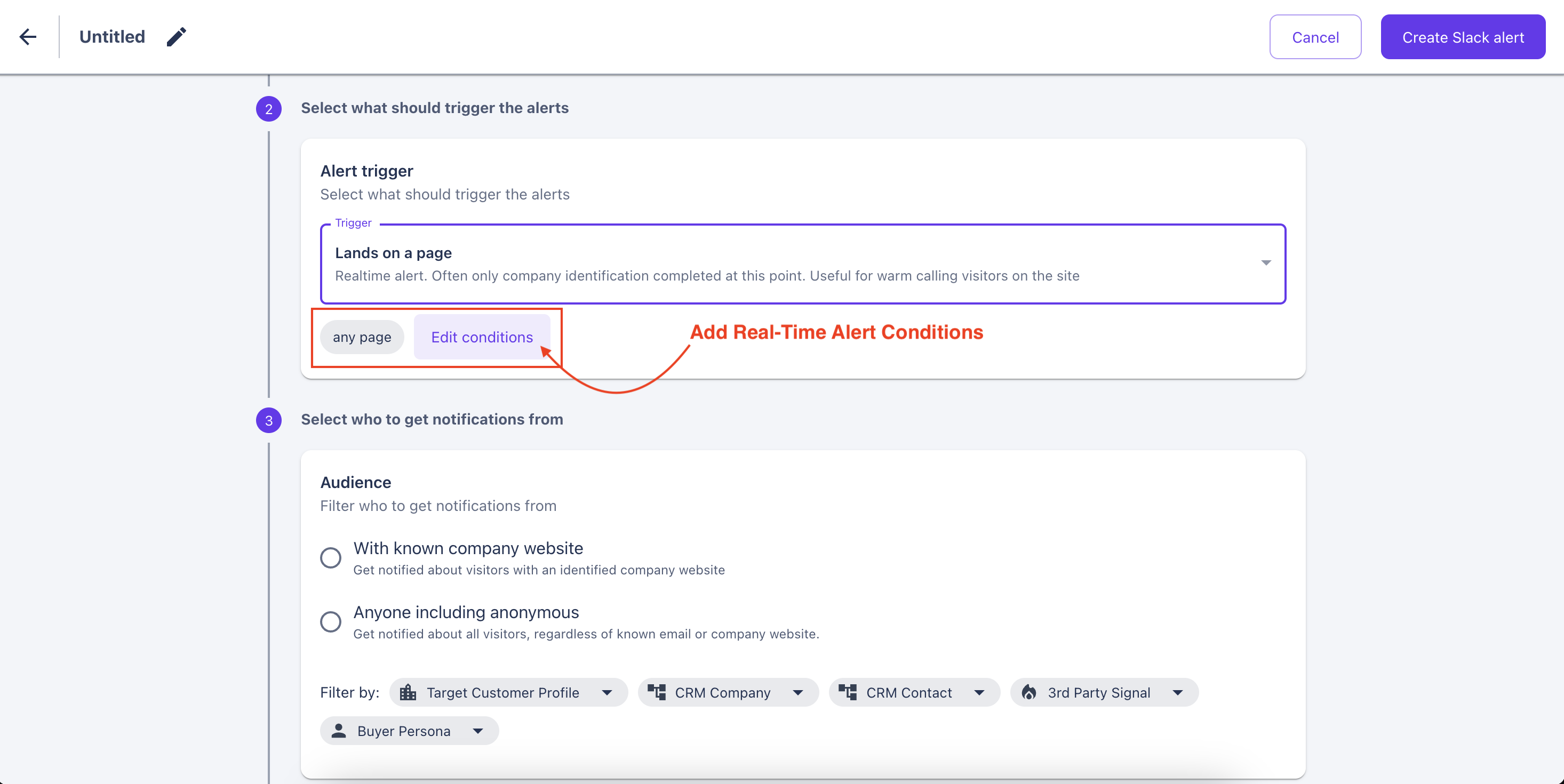
Step 4: Select what should trigger the alerts
Step 4a: Pick an Alert Type
Lands on a page: Alerts fire in real time when a visitor hits a page (great for warm calling).
Note: At minimum, only company-info is required, but includes contact info if found.
Fills out a form: Alerts fire in real time when a visitor is detected entering their email on a form. Good lead to follow-up on even if they abandoned the form.
Note: At minimum, only person-info is required, but includes company info if found.
After full identification completes: Not real-time. Alerts fire only after both company and person-level details are found.
Note: May take a few minutes or up to an hour.
Step 4b: Configure real-time conditions (optional)
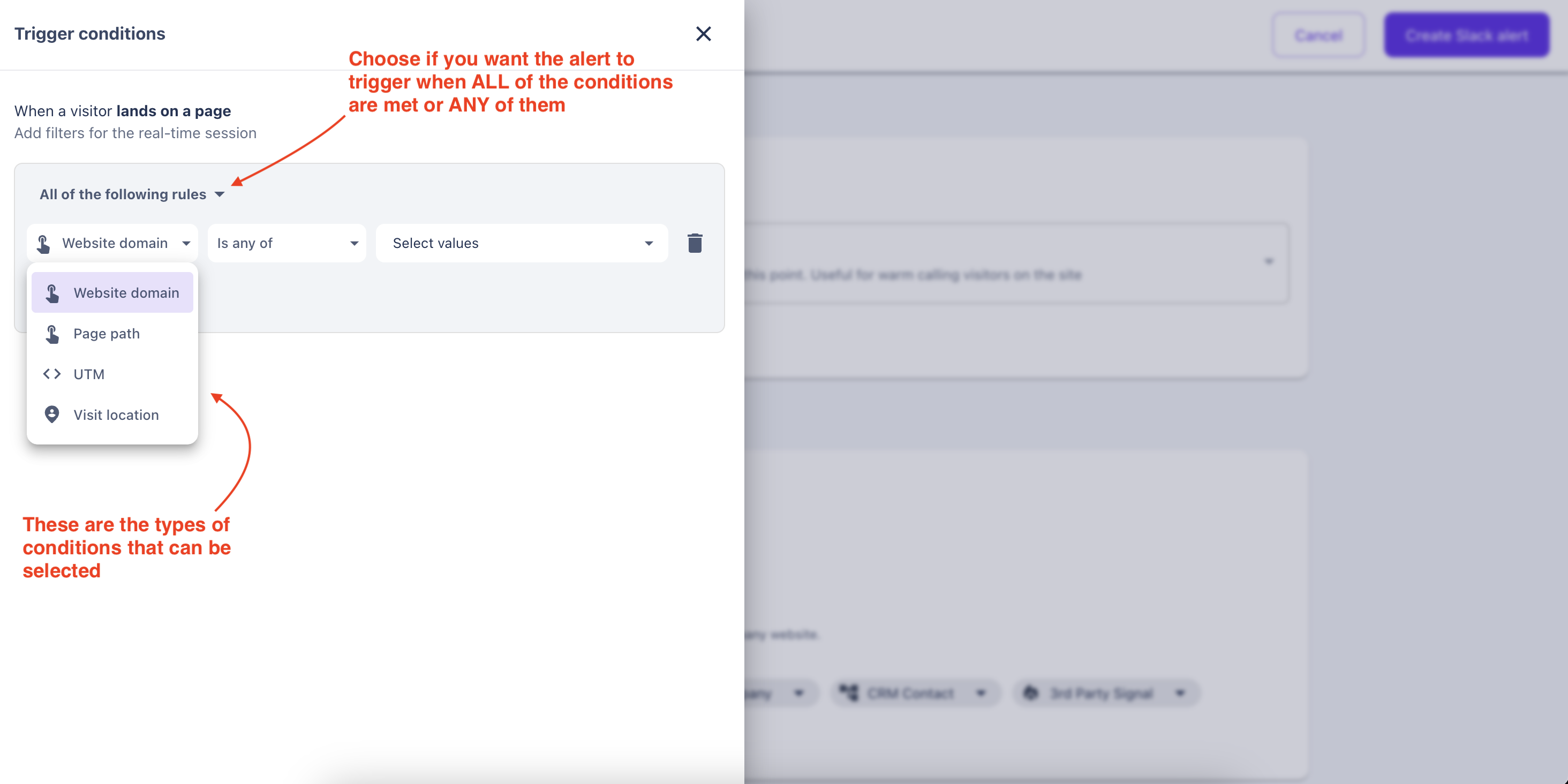
You can add multiple alert conditions, and choose whether all or any of the conditions need to match.
Website Domain: e.g. alerts only for visits to
yourcompany.comPage Path: e.g. alerts only for when someone lands on
/pricingUTM: e.g. alerts only for visits from a certain marketing campaign.
Visit Location: e.g. alerts only for visitors from specific countries.
Step 5: Configure who to get notifications for
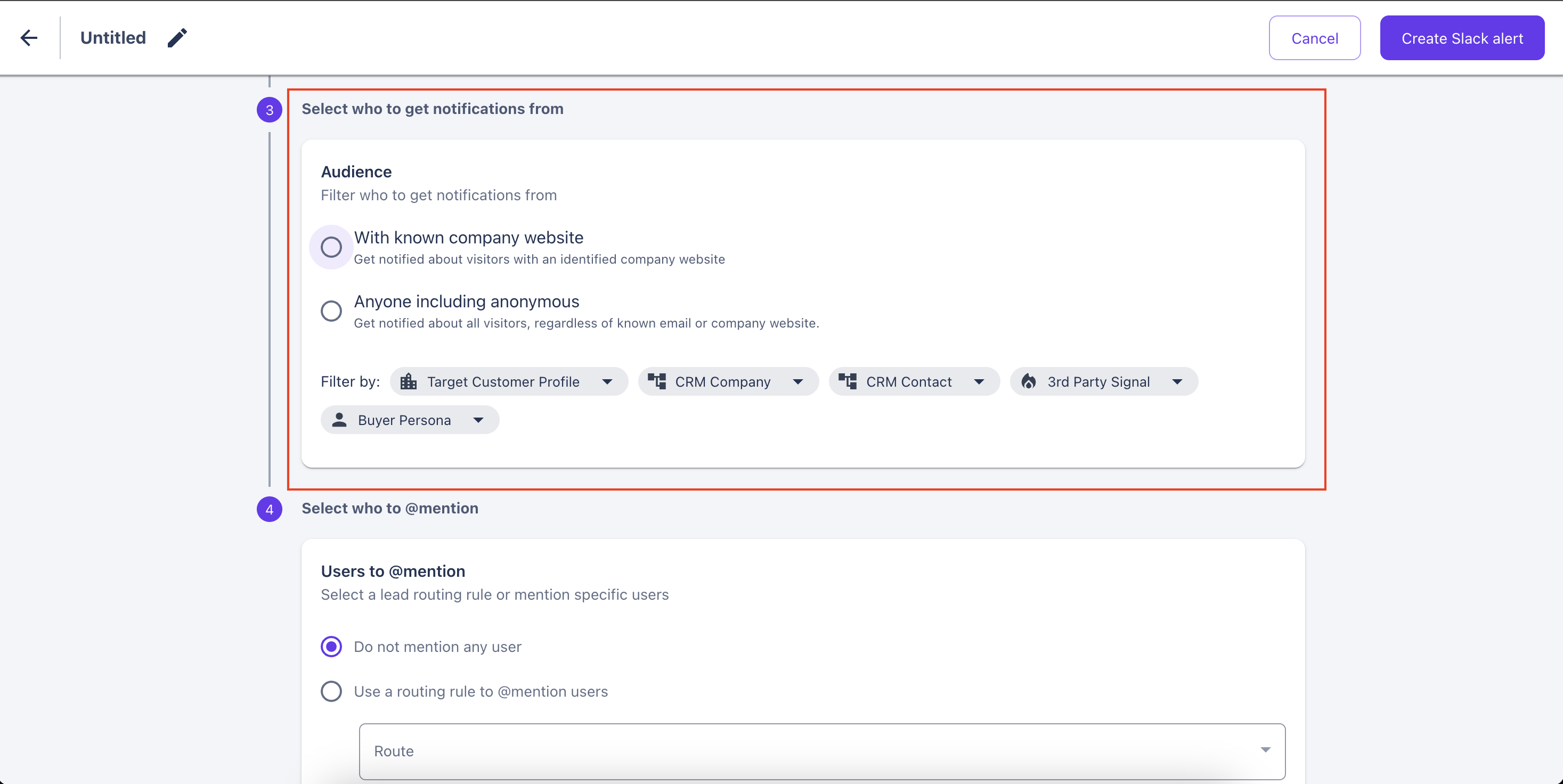
With known company website: Only get notified about visitors with an identified company website.
Anyone including anonymous: Get notified about all visitors, regardless of known email or company website.
Optional: You can also add segments to target specific accounts, like SDR-owned accounts or closed-lost deals.
Step 6: Select who to @mention in notifications
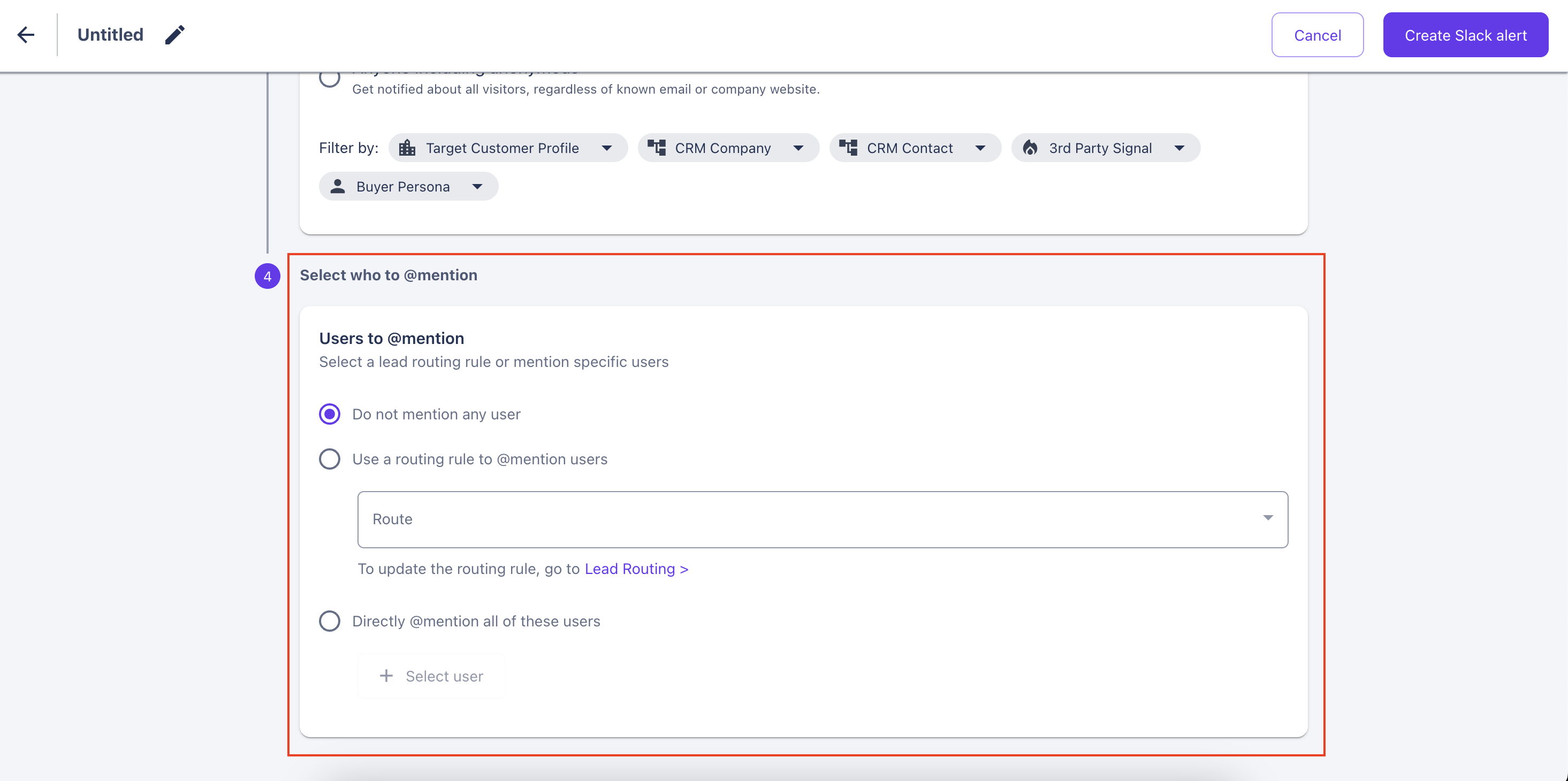
Do not mention any user: No slack users will be mentioned in any slack notifications to this channel by this Slack alert.
Use a routing rule to @mention users: You can set up assignment routes using Lead Routing to automatically @mention specific reps/users.
Directly @mention all of these users: You can select multiple users that will be mentioned in any slack notification sent to this channel by this Slack alert.
Note: Users must be members of your Slack workspace.
Step 7: Give a name to your Slack Alert
Lastly, give your alert a name, click "Create Slack Alert", and you’re done! 🚀
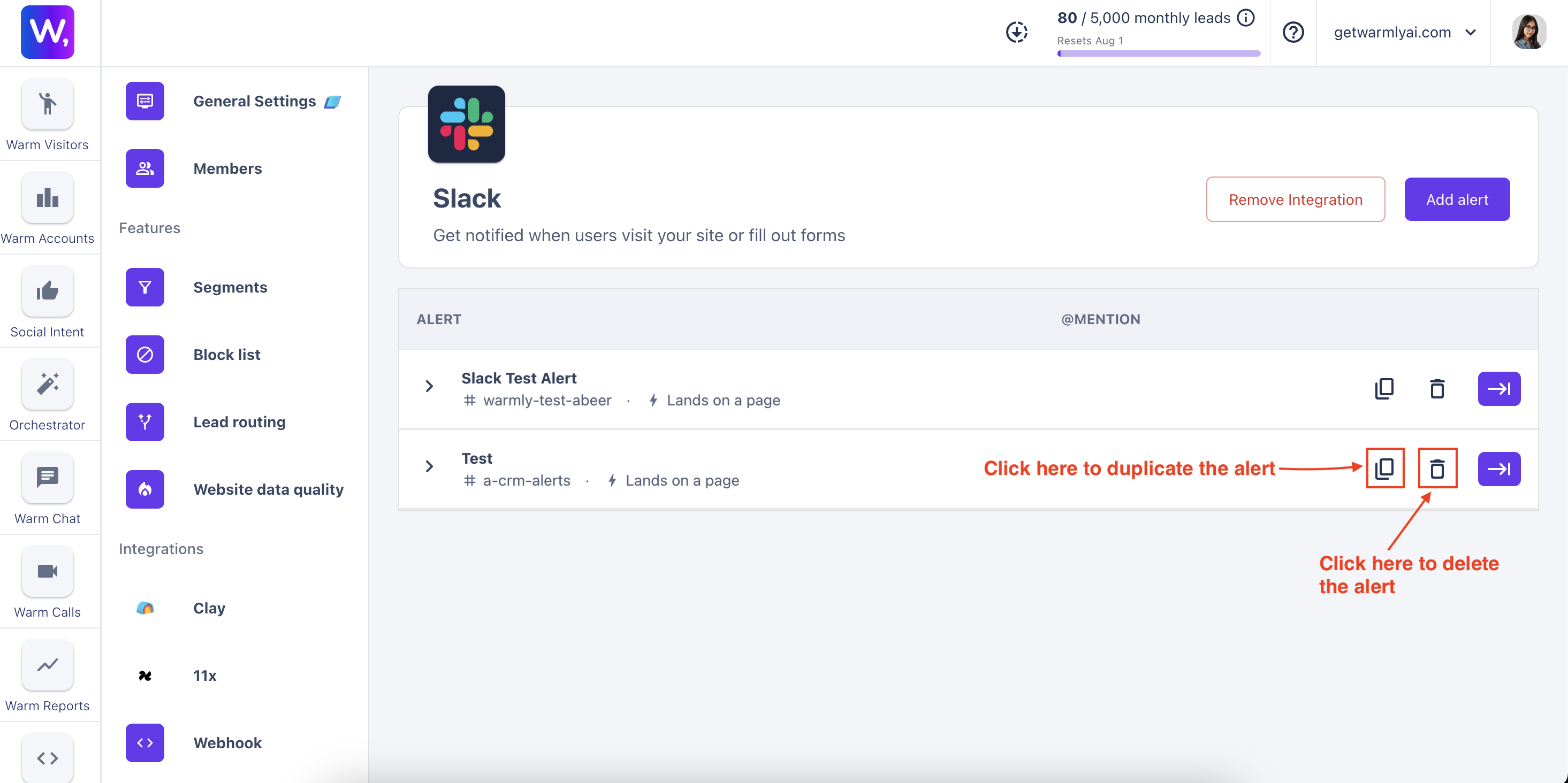
Your new alert will now show up in the list, and you can edit, duplicate, or delete it anytime.

Related Articles
Have questions or feedback? Reach out to your CSM or email us at [email protected]