Set up a Slack Alert for Chat Notifications
Last updated: August 5, 2025
Note: This feature is a part of Warm Chat, which is not available to Freemium users.
If you’re using a Chat workflow in Warmly, chances are you’ll want to loop in your sales or customer success team when someone interacts with it. Adding a Slack alert to your workflow helps make sure the right person is notified at the right time, without missing a beat.
In order to make sure these notifications are routed to your proper team, be sure to follow these steps!
⚠ Before you start:
Please make sure of the following:
Your Slack workspace is integrated with Warmly.
Make sure the Slack channel you want to use is public.
We do not support private channels. Here's a step-by-step guide on how to convert a channel to public.
🛠 Step-by-Step Instructions
Step 1: Go to Warm Chat
Head to Warm Chat in your Warmly dashboard.
Find the workflow you'd like to edit.
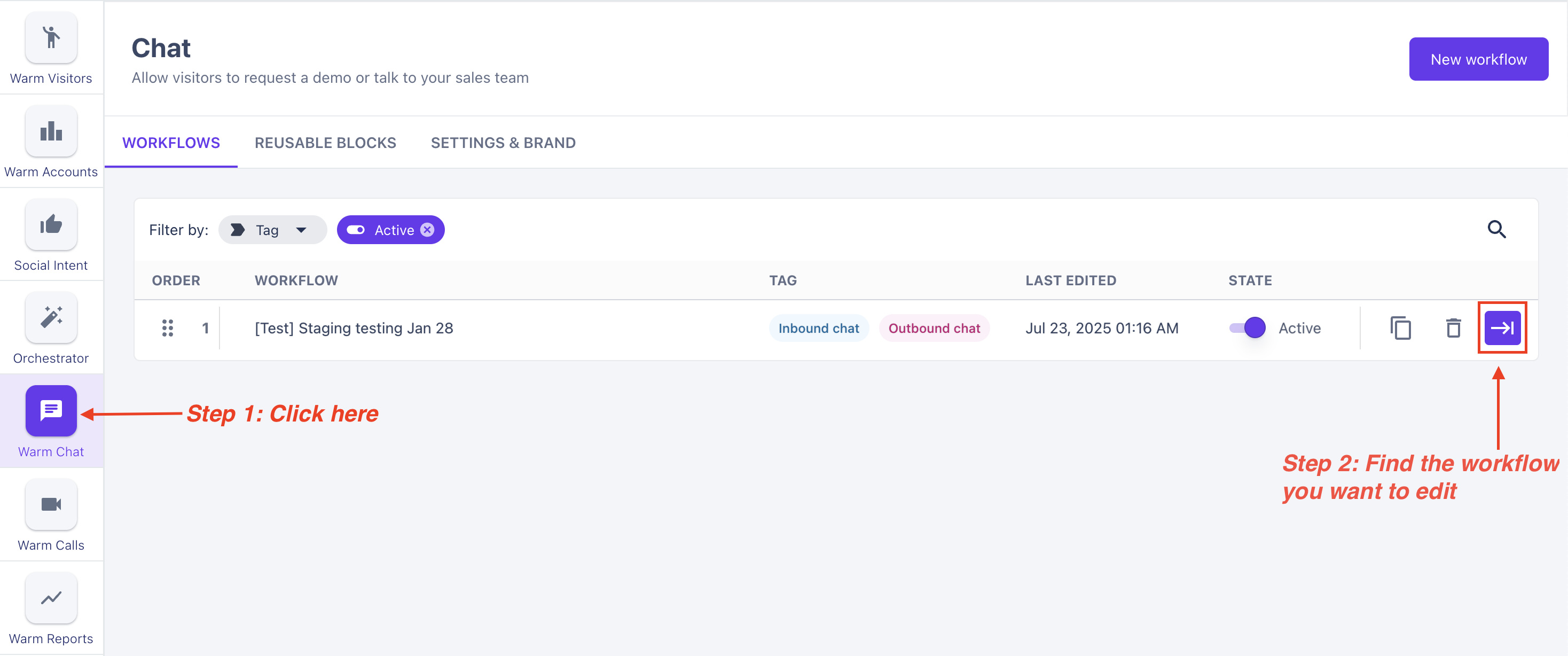
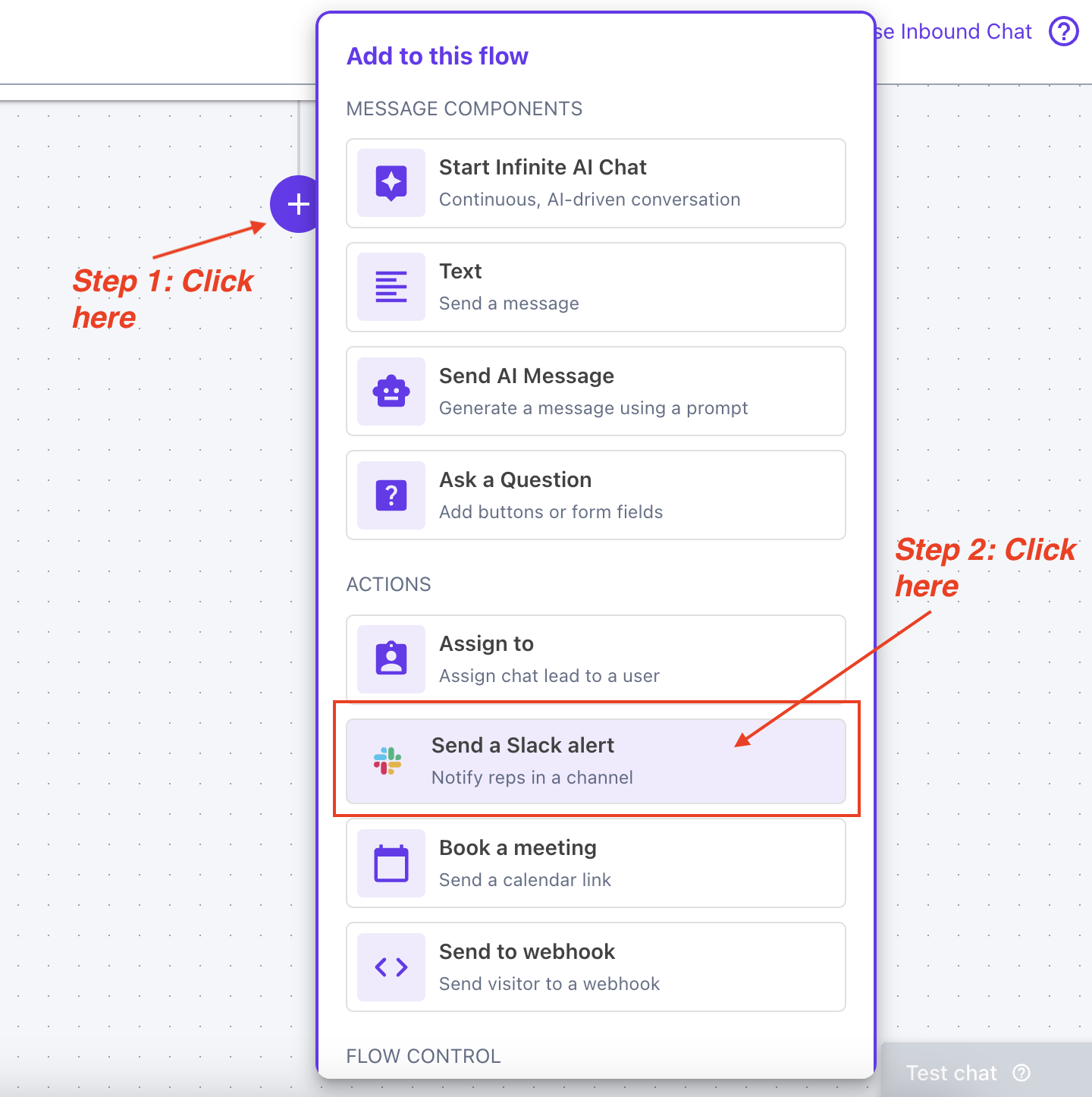
Step 2: Add A Slack Alert to the Workflow
In the workflow editor, add in the Slack Alert block where you want the notification to trigger.
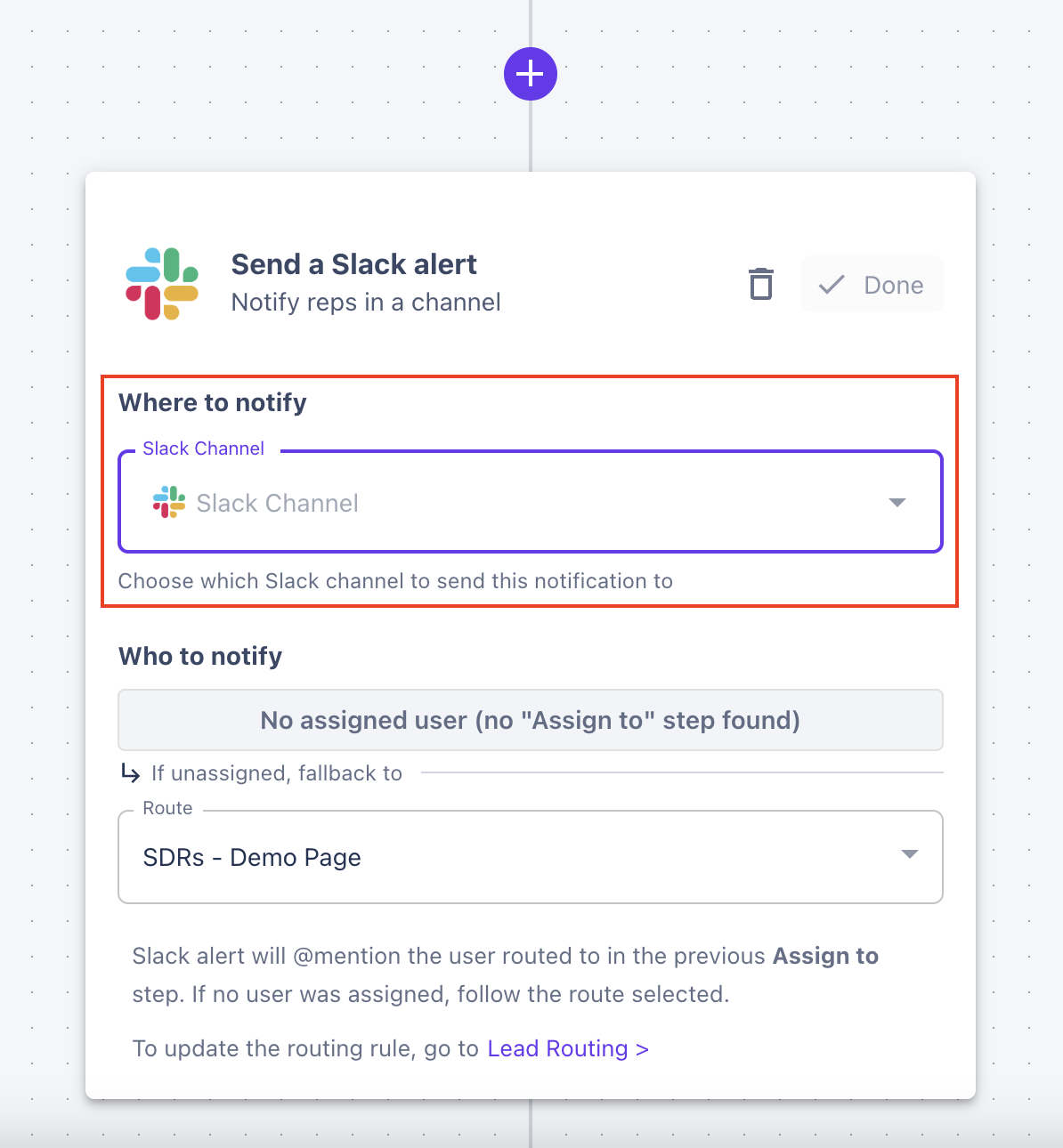
Step 3: Choose a Slack Channel
All public Slack channels will appear in the dropdown. Pick the one where you want the alert to go.
Step 4: Decide Who Gets Notified
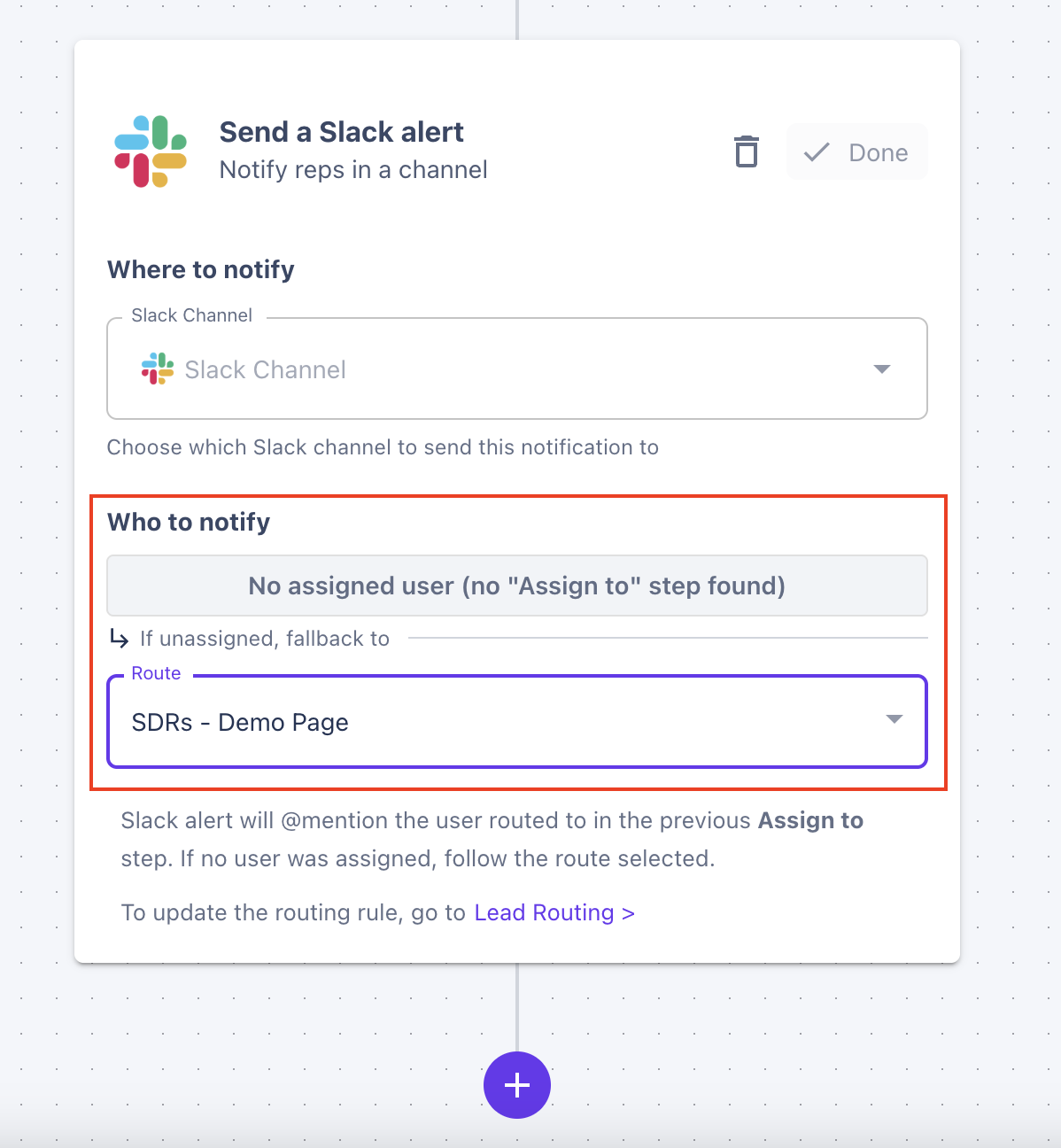
You’ve got two options:
Assign a user manually
Add an "Assign To" block just before your Slack Alert block. This lets you assign a specific user to @mention always when a notification is triggered by this chat workflow.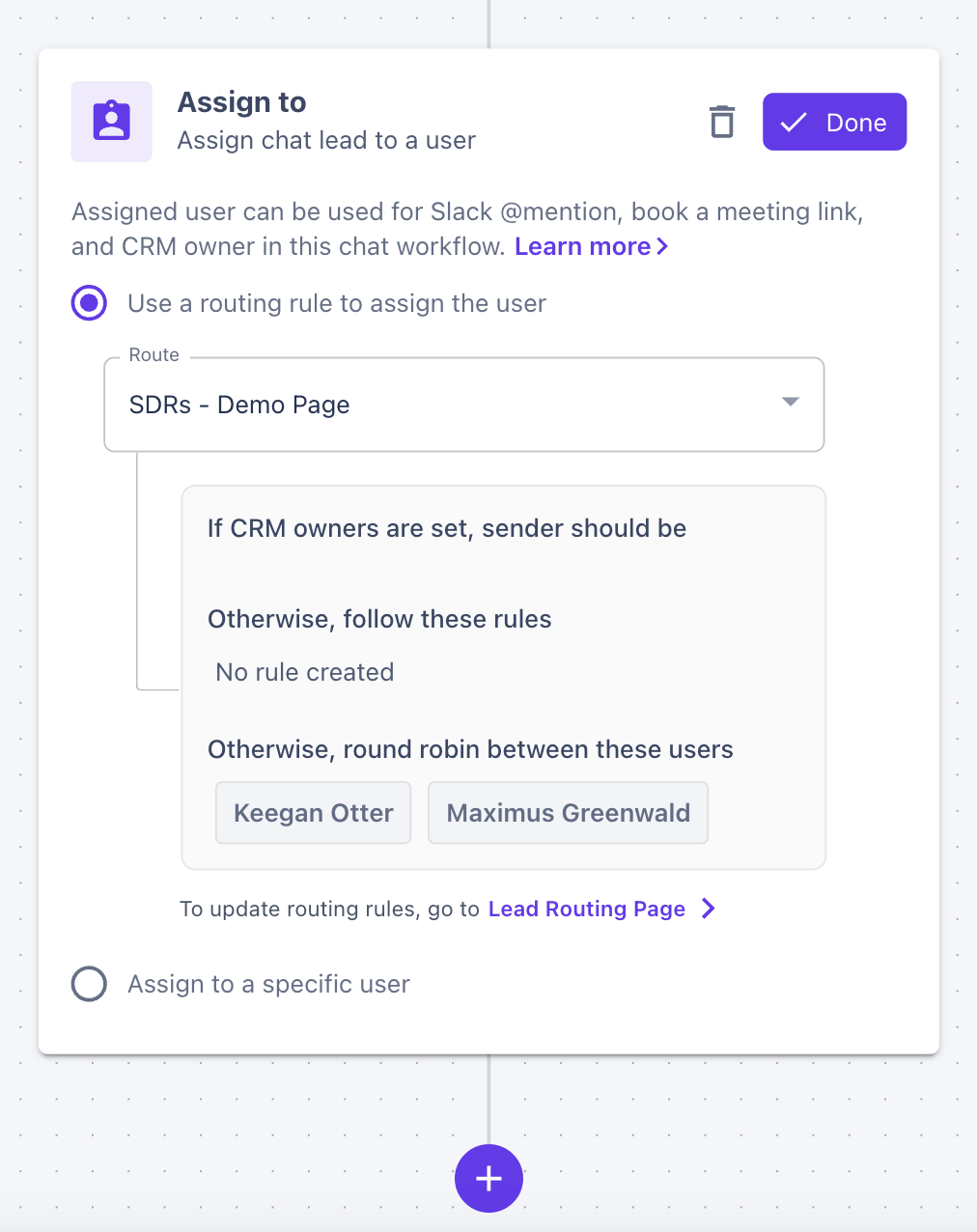
Use Lead Routing
Automatically @mention the right reps based on who is engaging with your chat.
Step 5: Publish & Test
Click Publish to save your changes.
Test the flow to make sure the Slack Alert fires correctly.
💡 Use Cases
Here are a few examples of how teams use Slack alerts in chat workflows:
Sales Alert: Notify the account owner when a high-intent visitor starts chatting on the pricing page.
CS Handoff: Let your CS team know when a current customer engages with the bot, so they can jump in quickly.
Have questions or feedback? Reach out to your CSM or email us at [email protected]