Testing your Slack Alert
Last updated: December 29, 2025
Note: You must have a Slack Alert set up in Warmly to do this.
Want to make sure your Slack Alerts are working and catching the right visitors? This quick guide walks you through how to test your Slack Alerts so you know you’re getting notified about the visits that matter most!
⚠ Before You Begin
Make sure your Warmly script has been added to your website and is working properly.
🛠 Step-by-Step Instructions
Step 1: Open an incognito browser window
This helps avoid any issues caused by saved cookies or sessions.
We recommend using Google Chrome.
Step 2: Add your email to the end of the URL (using the w_email parameter)
This simulates a visitor and lets you test the alert. Just make sure you’re not using an email domain you’ve blocklisted or excluded through segments — those sessions will be automatically filtered out, and won’t trigger a Slack alert.
Example without UTM parameters:yourcompany.com/pricing/[email protected]
Example with UTM parameters:
If you've added other UTM parameters, just add the w_email parameter at the end like this:yourcompany.com/pricing/?utm_source=google&[email protected]
Note: Use a business email, ideally one connected to a known company that Warmly can recognize. Try to avoid testing with personal email addresses like Gmail or Yahoo.
Step 3: Check if your session appears in Warm Calls
This confirms that Warmly has detected your visit and the script is working correctly. You’ll also see the company and person-level details Warmly was able to identify based on the email you used.
Note: This feature is only available to paid users. If you’re on the Freemium tier, this part won’t apply.
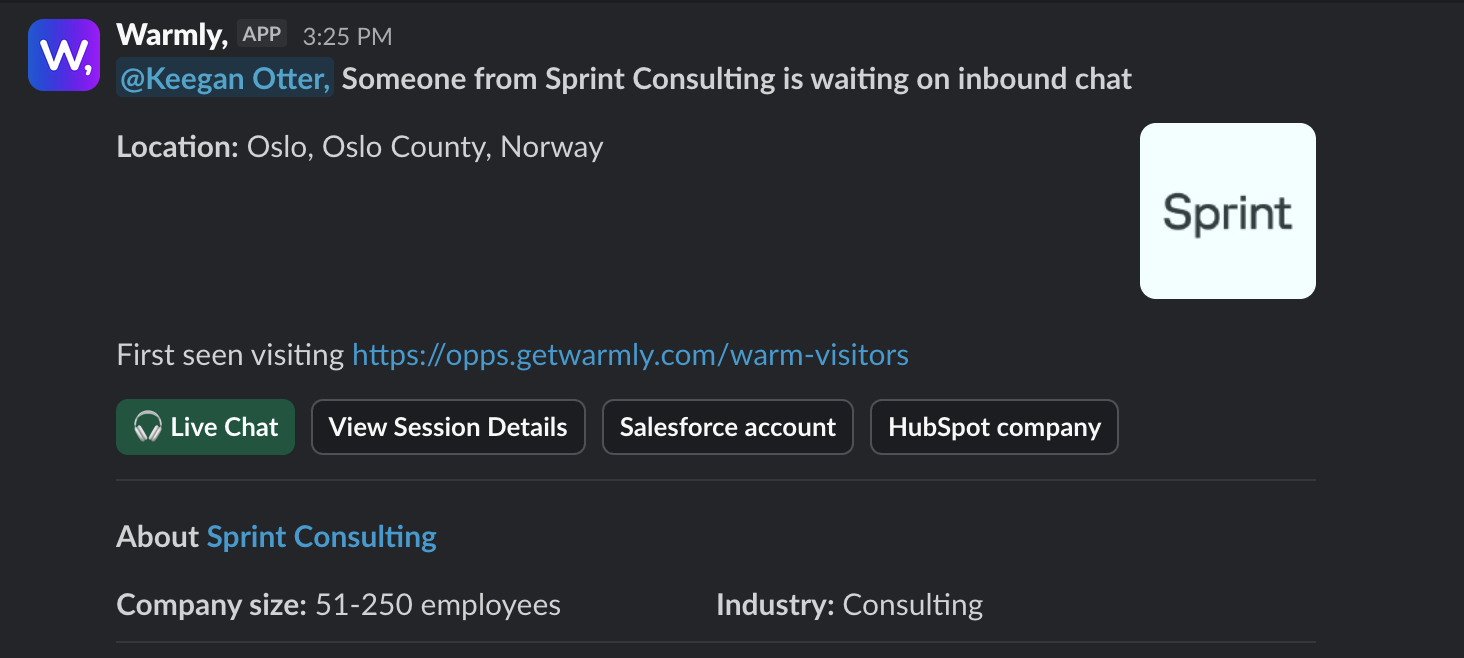
Step 4: Check if a Slack notification appears in channel
If everything is set up correctly, you should see a Slack notification come through.
🚨 What if you don’t see anything?
Try adjusting your Slack Alert settings:
Add or adjust real-time conditions (like specific page paths or domains)
Add or adjust segments to better target the right types of visitors.
Then, just re-test by following the steps above.
Have questions or feedback? Reach out to your CSM or email us at [email protected]