How to Send Warmly Orchestration Leads to Your Google Ad Campaign via Zapier
Last updated: August 12, 2025
Data Flow Outline: Warmly → Webhook → Zapier → Google Ads
1. Get Your Zapier Webhook URL
In Zapier, create a new Zap.
For the Trigger step, search for Webhooks by Zapier.
Choose Catch Hook.
Zapier will give you a unique webhook URL (something like
https://hooks.zapier.com/hooks/catch/...).Copy this URL.
2. Add the Google Ads Action
You now have two main choices:
A. Customer Match Audience
Action: Google Ads → Add Contact to Customer List.
Map the email (or phone) field from the webhook to the correct Google Ads fields.
Zapier/Google Ads will automatically hash the identifiers.
B. Offline Conversion Upload
Action: Google Ads → Send Offline Conversion.
Required fields:
GCLID (from the webhook payload)
Conversion Action (set up in Google Ads)
Conversion Time (timestamp)
Value (optional, numeric)
This option ties the lead directly to the click that generated it.
3. Send Leads from Warmly to Zapier
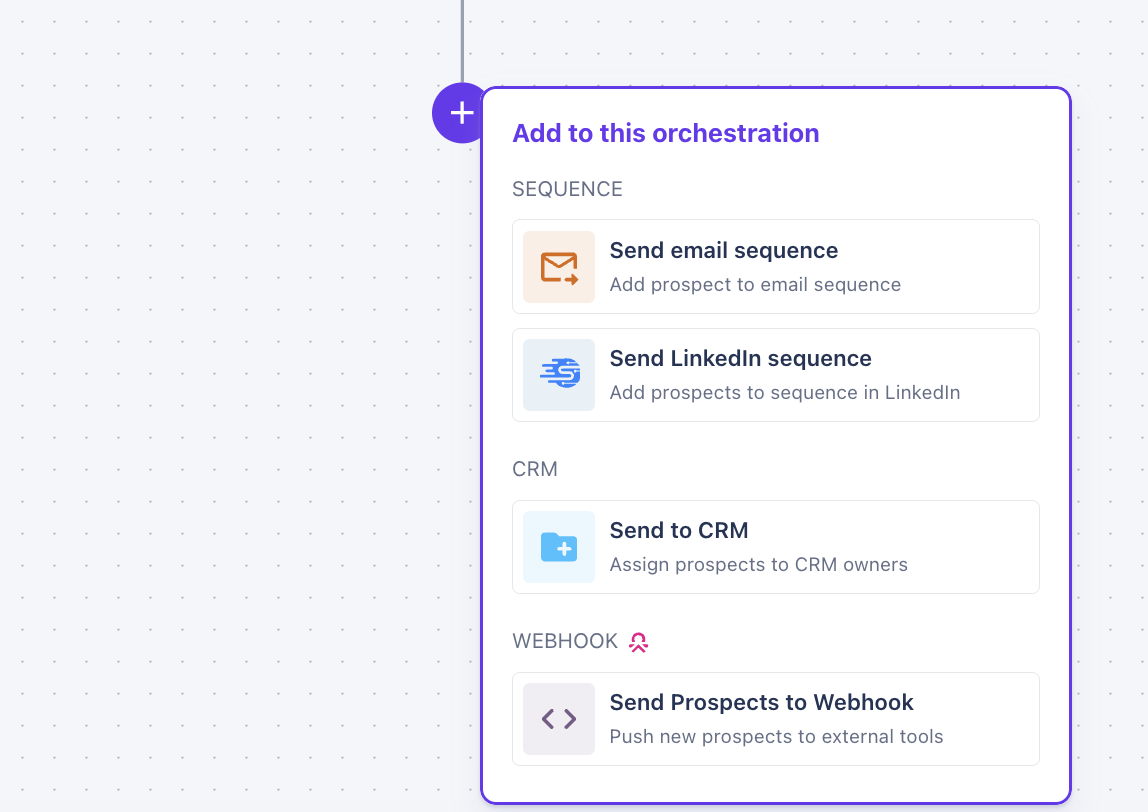
Select the Warmly Orchestration you would like to use to send leads to Zapier and select Edit Orchestration. Select the p add Webhook
Select Send Prospects to Webhook and paste the Zapier URL.
4. Test the Webhook in Zapier
Back in Zapier, click Test Trigger.
Warmly should send over a sample payload so Zapier can read the field names.
5. Turn It On
Test the full Zap by sending a new Warmly lead.
Confirm in Google Ads that:
Customer Match audience size updates (may take 24–48 hours), or
Offline conversions show up in your conversion column after processing.
Example Payload for Customer Match
{
  "email": "[email protected]",
  "first_name": "Jane",
  "last_name": "Doe"
}
Example Payload for Offline Conversions
{
  "gclid": "EAIaIQobChMI...",
  "conversion_time": "2025-08-12 15:30:00",
  "conversion_value": "150.00"
}