How to Create a Segment that Excludes Current Customers
Last updated: July 29, 2025
This article covers how to create a Customer Exclusion Segment Using CRM Company Filters in Warmly
🔧 Step 1: Sync the CRM Field to Warmly
To create a useful segment, you’ll first need to make sure the CRM field you’ll use (e.g. Account Type) is available in Warmly.
Go to Settings in Warmly.
Click on CRM Integration Settings.
Select Salesforce or Hubspot from the available integrations.
Ensure that the field used to determine current customers (e.g.,
Account Type, Deal Stage, or Lifecycle Stage) is being synced.If it’s not yet synced:
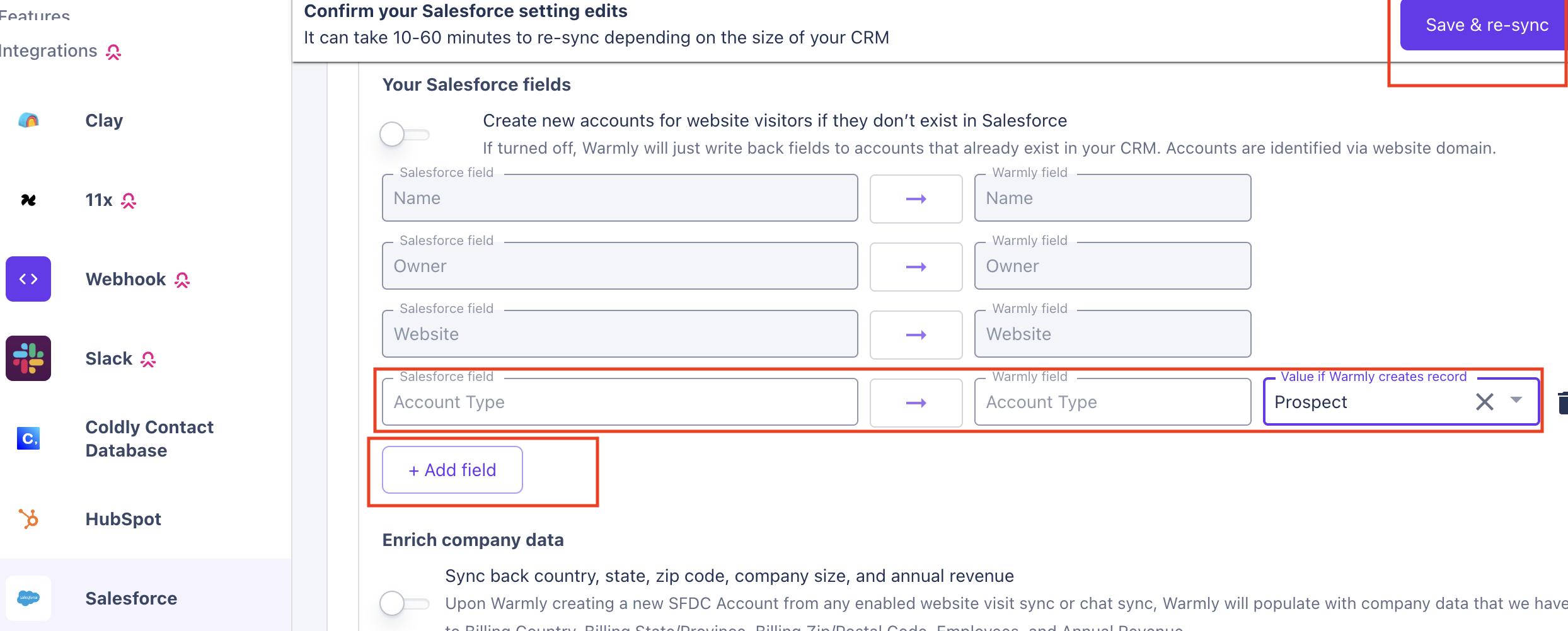
Click Add Field.
Enter the field name (e.g.,
Account Type).Click Save & Resync to pull the field into Warmly.
🎯 Step 2: Create a Segment Based on CRM Company Filter
Now that the appropriate CRM field is available in Warmly, you're ready to create a segment.
In Settings, go to the Segments tab.
Click Create Segment.
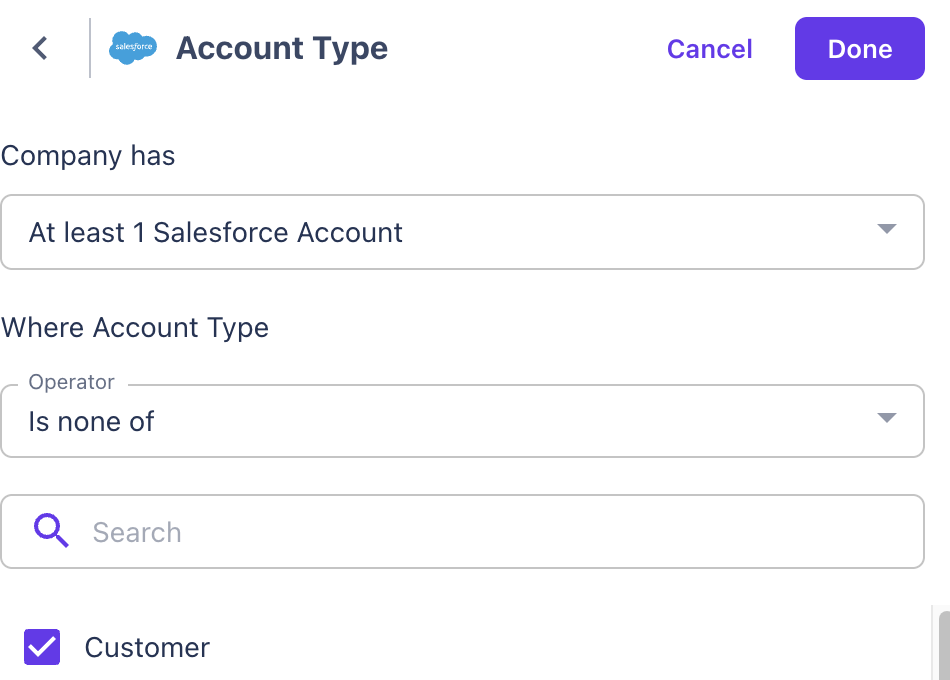
Under Segment Type, choose CRM Company.
Add a filter for:
Account Type (or other synced field)
is none of→CustomerThis ensures that companies labeled as "Customer" in your CRM will be excluded.
✅ Step 3: Save the Segment
Give the segment a descriptive name such as:
"Exclude Current Customers"Click Create Segment.