Troubleshooting Warm Accounts/Visitors CSV Exports
Last updated: November 22, 2024
Troubleshooting Broken Warm Accounts/Visitor Exports
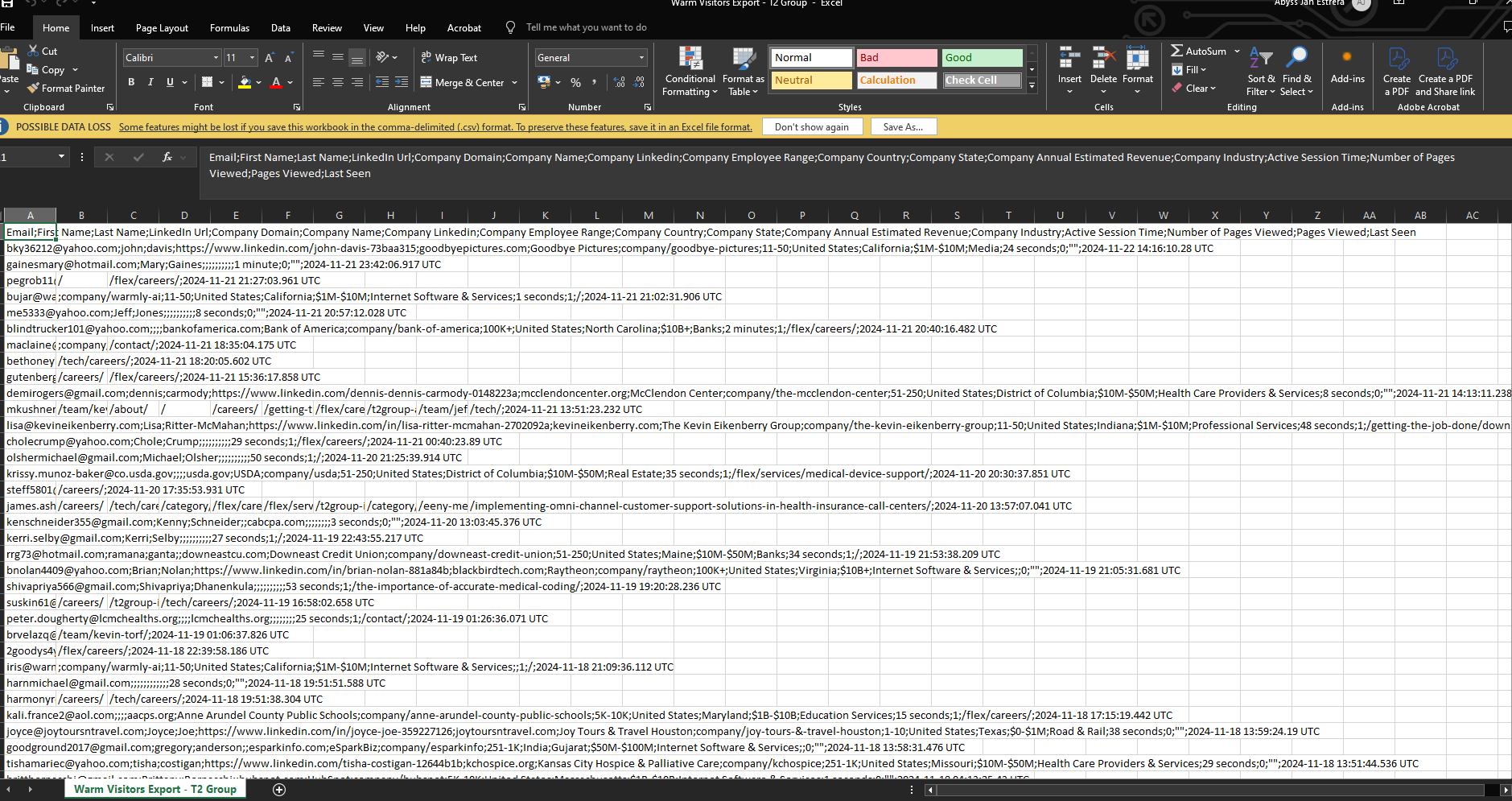
Having trouble with your Warm Accounts or Visitor Exports appearing as a broken or improperly formatted spreadsheet? Don't worry—this is a common issue, particularly on Windows systems, and can be easily fixed by correctly importing the CSV file into Excel.
Example of a broken spreadsheet 👇
How to Properly Import Your CSV File into Excel on Windows
Note: This issue commonly occurs on Windows due to default regional settings that affect how CSV files are handled.
Instead of opening the CSV file directly in Excel, follow these steps to import it with the correct settings:
Open Excel and create a new workbook.
Go to the Data tab and select From Text/CSV.
Locate and select your CSV file.
In the import dialog:
Delimiter: Choose Semicolon.
Click Load to import your data.
By specifying the correct delimiter and settings, Excel will format your data into columns and rows as intended.
Need Further Assistance?
If you're still facing issues after following these steps, please reach out to us at [email protected], and we'll be happy to assist you further.