Warmly Integration Documentation: HubSpot
Last updated: September 2, 2026
Overview
Warmly integrates with HubSpot to be able to read our customers' CRM data in the Warmly platform and to be able to write key data from Warmly over to our customers' CRM.
In this documentation, we will cover:
Setting up the HubSpot integration
Reading data from HubSpot to Warmly
Writing data from Warmly to HubSpot
Hubspot Custom Fields
Syncing Chats to Hubspot
Syncing prospects and companies via Orchestrations (Outbound Agent)
Connecting the HubSpot Integration
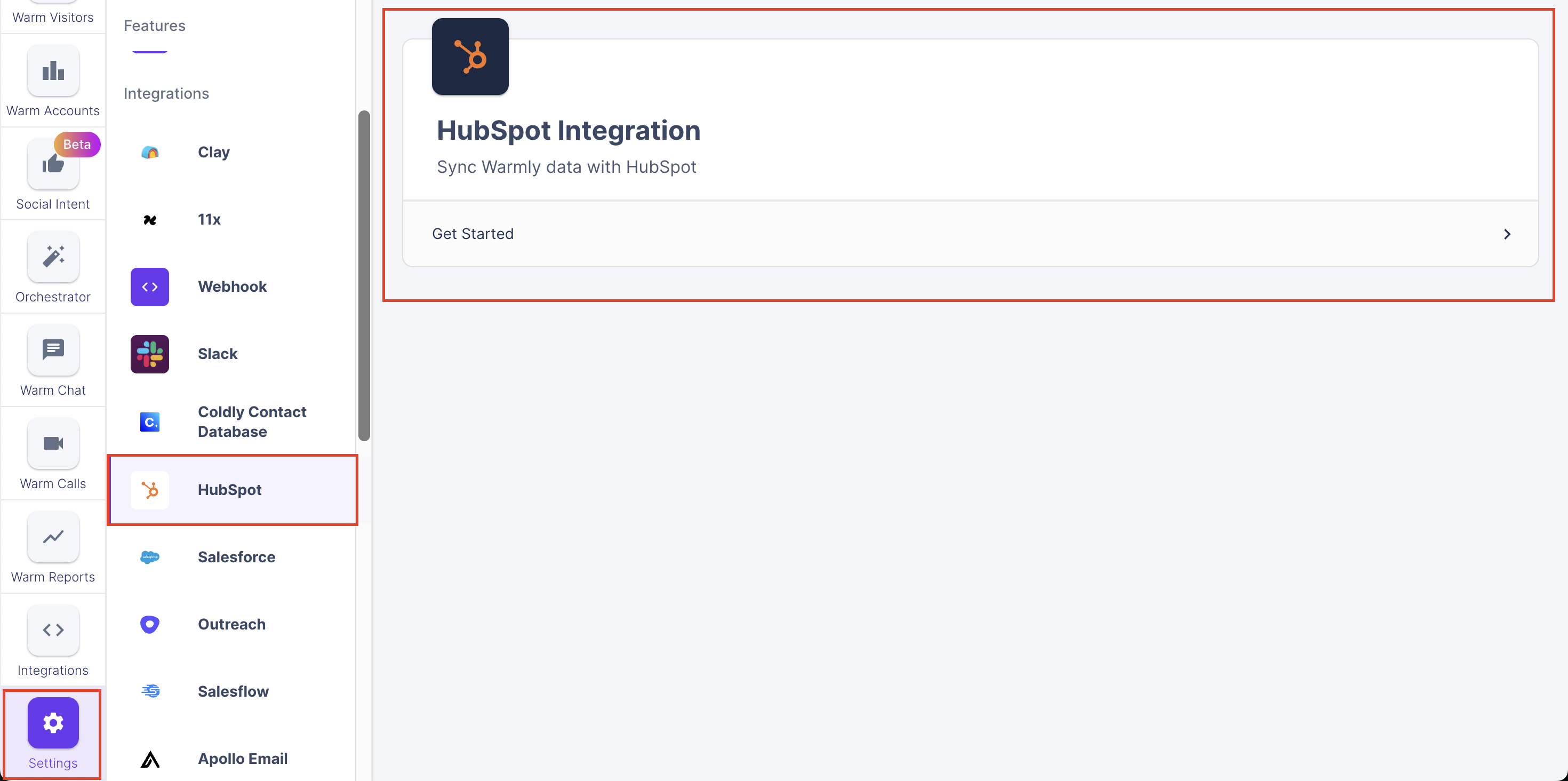
To set up your HubSpot integration for the first, time click the Get Started button in your HubSpot integration tab within Warmly. You will then need to sign into your HubSpot account (unless you are already signed in) and accept a set of basic permissions. Once accepted, you will automatically be brought back to Warmly. The person who integrates your HubSpot with Warmly should be an admin in your HubSpot account with all permissions.
Reading Hubspot Data into Warmly
Note: The initial CRM data sync may take several minutes depending on the volume of data in your HubSpot instance.
Warmly reads Company, Contact, and Deal data from HubSpot to enrich records in the platform with relevant CRM context. This data powers features like segmentation and lead routing. In addition to standard HubSpot fields, any custom fields you configure in the integration settings can also be synced to Warmly and used as segments under the CRM Company and CRM Contact categories.
Common use cases include:
Assigning website visitors to the correct company owner
Identifying current customers vs prospects
Powering ICP-based segmentation using CRM fields
How Warmly Matches HubSpot Records
In the Warm Dashboards (Warm Accounts and Visitors), Warmly displays the associated HubSpot record information for identified visitors and accounts. It matches these records using the domain and email address identified for the visitor/account.
For example, if Warmly identifies a visitor associated with the domain yourcompany.com and the email [email protected], Warmly will:
Search for Company records where the domain matches
yourcompany.comSearch for Contact records where the email matches
[email protected]
CRM Data Displayed in Warm Dashboards
If matching records are found, the related HubSpot information will be displayed in the Warm dashboards. For each identified visitor or account, Warmly currently displays the following CRM data in the Warm dashboards:
Total number of company records with the same domain
Company, or Contact owner
Total number of associated contacts
Total number of associated deals and their stages
Latest deal close date
What Fields Does Warmly Automatically Read from HubSpot?
When you connect HubSpot to Warmly, the following standard CRM fields are automatically synced into the platform:
Object | Field | Description |
Company | Owner | The HubSpot user responsible for the company |
Name | Company name | |
Website | Company website domain | |
Contact | Name | Contact's full name |
Contact email address | ||
Title | Contact job title | |
Owner | The HubSpot user responsible for the contact | |
Deal | Owner | The HubSpot user responsible for the deal |
Amount | Deal value | |
Close Date | Expected or actual close date | |
Active Date | Date the deal became active | |
Pipeline Name | Deal pipeline name | |
Stage Name | Current deal stage |
Writing Warmly Data Back to HubSpot
Important: Any visitor data that was tracked before your HubSpot integration was set up won’t sync into the CRM. Only visitor activity tracked after the integration is connected will flow into HubSpot.
When Warmly identifies a company or individual visiting your website, it checks HubSpot to see whether a corresponding record already exists. Based on that evaluation, Warmly either updates an existing record or creates a new one. This process is deterministic, and designed to prevent duplicate records.
Warmly uses clear matching rules to handle deduplication:
Object | Match Key | Logic |
Company | Company website | Warmly matches companies using the Domain field. If a company with the same website domain exists, Warmly updates that company. If no match is found, a new company is created. |
Contact | Email address | Warmly matches contacts using the Email field. If a contact with the same email exists, Warmly updates that contact. If no match is found, a new contact is created. |
Key behaviors to understand
Warmly never creates new Deals. Deal records can be configured for updates only, not creation.
Warmly never overwrites populated standard fields. Standard HubSpot fields are only updated if they are currently empty. For example, if a Contact's Title field is blank and Warmly identifies a job title, it can be updated automatically. If Title already has a value, Warmly leaves it untouched.
Understanding Warmly Custom Fields in HubSpot
In addition to creating or updating records, Warmly writes a set of Warmly custom fields to HubSpot. These fields are automatically created on your HubSpot objects upon integration and they provide important context around engagement and intent, including:
Website activity (e.g. last seen date, total active time)
Attribution and engagement metadata
This allows reps to understand why a record is relevant, not just who it is. If you've enabled Warmly to write website visitor data into HubSpot, then the following Warmly custom fields will be updated whenever a contact or company visits your website:
Company-Level Warmly Fields
Field Name | Description |
Warmly: Created | True if Warmly created the company |
Warmly: Touched | True if Warmly updated the company |
Warmly: Link | URL Link to the account page in Warmly, e.g. https://opps.getwarmly.com/account/XXXX |
Warmly: Last Seen | Date and timestamp of the last associated visitor from this company was last seen on your website |
Warmly: Last Pages Visited | Comma-separated string. List of URL page paths visitors from the last website visit session from this company |
Warmly: Segments List* | List of Warmly Segments that this company matches |
Warmly: Total active time | Total active seconds spent on your website of all visitors from this company. Active means the visitor was moving their mouse, scrolling, clicking. It does not include time where the visitor just leaves the tab open in the background |
Warmly: Total pages viewed | Total number of page views from all visitors from this company.
|
Warmly: Total sessions | Total number of sessions from all visitors from this company. A new session is started when a visitor comes to your site, and ends when the visitor closes the tab or if they become inactive and stop scrolling/moving/clicking anything on your site for over 15m.
|
Warmly: UTM Campaigns | List of all utm_campaign values from any visitors from this company |
Warmly: UTM Contents | List of all utm_content values from any visitors from this company |
Warmly: UTM Mediums | List of all utm_medium values from any visitors from this company |
Warmly: UTM Sources | List of all utm_source values from any visitors from this company |
Warmly: Visitor count | Number of unique website visitors from this company |
* Warmly: Segment List is currently disabled. Please contact your Warmly CSM if you would like this field enabled for your organization.
Contact-Level Warmly Fields
Field Name | Description |
Warmly: Created | True if Warmly created this contact |
Warmly: Touched | True if Warmly updated the contact |
Warmly: Identification Source | The source for how Warmly identified the contact's email |
Warmly: Prospected | True if Warmly created this contact via an orchestration (Outbound Agent) |
Warmly: Prospector Workflow | The name of the orchestration that created the contact record from Warmly |
Warmly: Last Chat Content | Last chat message that was exchanged by the contact |
Warmly: LinkedIn Bio | LinkedIn profile URL for the contact |
Warmly: Link | URL to the visitor page in Warmly, e.g. https://opps.getwarmly.com/account/XXXX |
Warmly: Last Seen | Date and time the contact was last seen on your website |
Warmly: Last Pages Visited | Comma-separated string. List of URL page paths from the last website visit session |
Warmly: Segments List* | List of Warmly Segments that this contact matches |
Warmly: Total active time | Total active seconds this contact spent on your website. Active means the contact was moving their mouse, scrolling, clicking. Does not include time where the contact just leaves the tab open in the background |
Warmly: Total pages viewed | Total number of page views from this contact.
|
Warmly: Total sessions | Total number of times this contact visited your website. A new session is started when a visitor comes to your site, and ends when the visitor closes the tab or if they become inactive and stop scrolling/moving/clicking anything on your site for over 15m.
|
Warmly: UTM Campaigns | List of all utm_campaign values from any website visits from this contact |
Warmly: UTM Contents | List of all utm_content values from any website visits from this contact |
Warmly: UTM Mediums | List of all utm_medium values from any website visits from this contact |
Warmly: UTM Sources | List of all utm_source values from any website visits from this contact |
Warmly: Chat Workflow | Last chat workflow visitor engaged with |
Warmly: Last Chat Date | Date of the last message sent by the visitor in a chat workflow |
Warmly: Book Meeting Link Clicked | Date of the first time the visitor clicked a Book a Meeting link in a chat workflow |
* Warmly: Segment List is currently disabled. Please contact your Warmly CSM if you would like this field enabled for your organization.
Deal-Level Warmly Fields
Field Name | Description |
Warmly: Created Account | True, if the Company associated with this Deal is "Warmly Created: True" |
When Warmly Custom Fields Are Updated
Warmly custom fields are updated whenever a synced contact or company visits your website - not just at the point of initial record creation. This means your HubSpot records accumulate engagement history over time, giving reps an increasingly complete picture of buying intent.
Note: Unlike standard HubSpot fields (which Warmly only populates when empty), Warmly custom fields are overwritten on each visit to ensure they always reflect the most recent activity. For example, Warmly: Last Seen will always show the visitor's most recent session.
Using Warmly Custom Fields in HubSpot
These fields are fully native HubSpot fields once created, which means you can use them anywhere in your HubSpot instance:
Reports & Dashboards — Build reports filtered by Warmly custom fields to surface high-intent companies
Workflow & Sequences — Trigger HubSpot workflows when Warmly fields change (e.g., enroll a newly Warmly created contact in a HubSpot sequence)
Configuring HubSpot Custom Fields into Warmly
Warmly can read your HubSpot custom fields into the platform, allowing you to build more precise segmentation and workflows based on the CRM data that matters most to your team.
Warmly will not automatically read your custom CRM fields, so you will need to manually add custom fields one by one that you want Warmly to read.
To make a HubSpot custom field available in Warmly:
Go to Settings → HubSpot Integration
Select the HubSpot object (Company, Contact or Deal)
Click + Add field
Search & Select the HubSpot custom field
(Optional) Set a default value for the custom field
Save and re-sync the integration
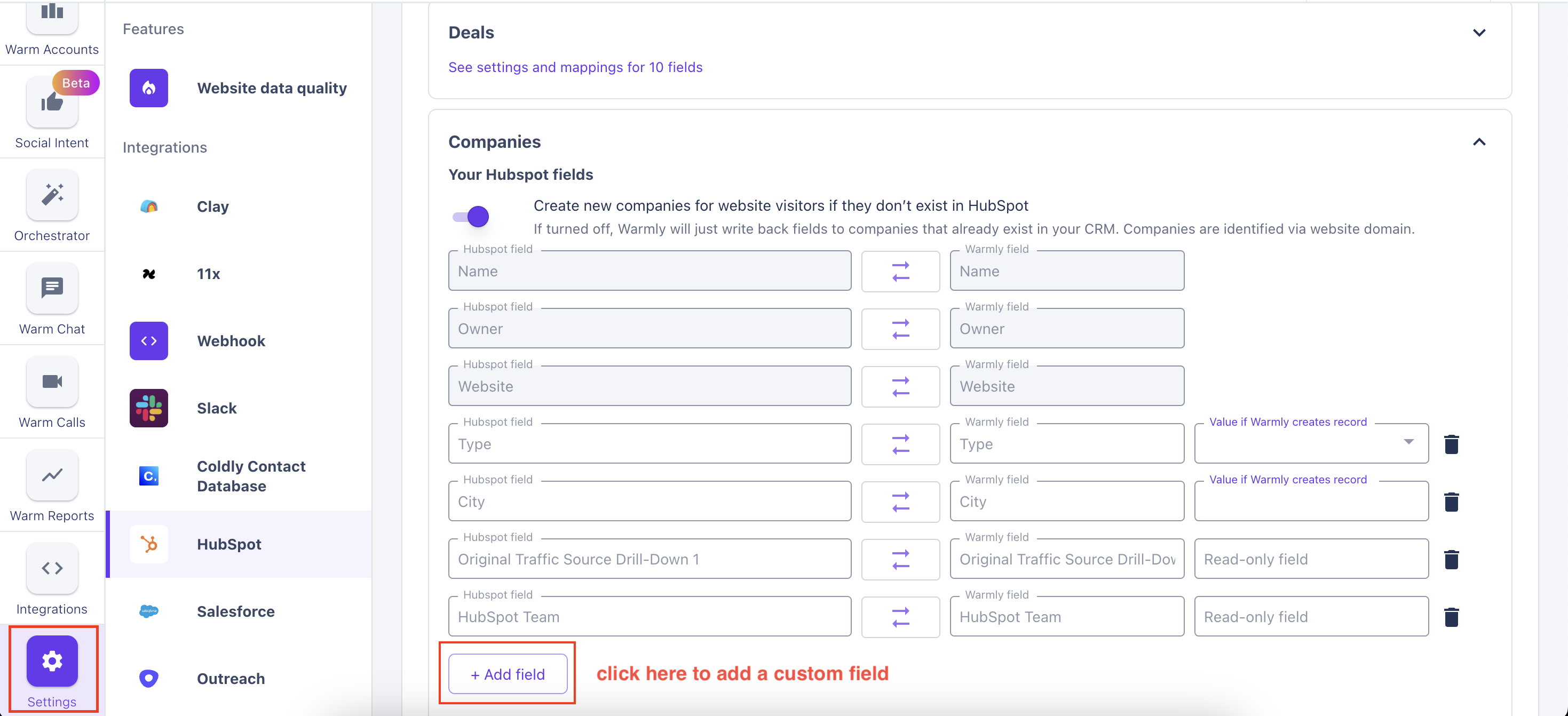
Important: Any time you add or change a custom field, you must save and re-sync the integration for the updates to take effect.
Mapping values to Custom Fields in Warmly
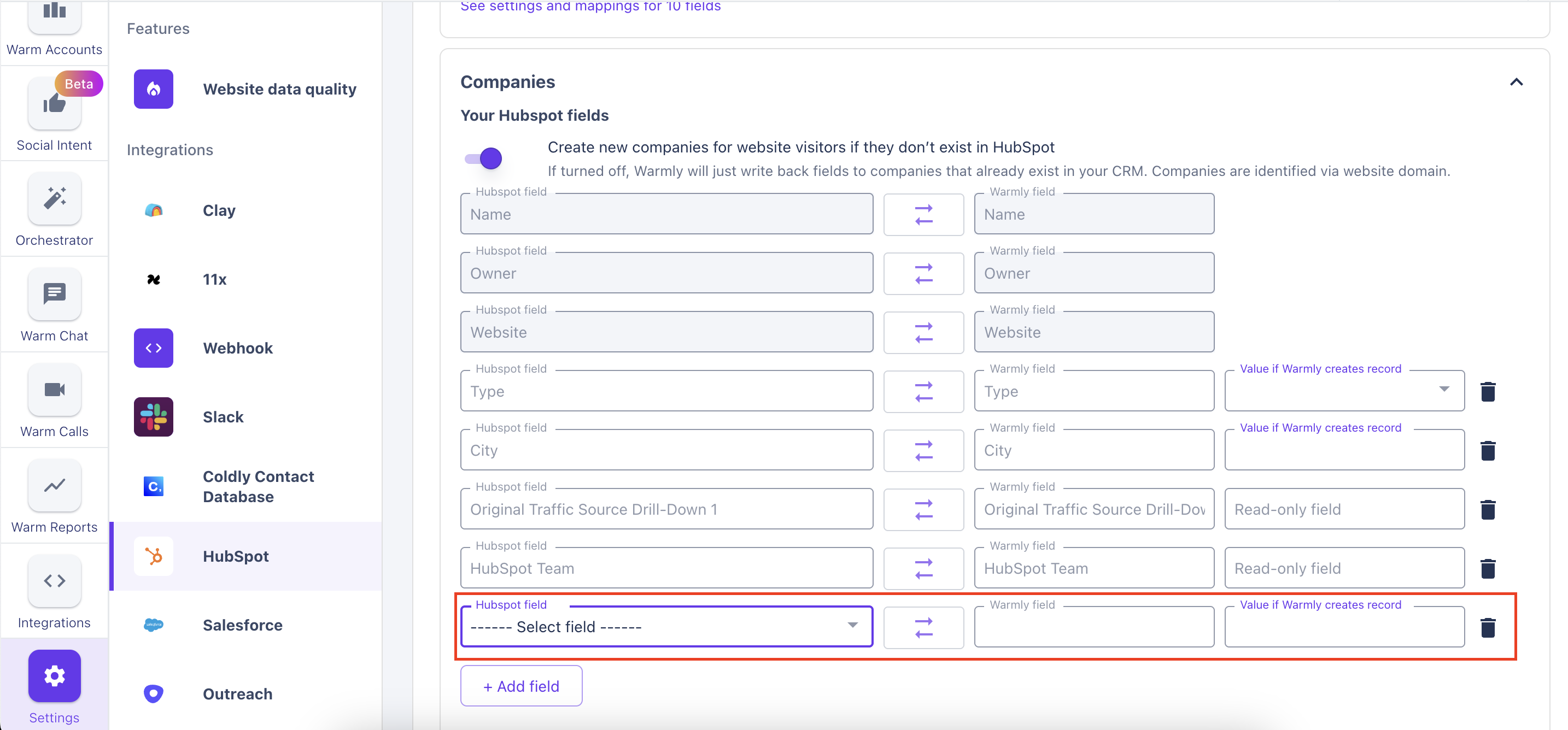
Warmly allows you to define a “Value if Warmly creates record” for custom fields.
This value is written automatically when Warmly creates a net-new Company or Contact in HubSpot
If left empty, Warmly will not write any value to that field for newly created records
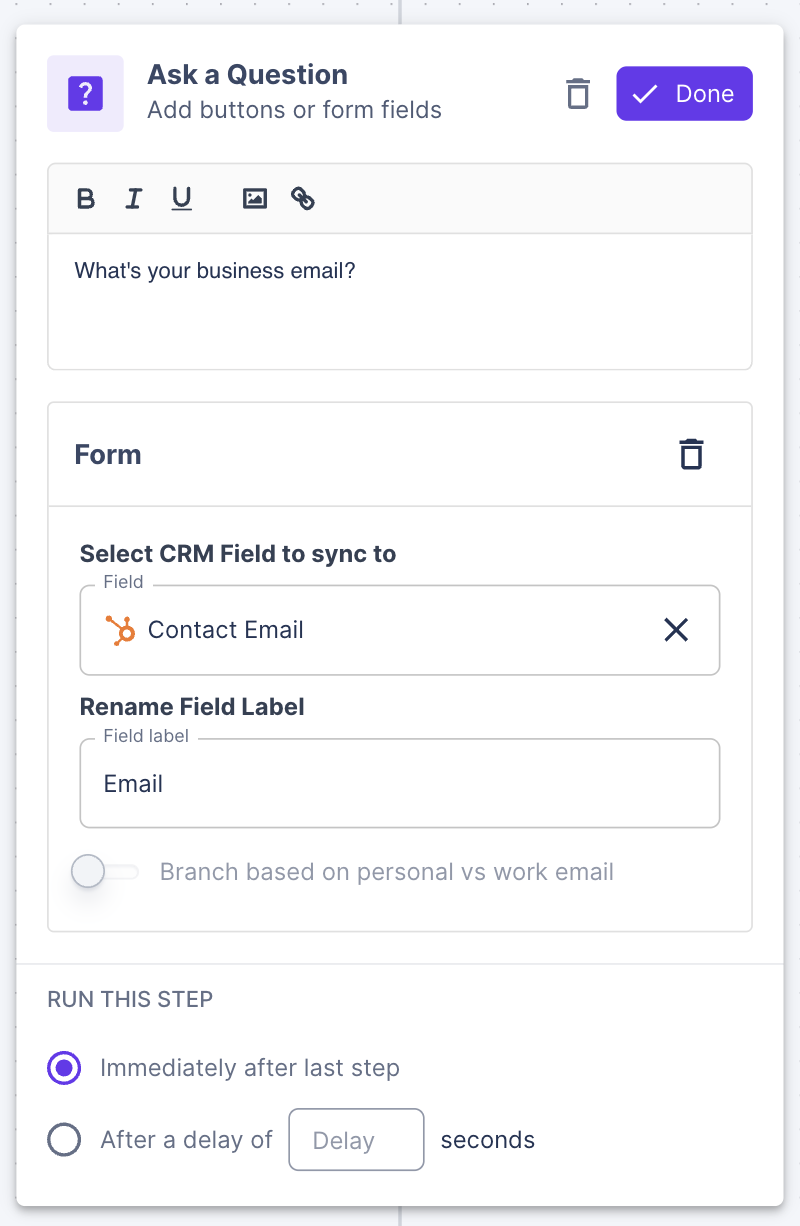
If you want values to be assigned dynamically rather than using a static default, you can map user-provided values through Chat.
Important: Only HubSpot contacts fields are supported in chat.
For example:
A Chat prompt asks a visitor for their email address
The visitor’s response is captured by Warmly
When a new Contact record is created in HubSpot, the email is written directly to the mapped Email field
This approach allows you to populate HubSpot fields using real-time inputs collected during conversations, not just predefined defaults.
Configuring How Warmly Writes to HubSpot
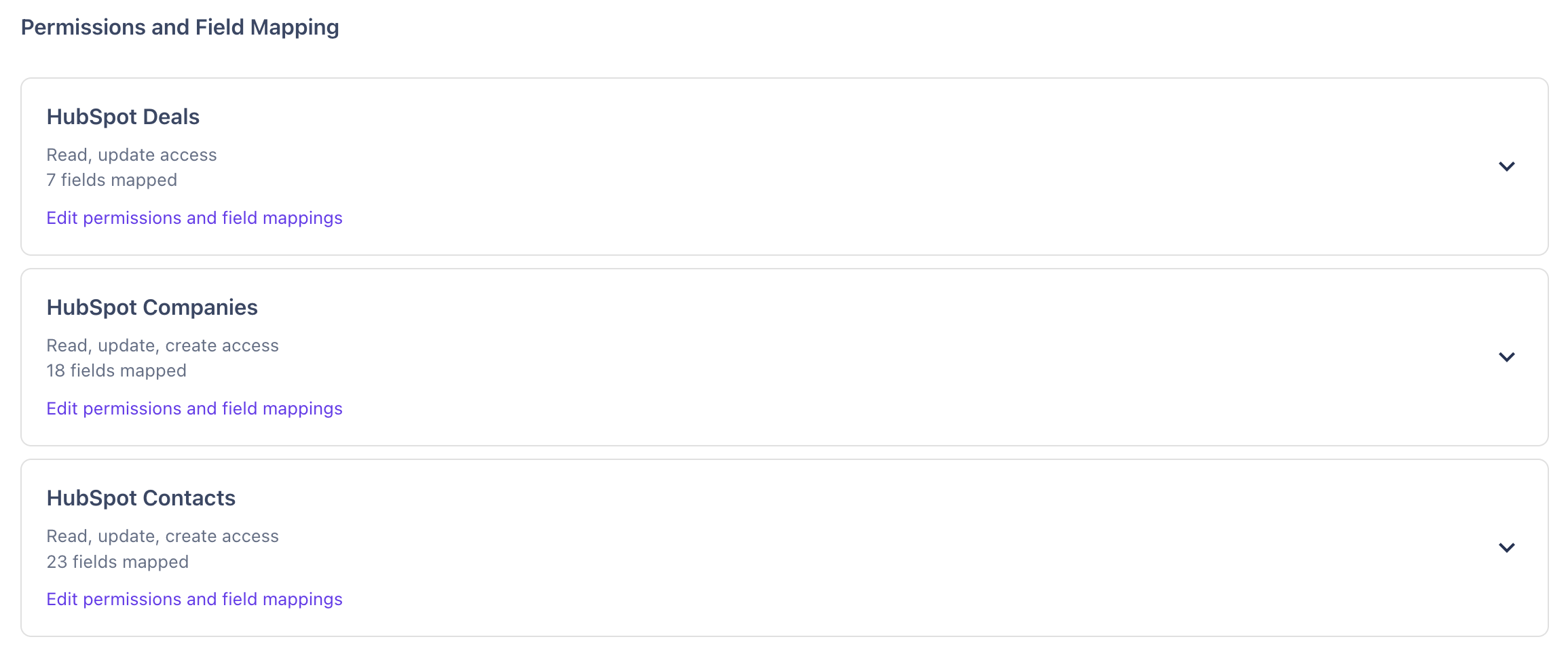
All object-level configuration is managed in Settings → HubSpot, organized by HubSpot object type. For each object, you can control:
Create: Whether Warmly is allowed to create new records of this type
Update: Whether Warmly is allowed to update existing records of this type
Custom Field Mapping: Which custom fields Warmly should read from, what values to write to them
To learn more about how you can configure Warmly to write data to your CRM, see the detailed guide here.
Syncing Chats to HubSpot
Warmly enables your team to sync chats to your HubSpot instance. These toggles are located in Inbound Agent → Chat → Settings:
Sync chat leads to HubSpot
Creates/Updates a contact for the visitor who engaged with your chat. We will add an activity on the Activity Timeline with the full chat transcript.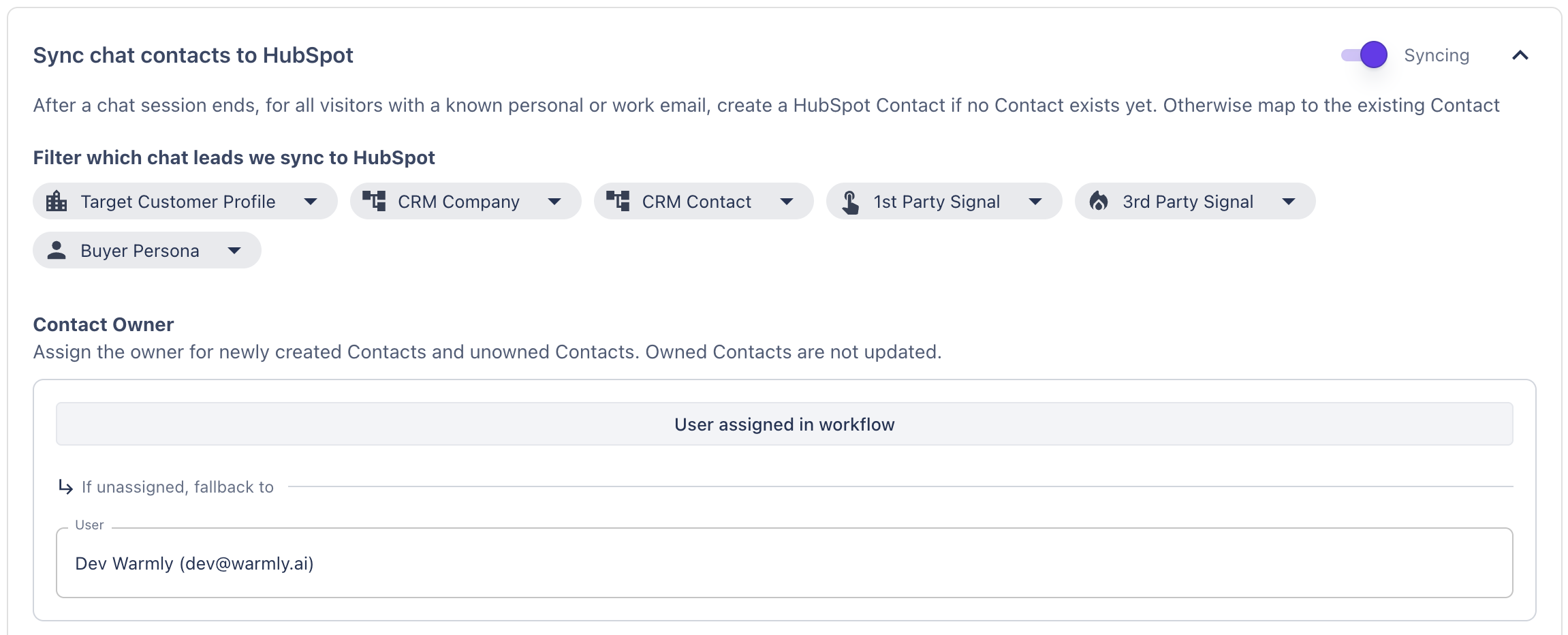
Finding Chat Leads in HubSpot
In HubSpot, to identify leads that engaged with your chat:
Filter on Warmly: Touched = True
Filter on Warmly: Last Chat Content is not empty
This will show you a list of all prospects who have engaged with your chat.
Syncing Prospects via Orchestrations (Outbound Agent)
Orchestrations let you automatically sync qualified prospects and companies to HubSpot as part of your outbound workflows. This allows Warmly to push high-intent records into your CRM at the right moment, without manual intervention.
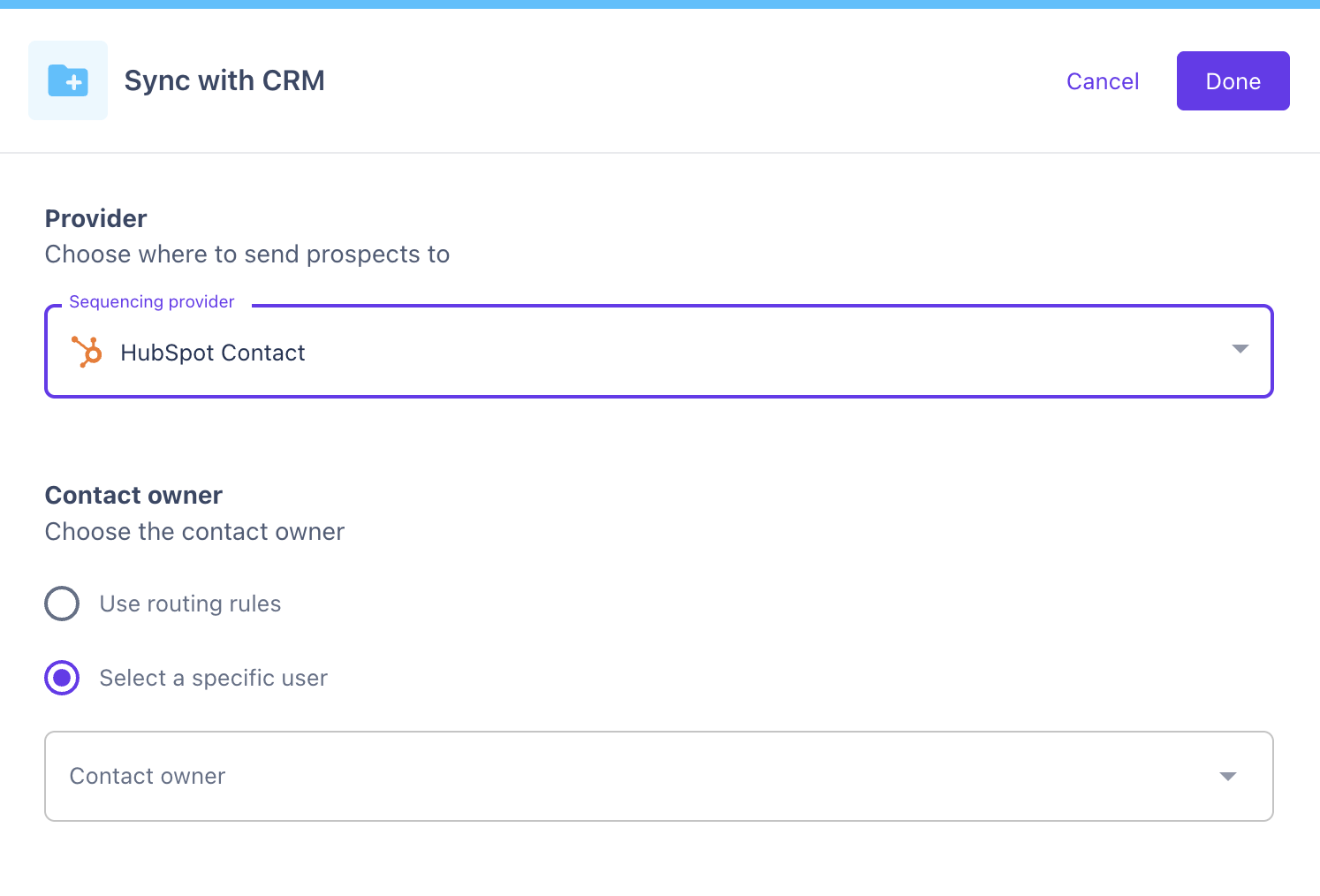
To sync records to HubSpot from an orchestration:
Create or edit an Orchestration
Add a Sync to CRM step
Choose HubSpot as the CRM
Configure record ownership:
Assign all created records to a specific HubSpot user, or
Apply a lead route that will assign owners dynamically based on the routing rule.
Identifying Records Created by Orchestrations
Contacts created or updated via an orchestration can be easily identified in HubSpot using Warmly custom fields:
Warmly: Prospected
Set to True when a Contact is created by an orchestration
Warmly: Prospector Workflow
Contains the name of the orchestration responsible for creating or updating the record
These fields make it easy for teams to understand how and why a record entered HubSpot and which workflow drove the action.
Related Articles
Have questions or feedback? Reach out to your CSM or email us at [email protected]