Mapping HubSpot or Salesforce IDs in Warmly: Understanding Internal vs User-Friendly Field Values
Last updated: March 8, 2026
Note: CRM integrations are not available on the Free plan.
When integrating CRMs like HubSpot or Salesforce with Warmly, you may notice certain fields—such as Lifecycle Stage or custom drop-downs—appear as numeric values or internal codes within our platform.
Don't worry, this is completely expected behavior. Here's why it happens and how you can easily map these values back to the user-friendly labels you're familiar with.
🧠 Why Does This Happen?
Warmly pulls data from HubSpot or Salesforce via their public APIs, which return internal field values instead of the display labels you see in your CRM UI.
For example:
In HubSpot, your Lifecycle Stage might show as
Lead,Opportunity, orCustomerin the interface.But via the API, we receive internal codes like
8192387,2938731, etc.—which are what you’ll see inside Warmly.
These internal values are how CRMs store and reference fields under the hood.
🛠 How to Map Internal Values to Friendly Labels in HubSpot
To translate these numbers back to readable labels in HubSpot, follow these steps:
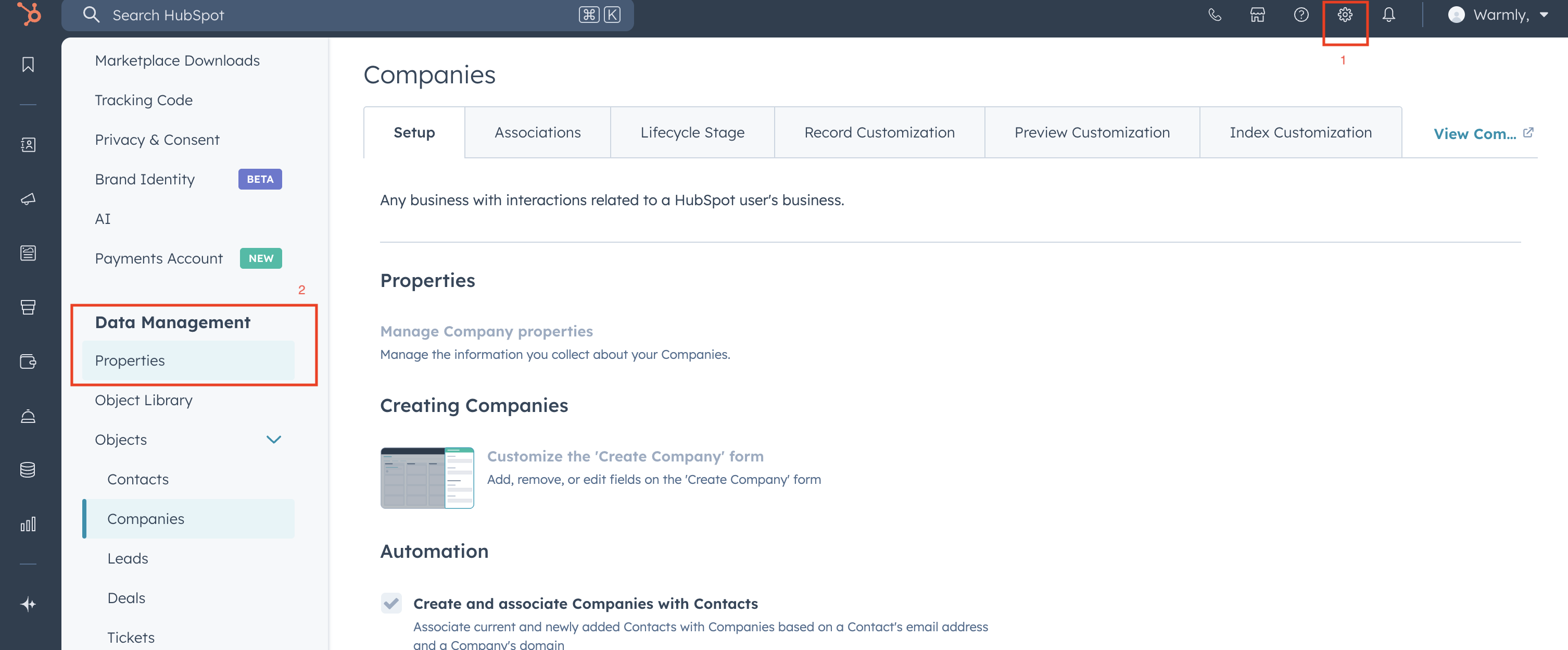
Navigate to Settings in your HubSpot dashboard.
Scroll down and go to Data Management → Properties.
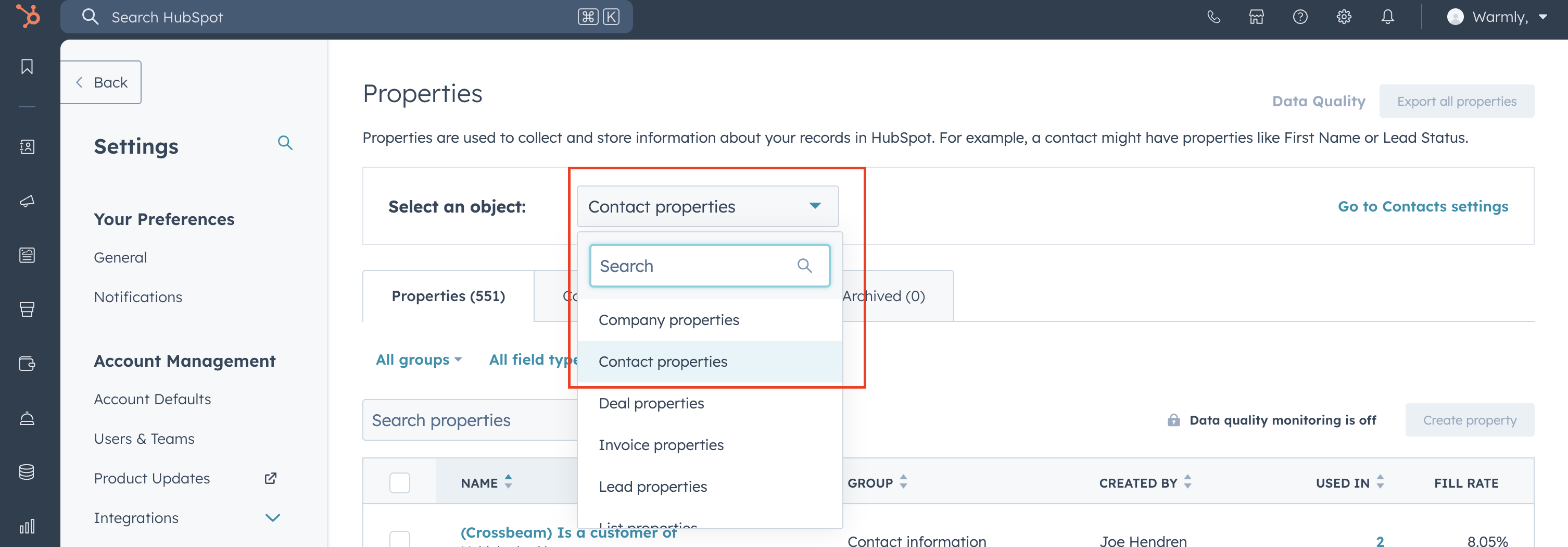
Select the relevant object (e.g., Company, Contact, or Deal).
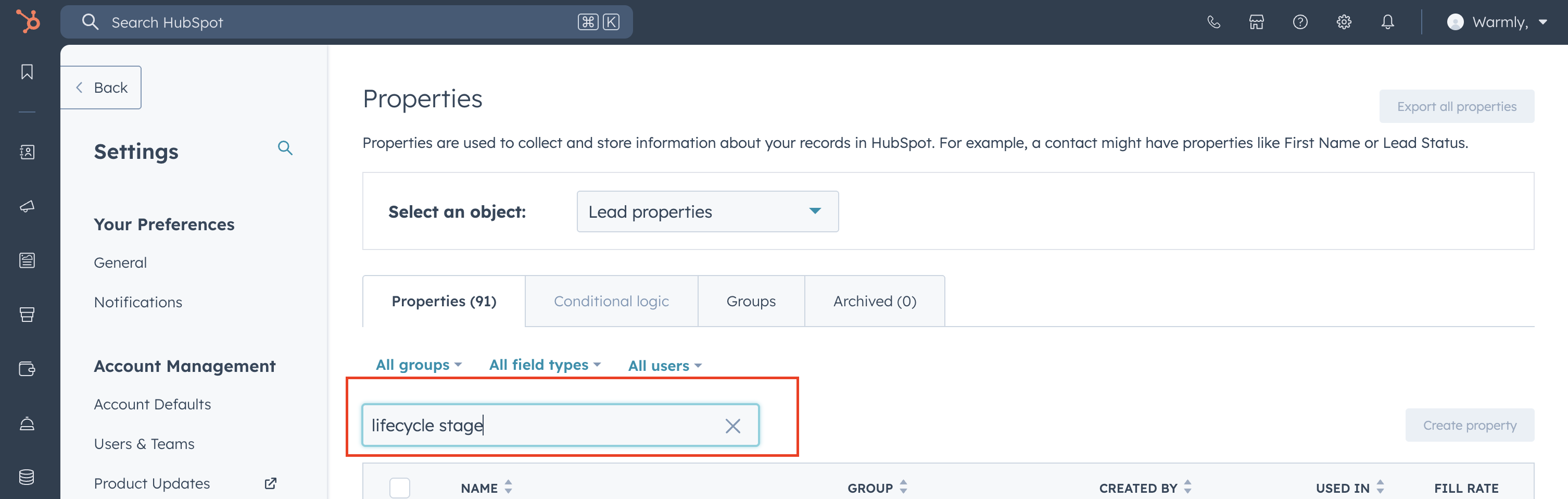
Use the search bar to find the field in question (e.g, Lifecycle Stage).
Click on the field to open its configuration. You’ll now see:
Labels – the user-friendly names
Internal Values – the numeric or coded values that Warmly pulls via API
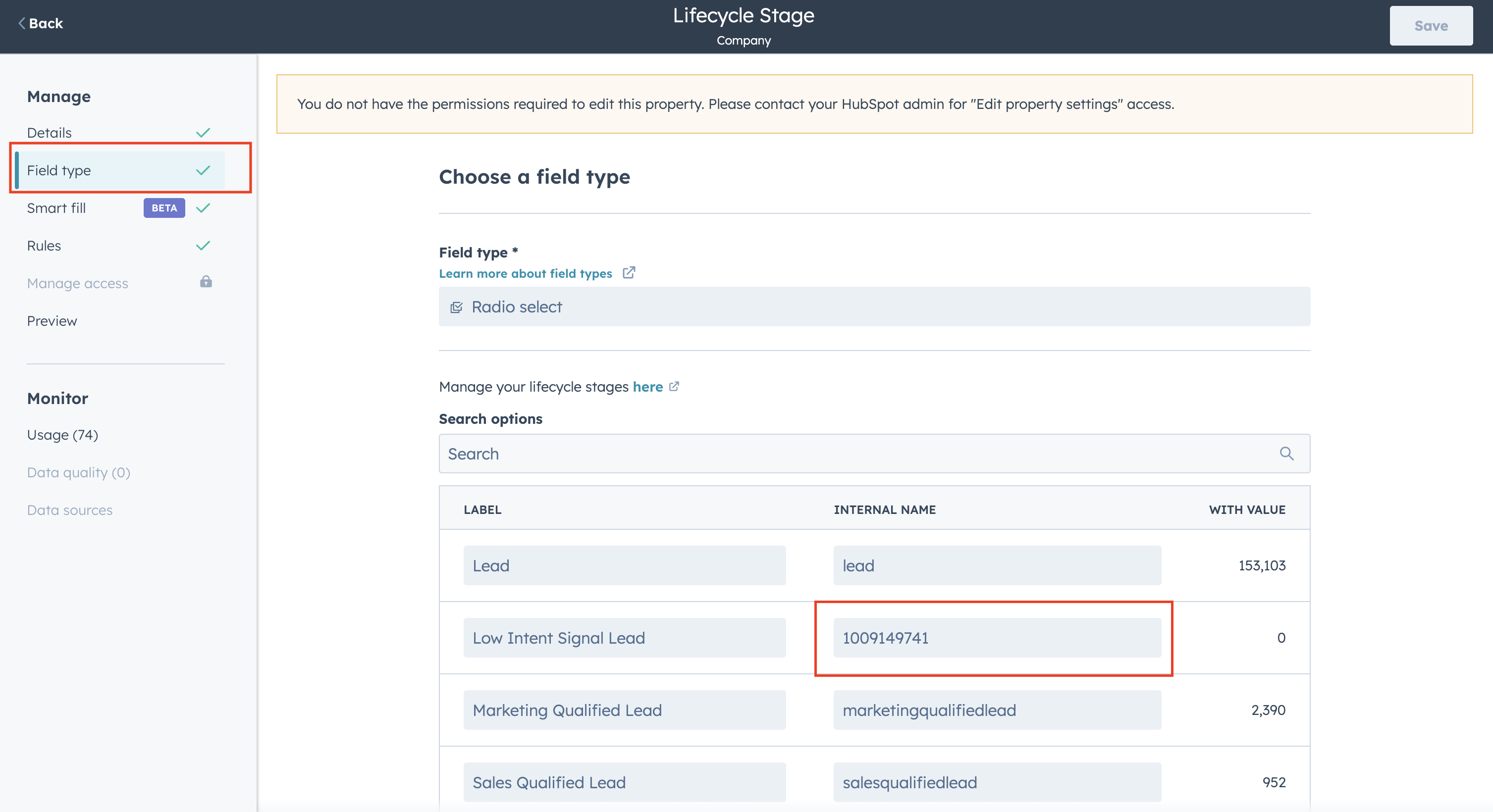
Now you can create a mapping table or logic layer within your internal systems or workflows.
Example Mapping Table
CRM Label | Internal Value (API) |
Lead | 1928374 |
Opportunity | 8492034 |
Customer | 1039484 |
🧩 What About Salesforce?
Salesforce uses a similar model, but internal values are often alphanumeric IDs. You can:
Use Field-Level Metadata in Salesforce Setup
Or query the Field Definition API to fetch picklist options and values
Alternatively, use tools like Workbench or the Developer Console for quick access
If you need help navigating Salesforce’s field mapping, reach out to our support team—we’re happy to walk you through it.
🔁 TL;DR
Warmly shows internal values from HubSpot or Salesforce APIs.
These may look like numbers or codes instead of readable labels.
To map them, check CRM field settings and match values manually or via logic.
This is a one-time setup that ensures seamless tracking and reporting.
Have questions or feedback? Reach out to your CSM or email us at [email protected]