How to Send Microsoft Teams Contact Notifications Using Webhooks and Power Automate
Last updated: December 3, 2025
Important Note:
This guide walks you through how to use Microsoft Power Automate to send webhook data as notifications to Microsoft Teams.
Real-time notifications are supported in Warm Chat, when using the Warmly Webhook to trigger a Microsoft Teams notification via Power Automate.
Orchestrations are not real-time, and typically take 30–60 minutes to run after the trigger is activated.
1. Access Microsoft Power Automate Premium
Make sure you’ve purchased the Power Automate Premium package on Microsoft. ($15/mo as of Mar 2025. They have a free trial to make sure it’s what you want.)
Sign into Power Automate
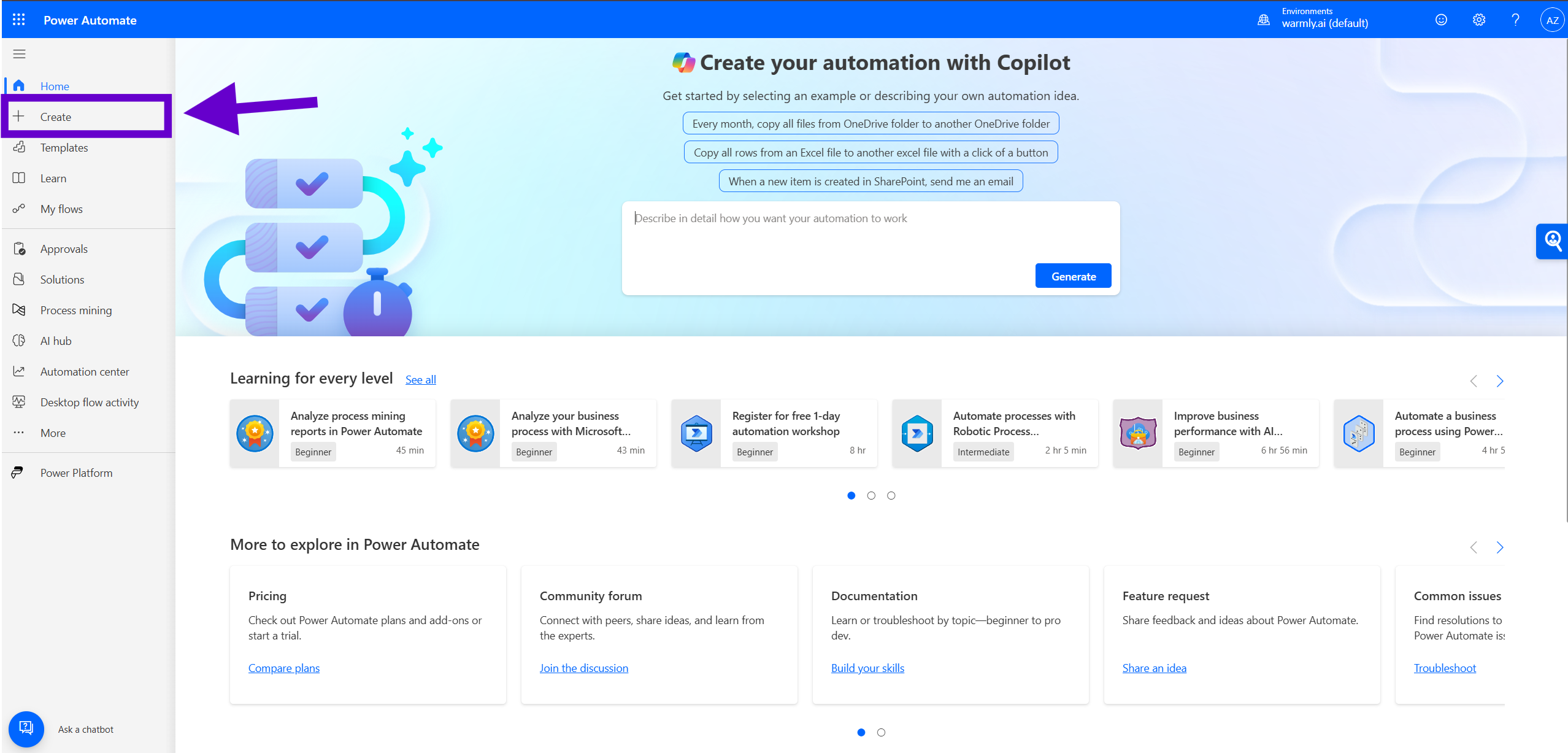
Select Create from the left-hand menu.
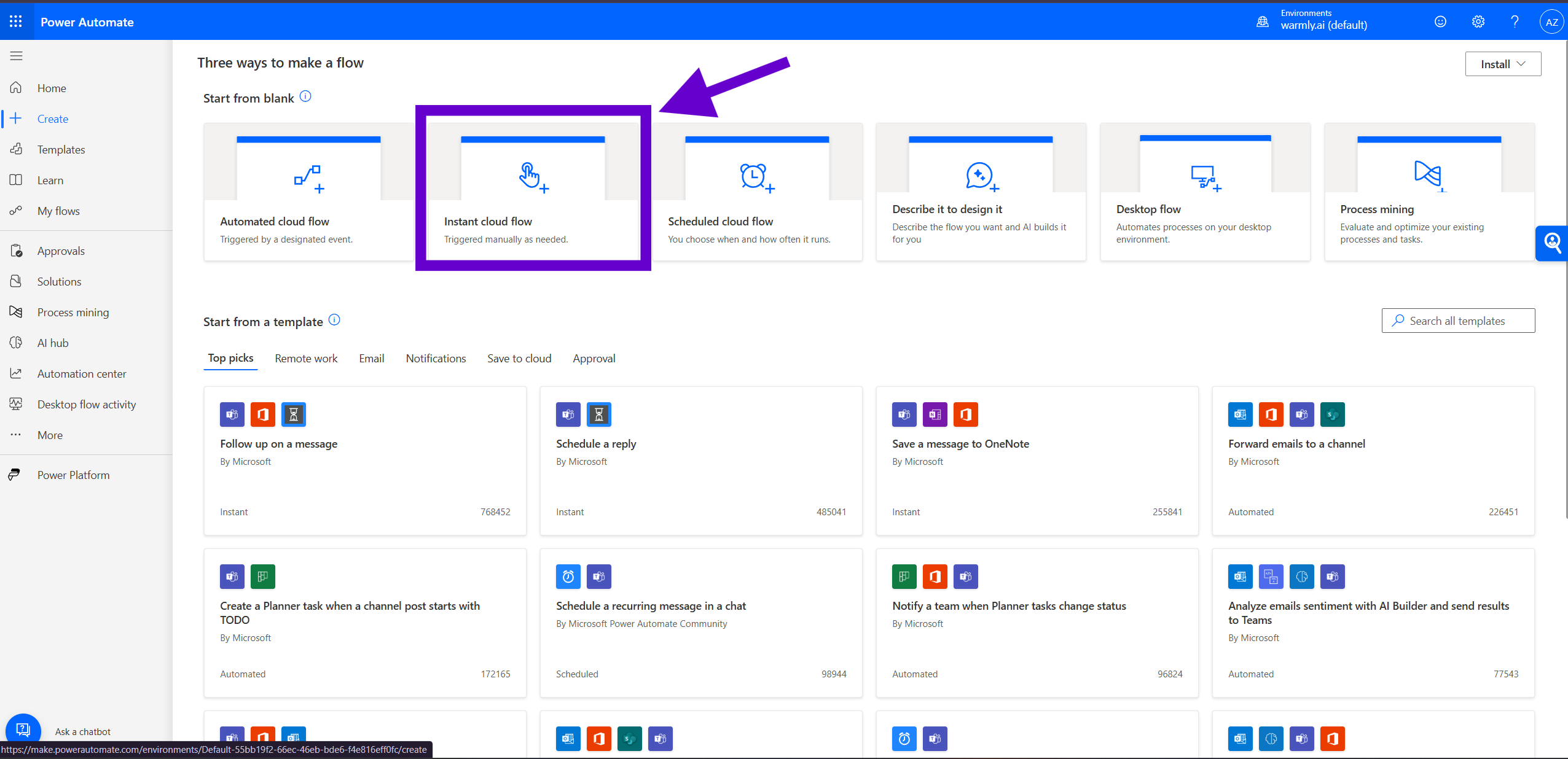
Choose Instant cloud flow and click Skip to start from blank.
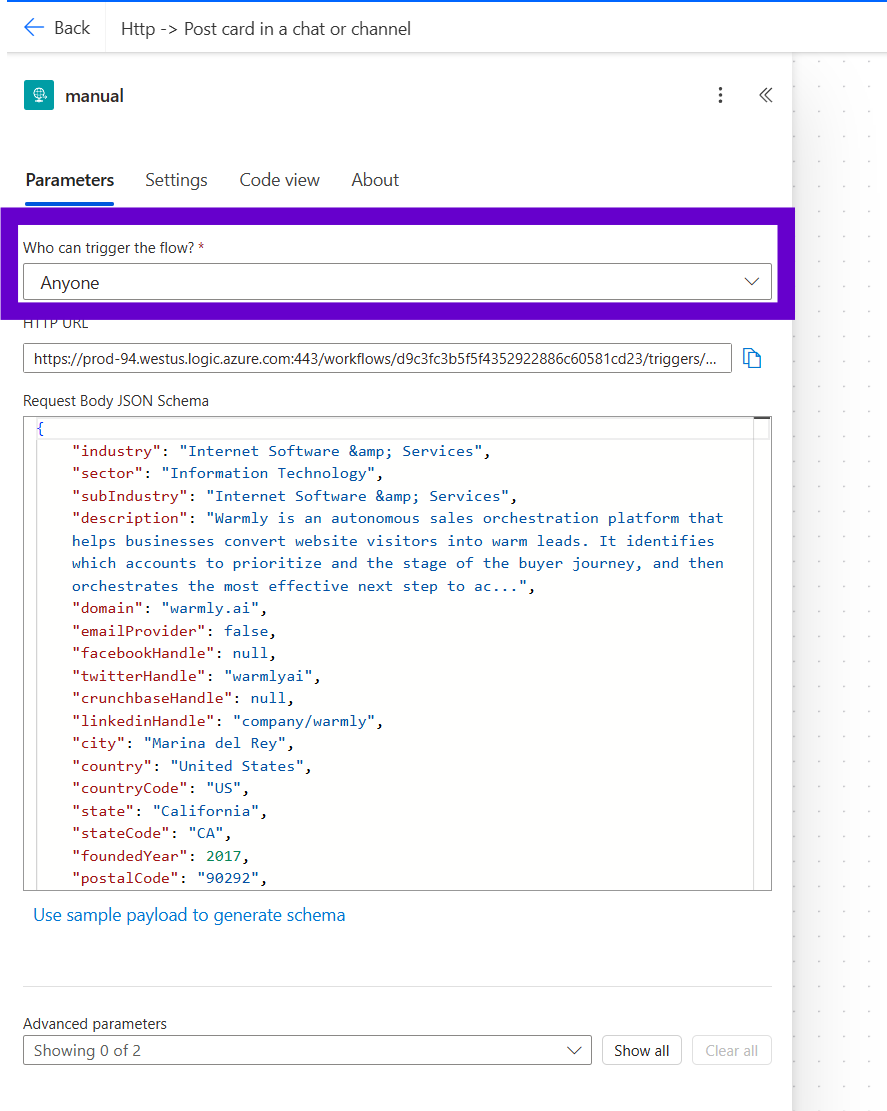
For the "Who can trigger the flow" field, set it to Anyone
For the Trigger, search for and select When an HTTP request is received. This is the trigger that creates an endpoint (webhook URL) for you to send data to.
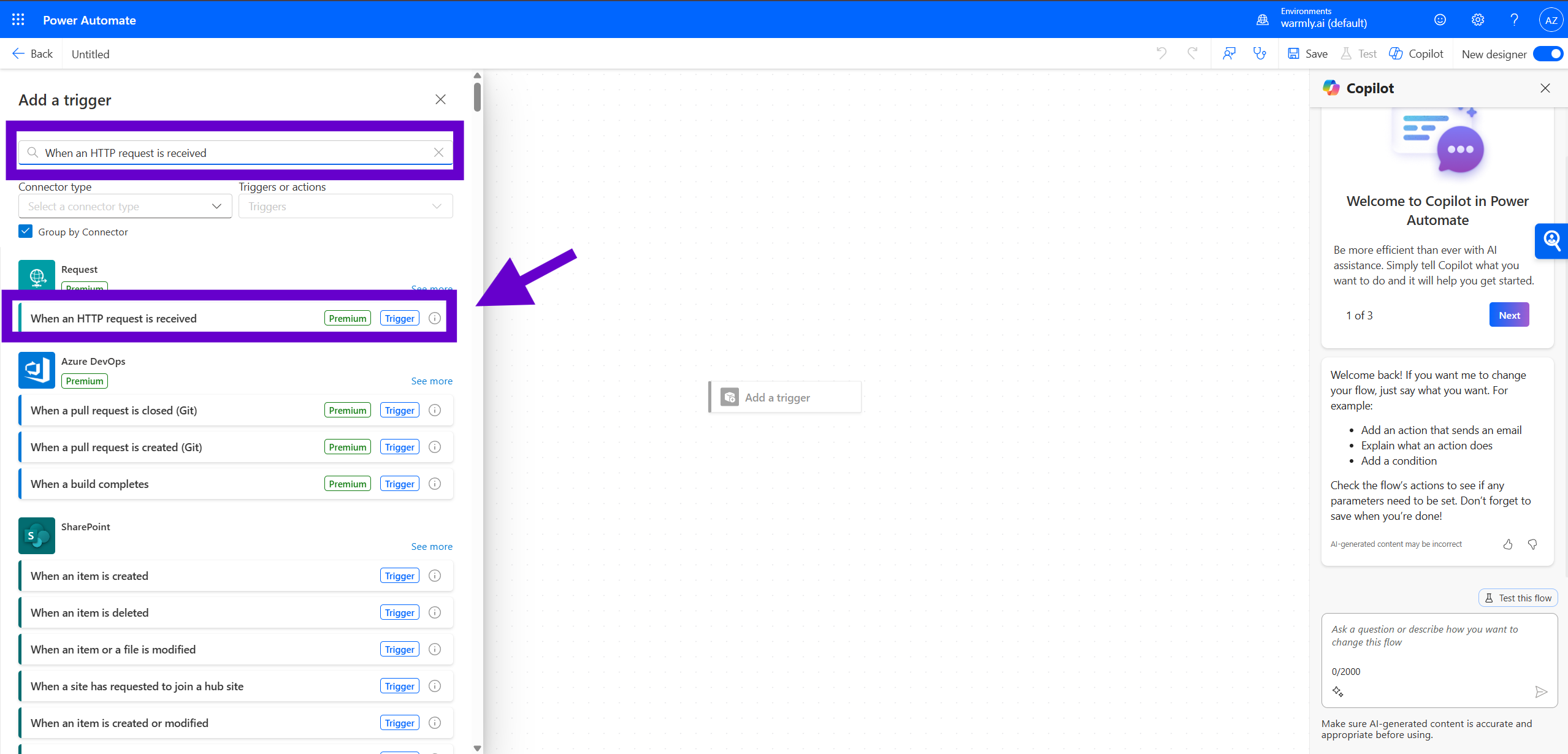
When you select “When an HTTP request is received,” Power Automate will eventually provide you with a unique URL after the flow is saved. You will use that URL in your webhook sender.
2. Define the Expected Schema (Optional But Recommended)
In the When an HTTP request is received step, click on the Request Body JSON Schema
Paste the following JSON to define the expected data structure:
{
    "LinkedIn URL": "https://www.linkedin.com/in/alan-j-zhao/",
    "First Name": "Alan",
    "Last Name": "Zhao",
    "Title": "Cofounder",
    "Company Name": "Warmly",
    "Business Email": "[email protected]",
    "Website": "https://warmly.ai",
    "Industry": "Internet Software & Services",
    "Employee Count": "51-250",
    "Estimate Revenue": "$10M-$50M",
    "City": "Gaithersburg",
    "State": "Maryland",
    "Zipcode": "20878",
    "Seen At": "2025-01-01T12:34:56:00.00+00.00",
    "Referrer": "https://warmly.ai",
    "Captured URL": "https://warmly.ai/pricing",
    "Company Logo": "https://logo.clearbit.com/warmly.ai",
	"Session URL": "https://opps.getwarmly.com/sessions?sessionId=c16f3b28-f5fd-4177-8c08-dc4413b3b5d0"
}
This step ensures that Power Automate can parse the incoming data correctly.
3. Send a Message to Microsoft Teams
Click New step to add an action.
Search for Microsoft Teams in the action list.
Select Post an Adaptive Card in a chat or channel (or the latest equivalent option).
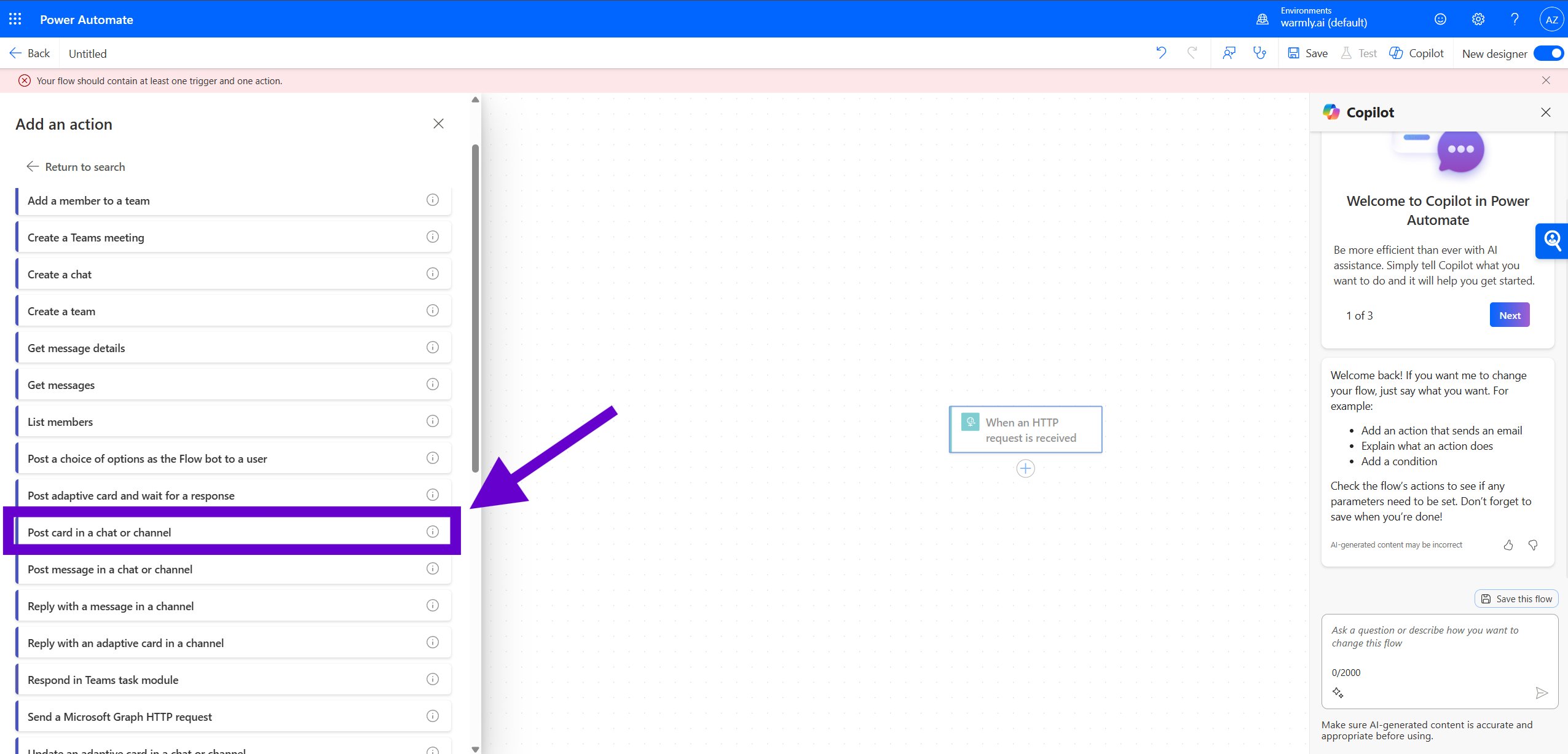
Configure the Teams Action
Team: Select the Microsoft Teams workspace where the notification should be sent.
Channel: Select the appropriate channel in the team.
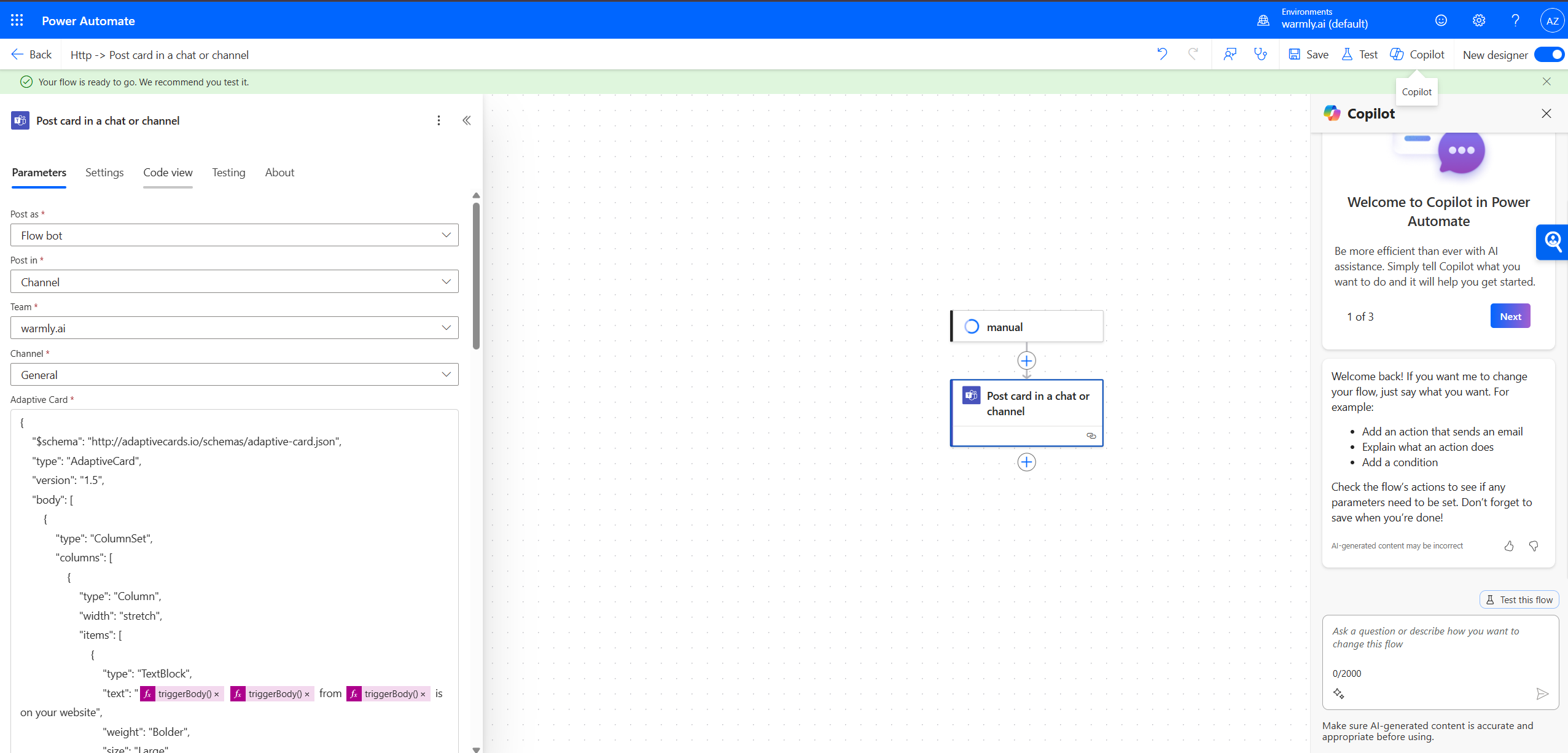
Adaptive Card: Copy and paste this JSON into the Adaptive Card field to format the Teams message dynamically:
{
    "$schema": "<http://adaptivecards.io/schemas/adaptive-card.json>",
    "type": "AdaptiveCard",
    "version": "1.5",
    "body": [
        {
            "type": "ColumnSet",
            "columns": [
                {
                    "type": "Column",
                    "width": "stretch",
                    "items": [
                        {
                            "type": "TextBlock",
                            "text": "@{triggerBody()?['First Name']} @{triggerBody()?['Last Name']} from @{triggerBody()?['Company Name']} is on your website",
                            "weight": "Bolder",
                            "size": "Large",
                            "wrap": true
                        }
                    ]
                },
                {
                    "type": "Column",
                    "width": "auto",
                    "items": [
                        {
                            "type": "Image",
                            "url": "@{triggerBody()?['Company Logo']}",
                            "size": "Medium",
                            "horizontalAlignment": "Right"
                        }
                    ]
                }
            ]
        },
        {
            "type": "TextBlock",
            "text": "Title: @{triggerBody()?['Title']}",
            "wrap": true
        },
        {
            "type": "TextBlock",
            "text": "Email: [@{triggerBody()?['Business Email']}](@{triggerBody()?['Business Email']})",
            "wrap": true
        },
        {
            "type": "TextBlock",
            "text": "LinkedIn: [@{triggerBody()?['LinkedIn URL']}](@{triggerBody()?['LinkedIn URL']})",
            "wrap": true
        },
        {
            "type": "TextBlock",
            "text": "Location: @{triggerBody()?['City']}, @{triggerBody()?['State']}, @{triggerBody()?['Zipcode']}",
            "wrap": true
        },
        {
            "type": "TextBlock",
            "text": "First seen visiting: [@{triggerBody()?['Captured URL']}](@{triggerBody()?['Captured URL']})",
            "wrap": true
        },
        {
            "type": "ActionSet",
            "actions": [
                {
                    "type": "Action.OpenUrl",
                    "title": "View Session",
                    "url": "@{triggerBody()?['Session URL']}"
                }
            ]
        },
        {
            "type": "TextBlock",
            "text": "About [@{triggerBody()?['Company Name']}](@{triggerBody()?['Website']}) ",
            "weight": "Bolder",
            "spacing": "Medium"
        },
        {
            "type": "TextBlock",
            "text": "Company size: @{triggerBody()?['Employee Count']} employees",
            "wrap": true
        },
        {
            "type": "TextBlock",
            "text": "Industry: @{triggerBody()?['industry']}",
            "wrap": true
        }
    ]
}
Save and Test
Click Save to finalize your Power Automate Flow.
Copy and paste the generated HTTP URL over to orchestrator:
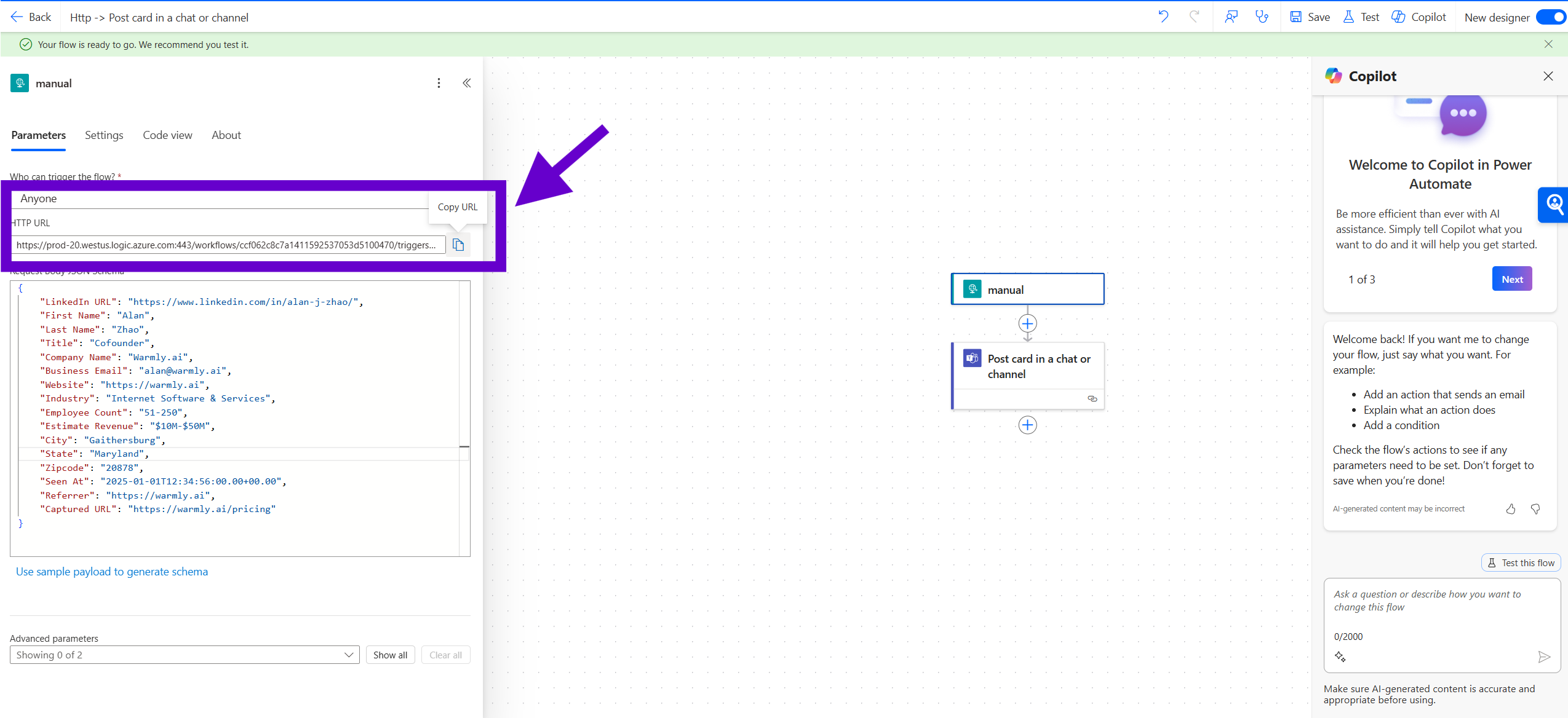
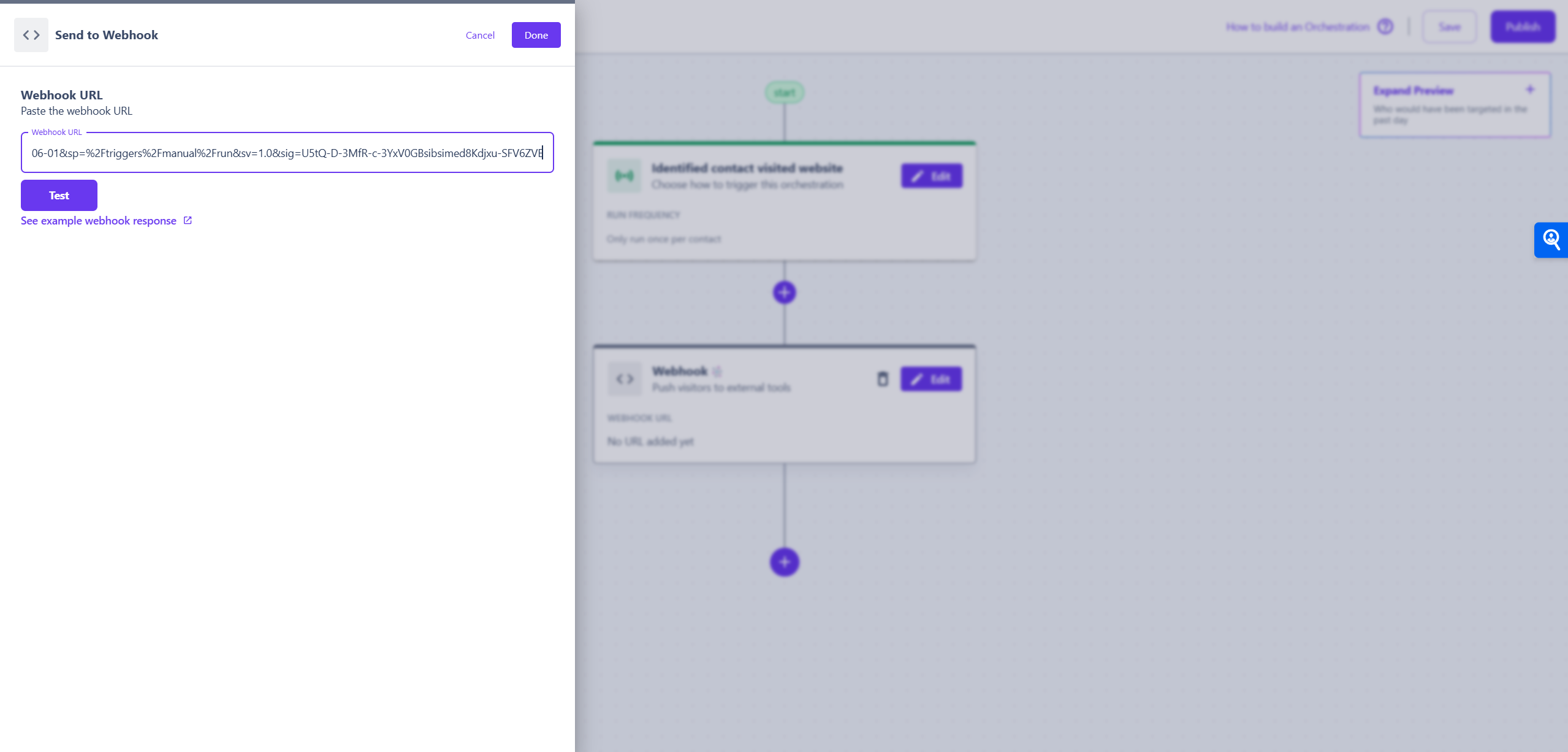
Then click Done then publish!
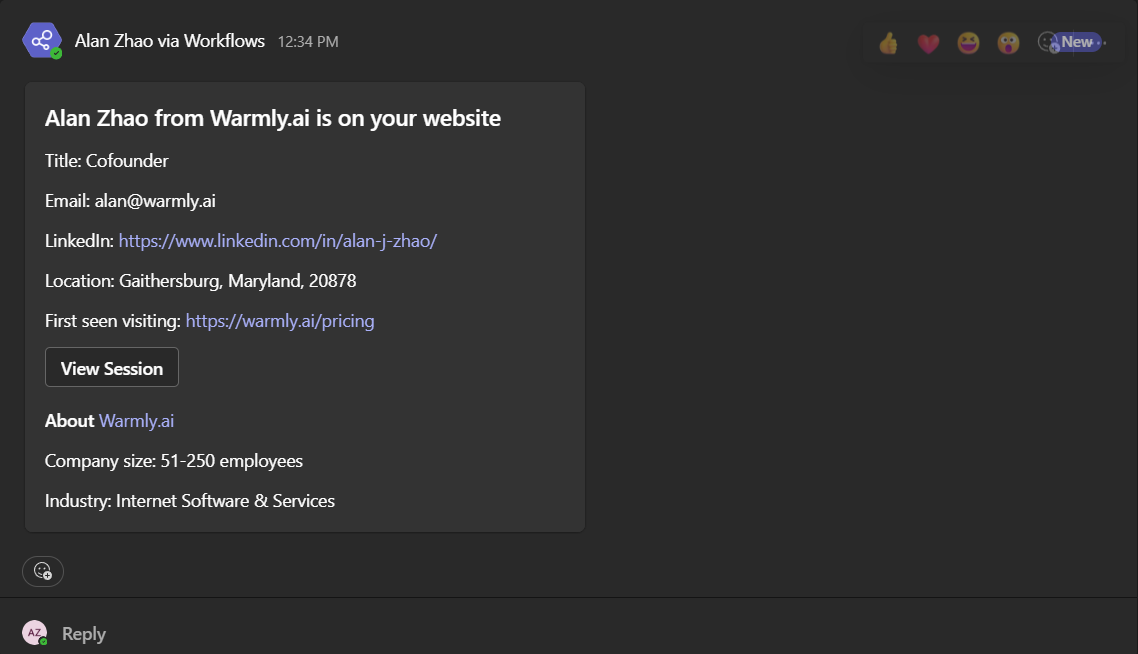
Now, your Power Automate flow is set up to send notifications from the orchestrator to Microsoft Teams! 🚀