Warmly Implementation Documentation: Microsoft Teams Alerts
Last updated: April 21, 2026
Note: Microsoft Teams Alerts are not available on the Free plan.
Warmly now offers a native Microsoft Teams integration for visitor notifications. If your team uses Microsoft Teams as its primary communication tool, you can receive real-time alerts about website visitors directly in your Teams channels — with the same full feature set previously available only to Slack users.
Previously, Teams users had to route notifications through third-party tools like Microsoft Power Automate, Zapier, or Make. With this integration, the setup is built in and takes just a few minutes.
Who Is This For?
Outbound SDRs
Get notified when target accounts click through your outbound emails or links and land on the website. Use that real-time signal to personally follow up via email, phone, or LinkedIn while the product is still top of mind.
Account Executives
Know when contacts in your active pipeline — or other buying committee members — are back on the site researching your product. Use that signal for a timely, personalized follow-up with your champion over email, phone, or LinkedIn.
Inbound SDRs (Chat Staffing)
If your team uses Warmly’s chat feature, inbound SDRs can be notified in their Teams channel the moment a qualified visitor engages, so they can jump into a live conversation quickly.
Marketing Ops & Revenue Ops
Ops teams are typically responsible for configuring these notifications on behalf of the sales team. The native integration eliminates the need to build and maintain webhook-based workflows in Power Automate, Zapier, or Make.
How to Set It Up
Step 1: Install the Warmly App in Microsoft Teams
Before connecting the integration in Warmly, you'll need to install the Warmly app from the Microsoft Teams marketplace:
Open Microsoft Teams and navigate to the Apps section (found in the left sidebar or bottom bar).
Search for "Warmly" in the Teams marketplace.
Click Add to install the Warmly app to your Teams workspace.
If your organization requires admin approval for new apps, you may need your Teams administrator to approve the installation before proceeding.
Once the Warmly app is installed in your Teams workspace, you can connect it to your Warmly account.
Step 2: Connect Microsoft Teams in Warmly
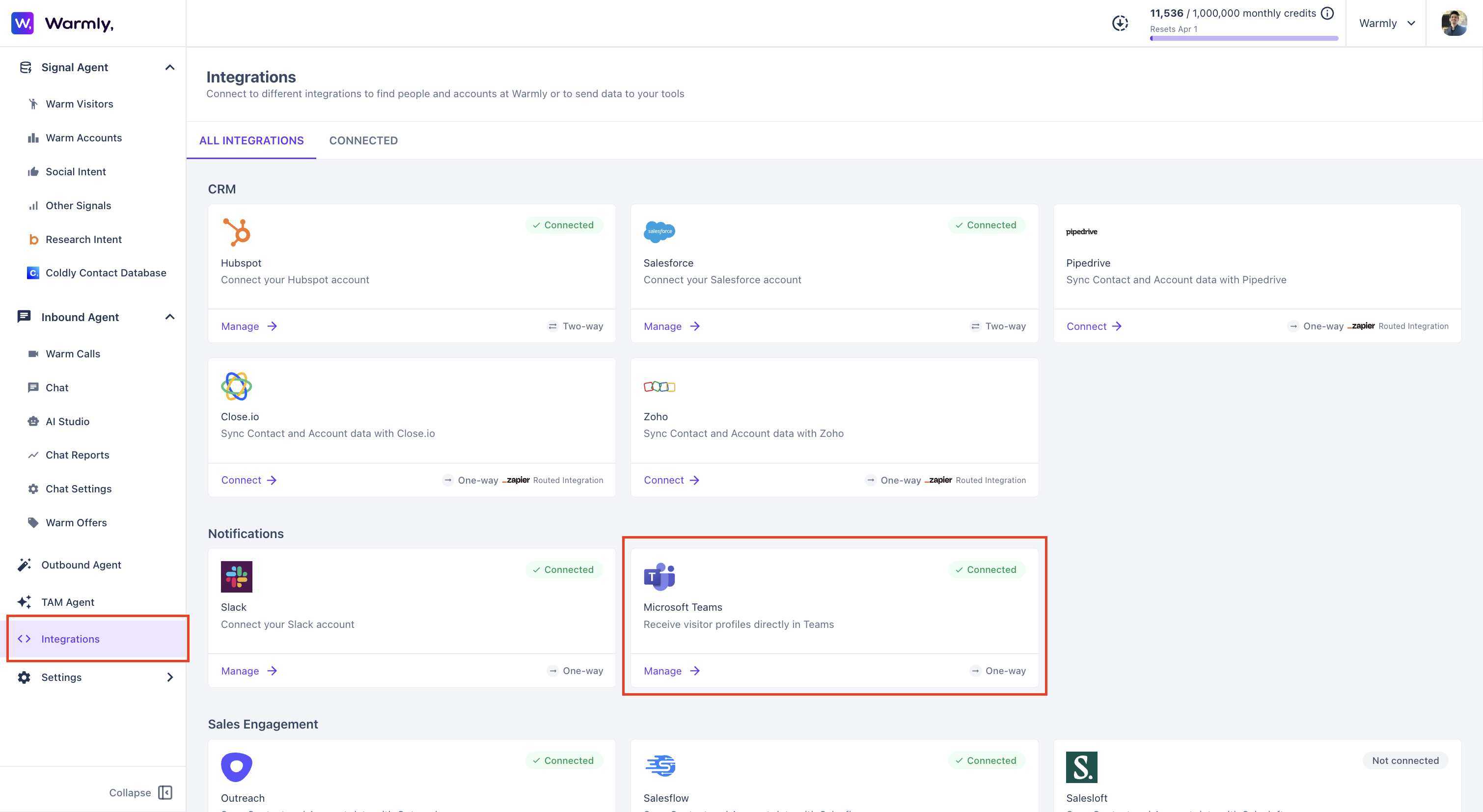
Navigate to your Warmly integrations settings.
Locate the Microsoft Teams integration and click Connect.
Authenticate with your Microsoft account and authorize Warmly to send messages to your Teams workspace.
Step 3: Create a New Alert
Go to the Notifications section and click Create Alert.

Step 4: Configure Your Trigger
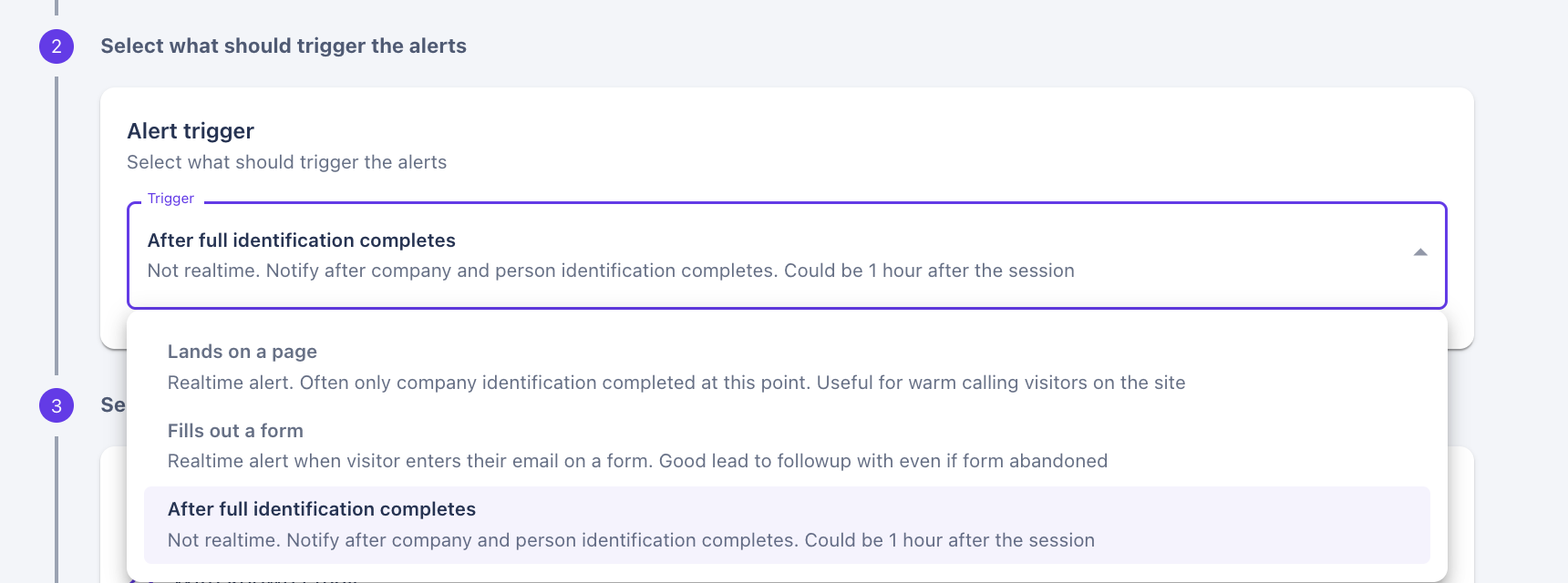
Select when the alert should fire. You have three trigger options:
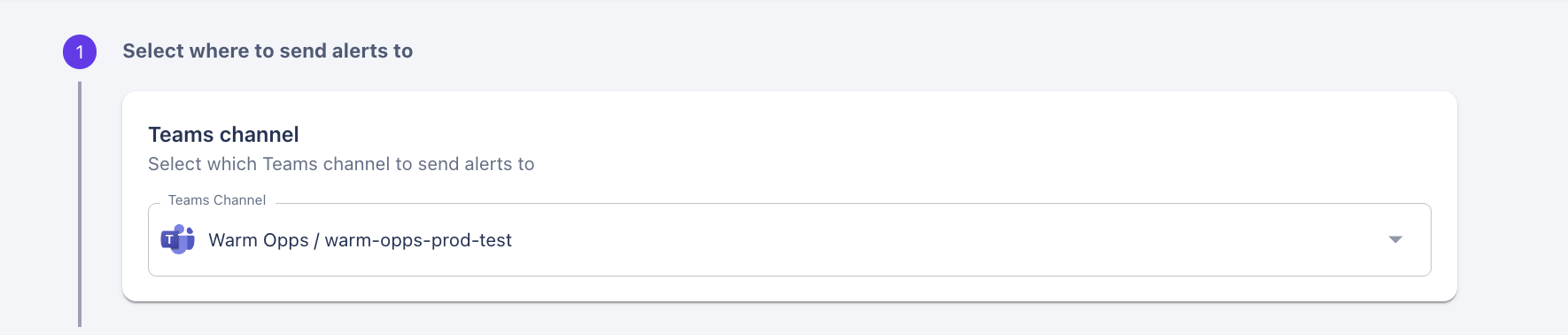
Choose the Teams channel where notifications should be posted:
Set Alert Trigger:
Lands on a page (Realtime)
Fills out a form
After full identification (Most Enriched Visitor Data)
Step 5: Choose Visitor Identification Level
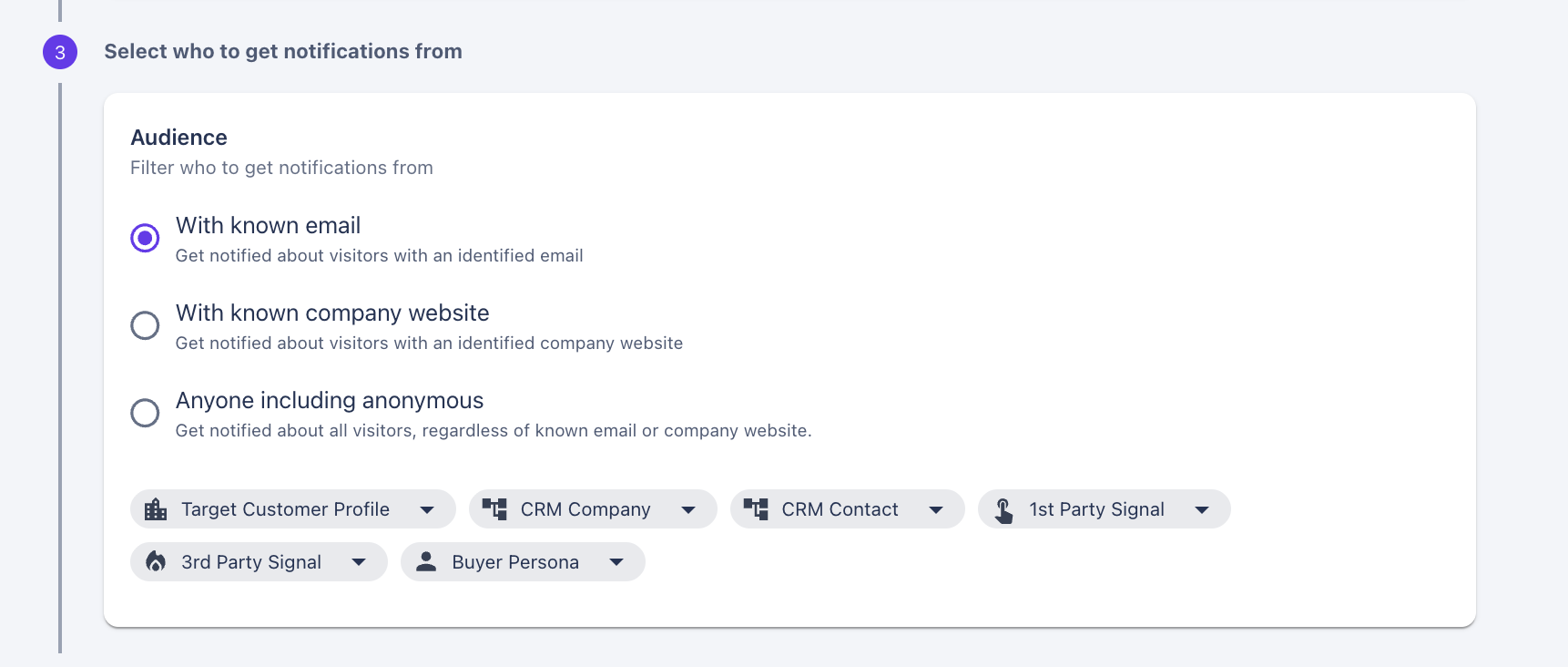
Decide which visitors should trigger an alert:
With known email: Only visitors whose email address has been identified.
With Known company: Visitors where the company is identified.
Anyone including anonymous: All visitors, regardless of identification status.
Apply segments (ICP filters): Narrow notifications to segments you care about, such as target account, Company size, industry, or other ICP criteria.
Step 6: Add Routing Rules (Optional)
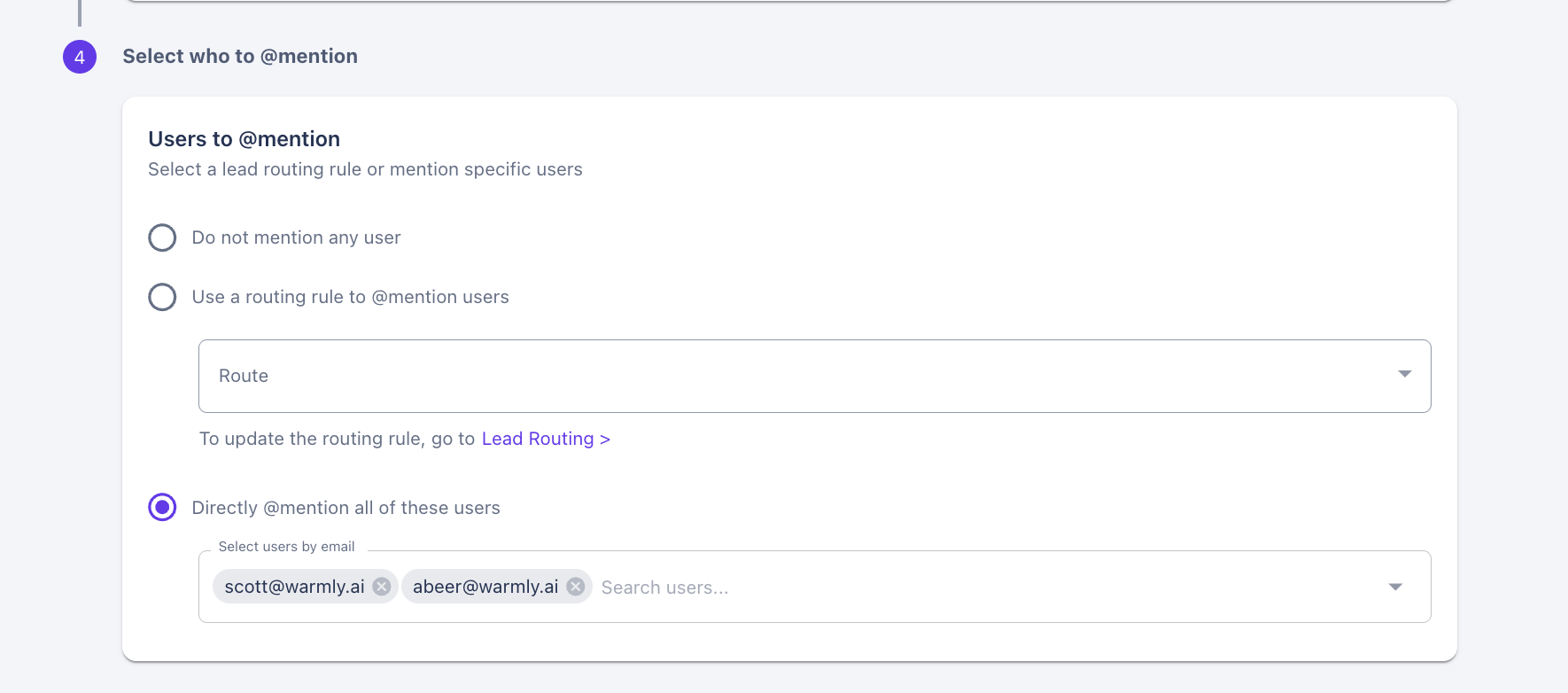
Rep mentions: Use Warmly’s routing rules to @mention the assigned rep in the Teams notification, or always @mention a specific person.
Using Teams Alerts with Warmly Chat
If your team uses Warmly’s chat feature, you can add a Microsoft Teams alert as a step in your chat routing workflow:
Open your chat orchestration workflow.
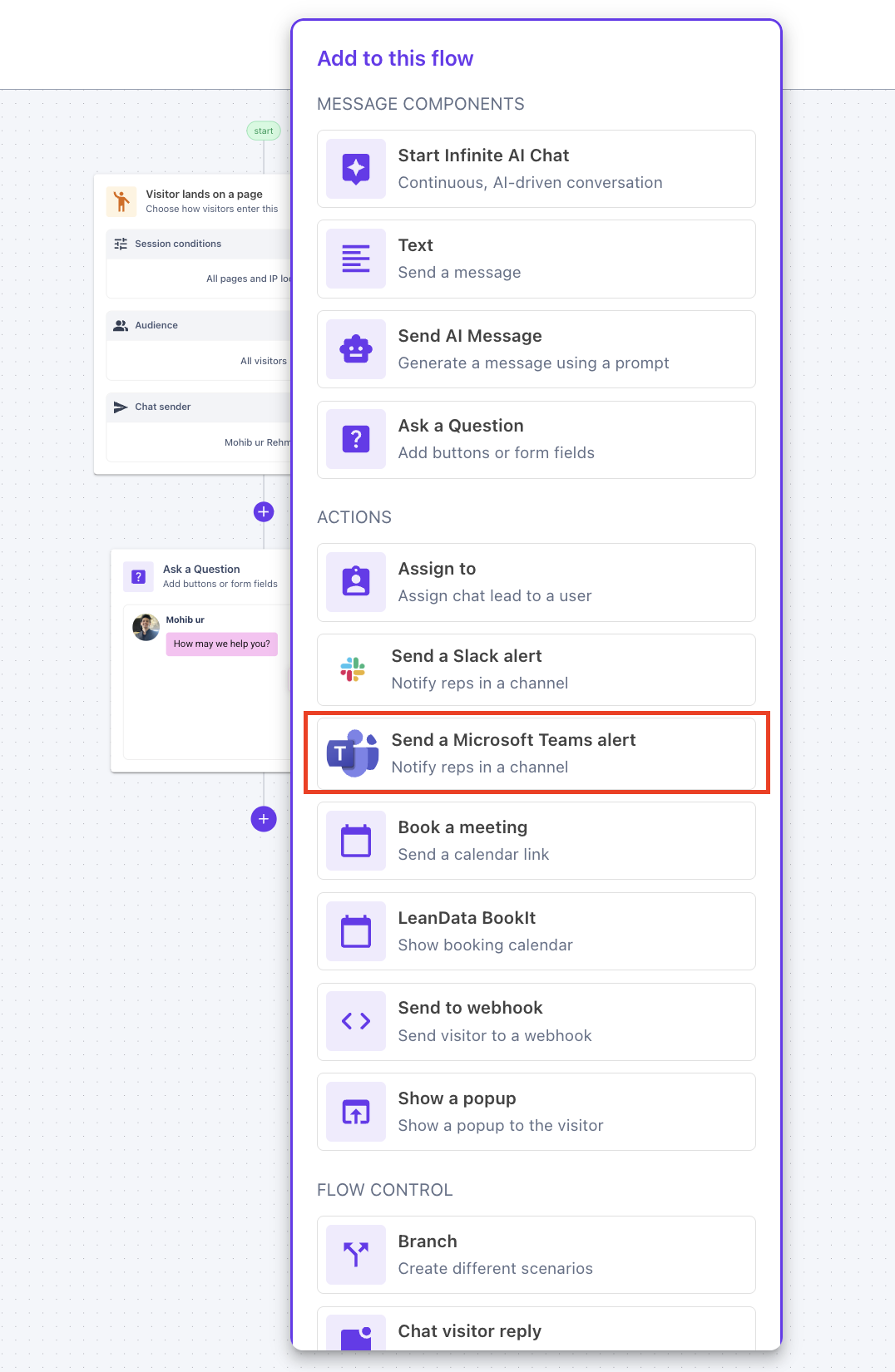
Add a Send Microsoft Teams Alert step below it.
Select the Teams channel your inbound SDRs monitor.
Add an Assign User step to route the conversation to the appropriate inbound SDR.
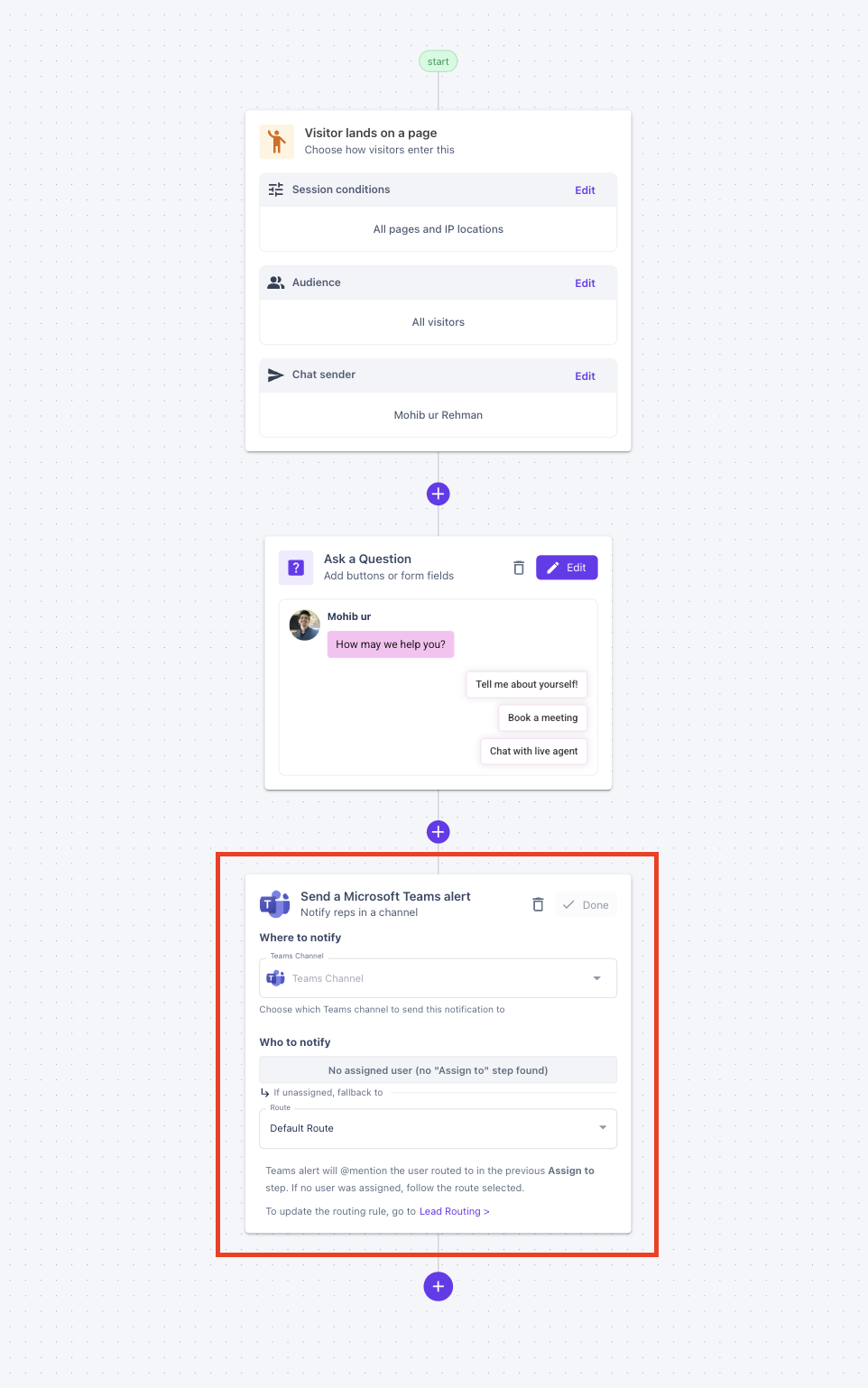
This ensures that when a qualified visitor starts a chat, the right rep is notified instantly in Teams and can jump in to respond.
What the Notification Looks Like
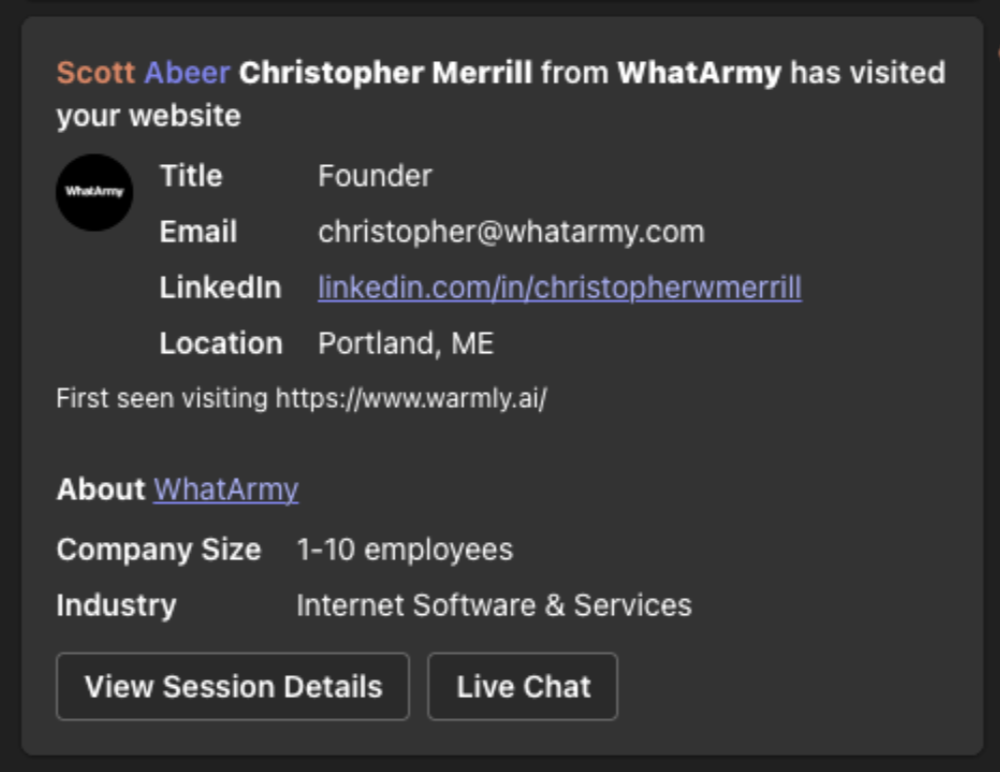
Each Teams notification includes:
An @mention of the assigned rep (if routing is configured).
The visitor’s name, job title, email address, and LinkedIn profile link.
Company information for the visitor’s organization.
Quick-action buttons to View Session or Live Chat with the visitor directly.
Why It Matters
For outbound SDRs: Acting on real-time signals — when the prospect is actively thinking about your product — increases reply rates and shortens time to book meetings. You also gain insight into which pages the prospect viewed, so your follow-up can be specific and relevant.
For account executives: Timely, personalized outreach to active-deal contacts improves conversion rates and can shorten sales cycles. Knowing who else from the account is evaluating your product helps you multi-thread the deal.
For inbound SDRs: Faster response time to qualified visitors in chat leads to higher conversion. The native integration replaces complex webhook setups with a simple, reliable configuration.
For ops teams: No more building and maintaining notification workflows in Power Automate, Zapier, or Make. Setup takes minutes instead of hours, and there are fewer points of failure.
Frequently Asked Questions
Does this cost extra?
No. The Microsoft Teams integration is free for all customers with a Teams workspace.
Does this replace my existing Slack notifications?
No. The Teams integration works alongside Slack. If your organization uses both, you can set up alerts in either or both platforms.
Do I still need Power Automate, Zapier, or Make?
No, This native integration provides the same functionality that previously required a webhook-based workflow through those tools.
What triggers are available?
Lands on a page(Real time), form fills, and full identification waterfall complete. These are the same triggers available in Slack alerts.
Can I filter alerts to only my ICP?
Yes. You can apply ICP filters to any alert so you only receive notifications for the accounts and segments that matter to your team.
Can I @mention specific reps in the notification?
Yes. You can use Warmly’s routing rules to dynamically @mention the assigned rep, or configure the alert to always @mention a specific person.
Have questions or feedback? Reach out to your CSM or email us at [email protected]