Setting up Salesforce Permissions / Sandbox Setup
Last updated: August 6, 2026
Note: Salesforce integration is not available on the Free plan.
Warmly integrates seamlessly with Salesforce, enabling you to track engagement, enrich records, and sync critical user and activity data. To maintain a smooth connection and avoid errors, the Salesforce user connecting to Warmly must have specific permissions. This guide will help you set up a secure, reliable integration and make the most of Warmly with your Salesforce data.
In this guide, you’ll learn:
Which Salesforce permissions Warmly requires
Why each permission is needed
Recommended setup options for integration
How to proceed if you have limited access
How to manually create Warmly custom fields in Salesforce
Why Permissions Matter
Warmly reads from and writes data back to Salesforce. If the Salesforce user connecting to Warmly lacks certain permissions, especially around metadata and object access, you may encounter permission errors during setup or sync.
These permissions allow Warmly to:
Create and update custom fields
Write enrichment and engagement data
Sync users and object fields for routing and segmentation
Log activities like chat transcripts
Warmly requires the following profile-level permissions on the connecting Salesforce user:
1. Administrative permissions
Enable the following system permissions:
Permission | API Name | Reasoning |
APEX Rest Services | PermissionsApexRestServices | Allows Warmly to interact with Apex REST services used during integration actions |
API Enabled | PermissionsApiEnabled | Allows Warmly to access Salesforce data through the Salesforce API |
Customize Application | PermissionsCustomizeApplication | Allows Warmly to create required custom fields and update object configuration during setup |
Modify Metadata through Metadata API functions | PermissionsModifyMetadata | Allows Warmly to update custom fields and objects via the Metadata API |
View All Data | PermissionsViewAllData | Allows Warmly to view relevant records and custom fields across Salesforce |
Edit Tasks | PermissionsEditTask | Allows Warmly to create tasks such as logging chat transcripts and engagement activity |
View All Users* | PermissionsViewAllUsers | Allows Warmly to sync Salesforce users for routing and segmentation |
* View All Users is required if View All Data is not enabled.
Note: Warmly may show permission warnings if "View All Data" is disabled. This is expected if Standard Object Permissions are configured correctly and "View All Users" is enabled.
2. Standard Object Permissions:
For Accounts, Contacts, Leads, Opportunities, and Campaigns, enable the following permissions:
Read
Create
Edit
View All
Modify All
View All Fields
Recommended Implementation Strategy
✅ Best Practice: Dedicated Salesforce Profile for Warmly
Creating a dedicated integration profile gives you full control and minimizes security risk. This is particularly important when integration credentials expire. Credential expiration typically occurs if:
The Salesforce user who originally connected Warmly no longer exists in Salesforce, or
That user no longer has the required permissions to maintain the integration.
By using a dedicated integration user with its own profile, you prevent disruptions and ensure a stable connection between Warmly and Salesforce.
Step 1: Create a Custom Profile
Go to Setup → Profiles
Click New Profile
Name it: Warmly Integration User
Click Save
Step 2: Configure Administrative Permissions
Enable all permissions listed in the Administrative Permissions section above.
Step 3: Configure Standard Object Permissions
Apply the required object permissions for Accounts, Contacts, Leads, Opportunities, and Campaigns.
Step 4: Create the Integration User
Create or designate a Salesforce user
Assign the Warmly Integration User profile
Use this user to connect Salesforce to Warmly
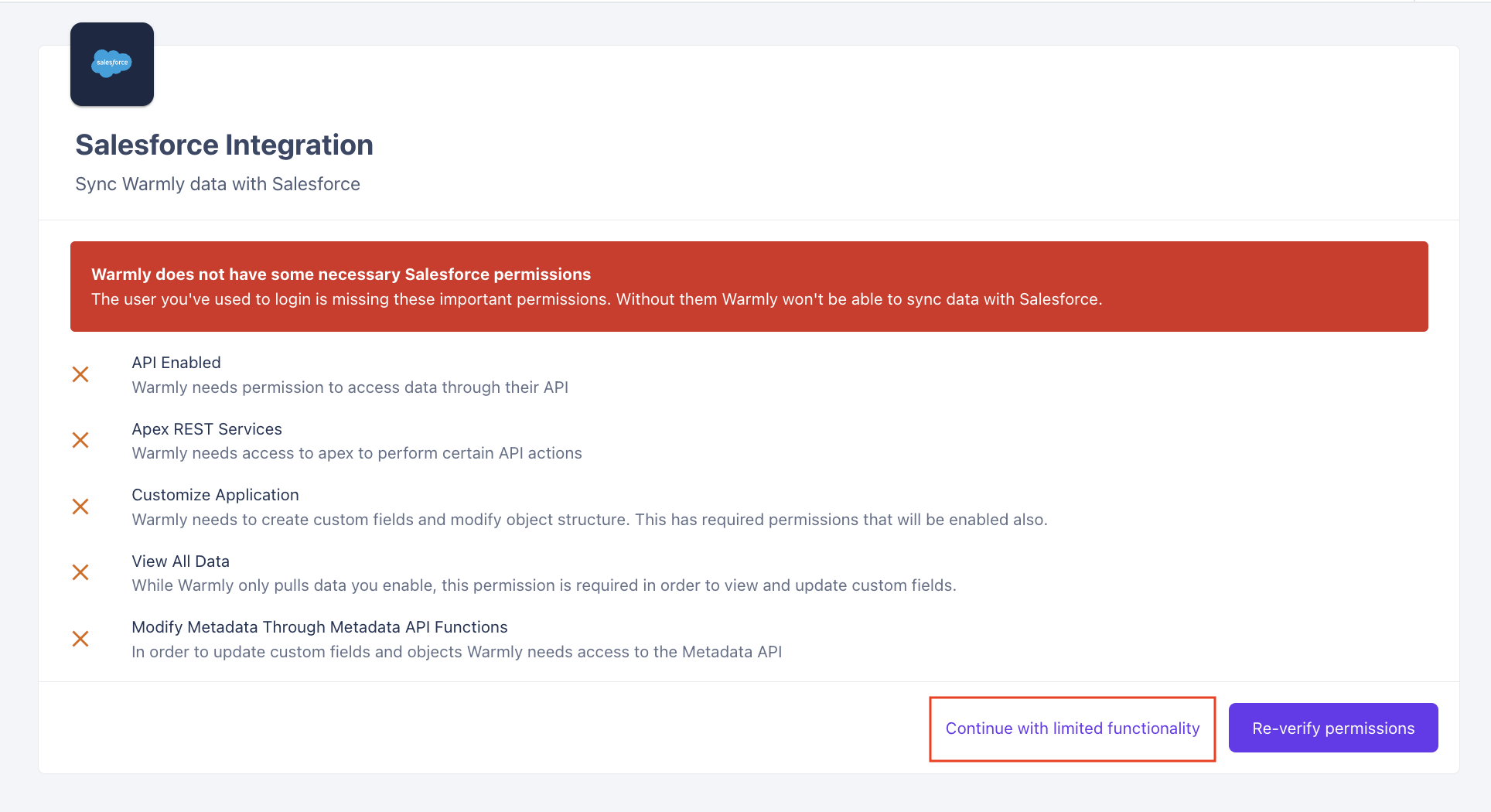
Proceeding With Limited Permissions
If your organization cannot grant all the required permissions:
In Warmly, go to Settings → Salesforce
Select “Continue with limited functionality”
Warmly will flag any missing permissions but will still allow functionality based on the access currently available. You can then work with your Warmly CSM to test the integration and enable additional permissions in Salesforce as needed.
Manually Creating Warmly Custom Fields in Salesforce
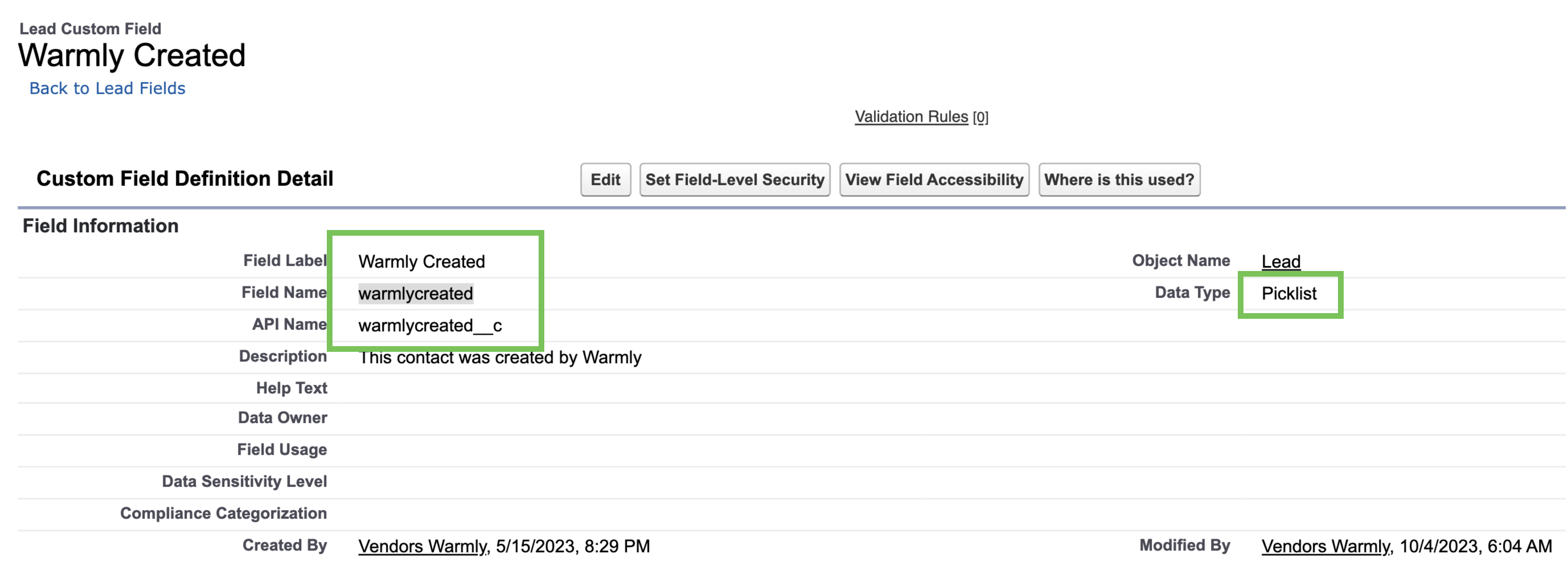
If you prefer not to allow Warmly to create custom fields automatically, or if a required field is missing, you can create them manually in your CRM.
REQUIRED FIELDS
Warmly: Created -- required on Account & Lead objects
Warmly: Prospected -- required on Lead & Contact objects only
Warmly: Touched -- required on Account, Lead & Contact objects
Please see the sections below for a complete breakdown of Warmly custom field labels, API names, and data types required when manually creating these fields in Salesforce.
Account
Field Name (Label) | API Name | Data Type |
Warmly: Total pages viewed | warmlytotalpagesviewed__c | Number(16, 0) |
Warmly: Total active time | warmlytotalactivetime__c | Number(16, 0) |
Warmly: Total sessions | warmlytotalsessions__c | Number(16, 0) |
Warmly: Link | warmlylink__c | URL(255) |
Warmly: Last seen | warmlylastseenat__c | Date/Time |
Warmly: Last Pages Viewed | warmlylastpagesviewed__c | Text(255) |
Warmly: Visitor count | warmlyvisitorcount__c | Number(16, 0) |
Warmly: Segments | warmlymatchedsegments__c | Text(255) |
Warmly: Segments List | warmlymatchedsegmentslist__c | Picklist (Multi-Select) |
Warmly: UTM Campaigns | warmlyutmcampaigns__c | Picklist (Multi-Select) |
Warmly: UTM Contents | warmlyutmcontents__c | Picklist (Multi-Select) |
Warmly: UTM Mediums | warmlyutmmediums__c | Picklist (Multi-Select) |
Warmly: UTM Sources | warmlyutmsources__c | Picklist (Multi-Select) |
Warmly: Touched | warmlytouched__c | Picklist |
Warmly: Created | warmlycreated__c | Picklist |
Warmly: Prospector Workflow | warmlyprospectorworkflow__c | Text(255) |
Contact
Field Name (Label) | API Name | Data Type |
Warmly: Total pages viewed | warmlytotalpagesviewed__c | Number(16, 0) |
Warmly: Total active time | warmlytotalactivetime__c | Number(16, 0) |
Warmly: Total sessions | warmlytotalsessions__c | Number(16, 0) |
Warmly: Link | warmlylink__c | URL(255) |
Warmly: Last seen | warmlylastseenat__c | Date/Time |
Warmly: Last Pages Viewed | warmlylastpagesviewed__c | Text(255) |
Warmly: Segments | warmlymatchedsegments__c | Text(255) |
Warmly: Segments List | warmlymatchedsegmentslist__c | Picklist (Multi-Select) |
Warmly: UTM Campaigns | warmlyutmcampaigns__c | Picklist (Multi-Select) |
Warmly: UTM Contents | warmlyutmcontents__c | Picklist (Multi-Select) |
Warmly: UTM Mediums | warmlyutmmediums__c | Picklist (Multi-Select) |
Warmly: UTM Sources | warmlyutmsources__c | Picklist (Multi-Select) |
Warmly: Touched | warmlytouched__c | Picklist |
Warmly: Created | warmlycreated__c | Picklist |
Warmly: LinkedIn Bio | warmlylinkedinbio__c | URL(255) |
Warmly: Prospector Workflow | warmlyprospectorworkflow__c | Text(255) |
Warmly: Prospected | warmlyprospected__c | Text(255) |
Warmly: Identification Source | warmlyidentificationtype__c | Picklist |
Warmly: Last Chat Content | warmlylastchatcontent__c | Text(255) |
Lead
Field Name (Label) | API Name | Data Type |
Warmly: Total pages viewed | warmlytotalpagesviewed__c | Number(16, 0) |
Warmly: Total active time | warmlytotalactivetime__c | Number(16, 0) |
Warmly: Total sessions | warmlytotalsessions__c | Number(16, 0) |
Warmly: Link | warmlylink__c | URL(255) |
Warmly: Last seen | warmlylastseenat__c | Date/Time |
Warmly: Last Pages Viewed | warmlylastpagesviewed__c | Text(255) |
Warmly: Segments | warmlymatchedsegments__c | Text(255) |
Warmly: Segments List | warmlymatchedsegmentslist__c | Picklist (Multi-Select) |
Warmly: UTM Campaigns | warmlyutmcampaigns__c | Picklist (Multi-Select) |
Warmly: UTM Contents | warmlyutmcontents__c | Picklist (Multi-Select) |
Warmly: UTM Mediums | warmlyutmmediums__c | Picklist (Multi-Select) |
Warmly: UTM Sources | warmlyutmsources__c | Picklist (Multi-Select) |
Warmly: Touched | warmlytouched__c | Picklist |
Warmly: Created | warmlycreated__c | Picklist |
Warmly: LinkedIn Bio | warmlylinkedinbio__c | URL(255) |
Warmly: Prospector Workflow | warmlyprospectorworkflow__c | Text(255) |
Warmly: Prospected | warmlyprospected__c | Text(255) |
Warmly: Identification Source | warmlyidentificationtype__c | Picklist |
Warmly: Last Chat Content | warmlylastchatcontent__c | Text(255) |
Opportunity
Field Name (Label) | API Name | Data Type |
Warmly: Created | warmlycreated__c | Picklist |

Configuring Multi-Select Picklist Fields
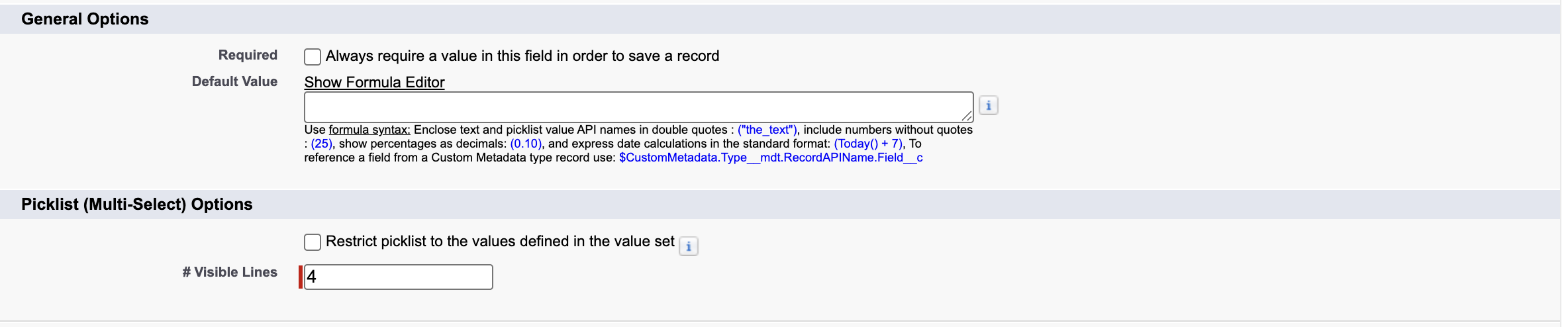
The LOVs (List of Values) for those fields do not need to be predefined. The values are automatically created by Warmly through the Salesforce API as data is written to those fields.
For the multi-select fields, please ensure:
“Restrict picklist to the values defined in the value set” is unchecked.
“Always require a value in this field in order to save a record” is unchecked.
Once those settings are configured, the values will populate automatically as Warmly syncs data.
Have questions or feedback? Reach out to your CSM or email us at [email protected]