Warmly Managed Package Installation & Report Update Guide
Last updated: April 22, 2026
Below is a step by step guide to installing the Salesforce Managed Package. You can also follow along step by step in this video.
1. Install the Managed Package
Install the package using this link: https://login.salesforce.com/packaging/installPackage.apexp?p0=04tfL000000bNNRQA2
When prompted, select Install for All Users.
Wait until the installation completes (you’ll see a confirmation message or email).
2. Assign the Permission Set
In Salesforce, go to Setup.
Enter Permission Sets in Quick Find and click Permission Sets.
Locate and select the permission set Warmly Dashboard.
Click Manage Assignments → Add Assignments.
Select the users who will need access to the dashboards and click Assign.
3. Open the Warmly Dashboard
From the App Launcher (grid icon), search for Dashboards and click View All Dashboards.
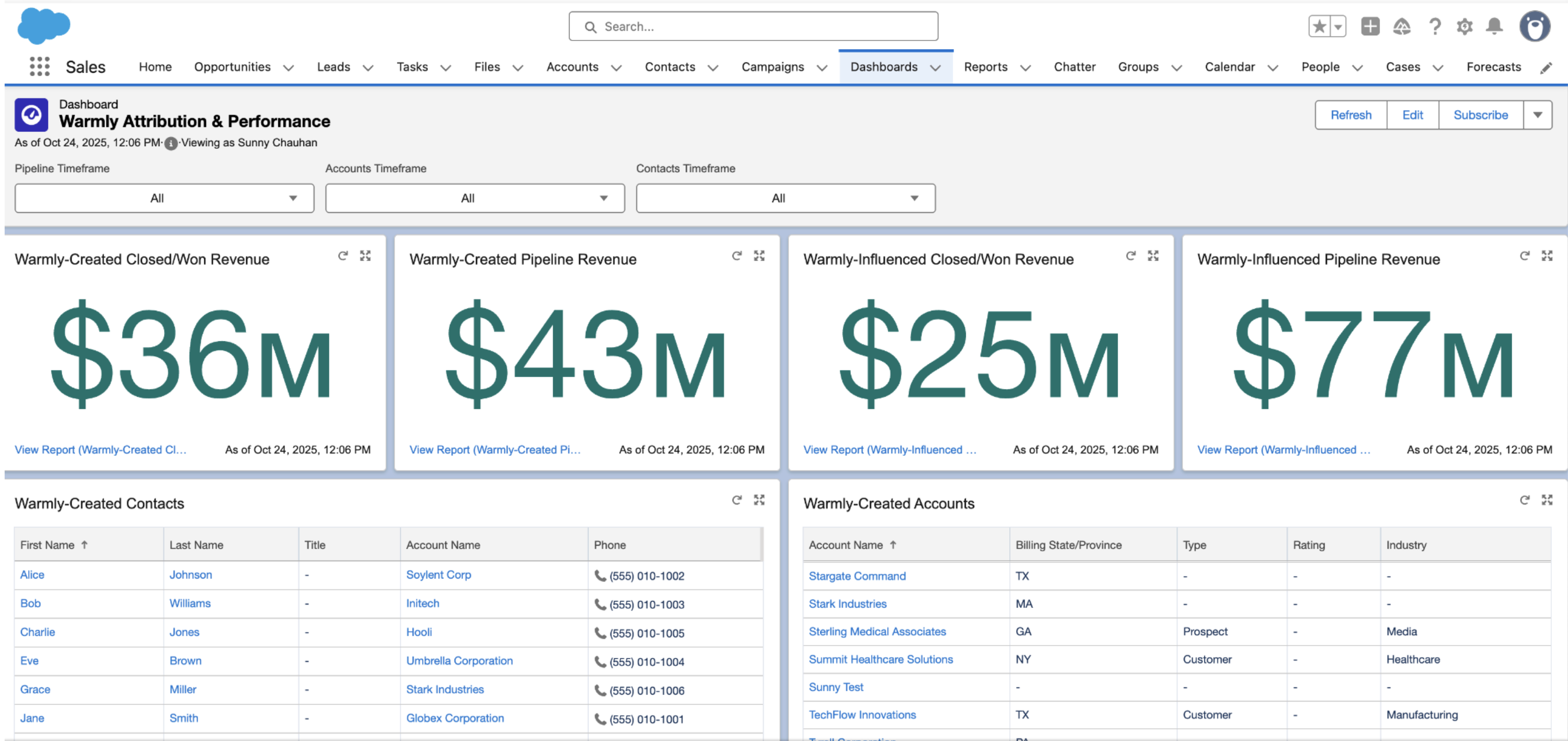
Locate and open Warmly Attribution and Performance dashboard.
4. Update Reports with Correct Fields
For each report below, you will replace fields from the managed package (suffix “(Package)”) with the existing org fields.
👉 Steps for each report:
Open the report from the dashboard.
Click Edit.
In the Filters panel, search for the field name.
Since multiple fields have the same name, select the first one that shows up (this will be the existing org field).
Remove the old “(Package)” field from the filter.
Save and return to the dashboard.
Reports & Field Updates
Warmly-Created Closed/Won Revenue
Replace: Warmly Created (Package) → Warmly Created (Existing)
Warmly-Created Pipeline Revenue
Replace: Warmly Created (Package) → Warmly Created (Existing)
Warmly-Influenced Closed/Won Revenue
Replace: Warmly Touched (Package) → Warmly Touched (Existing)
Warmly-Influenced Pipeline Revenue
Replace: Warmly Touched (Package) → Warmly Touched (Existing)
Warmly-Created Contacts
Replace: Warmly Created (Package) → Warmly Created (Existing)
Warmly-Created Accounts
Replace: Warmly Created (Package) → Warmly Created (Existing)
Warmly-Influenced Contacts
Replace: Warmly Touched (Package) → Warmly Touched (Existing)
Warmly Account-Contact Created Over Time
Replace:
Account: Warmly Created (Package) → Warmly Created (Existing)
Contact: Warmly Created (Package) → Warmly Created (Existing)
5. Verify Dashboard
After updating all reports, refresh the Warmly Attribution and Performance dashboard.
Confirm that the data reflects correctly and no filters reference “(Package)” fields.