Customizing Chat
Last updated: June 18, 2025
Customizations for your Settings & Brand
Warmly lets your team customize your Chat settings to provide an on-brand experience to your prospects.
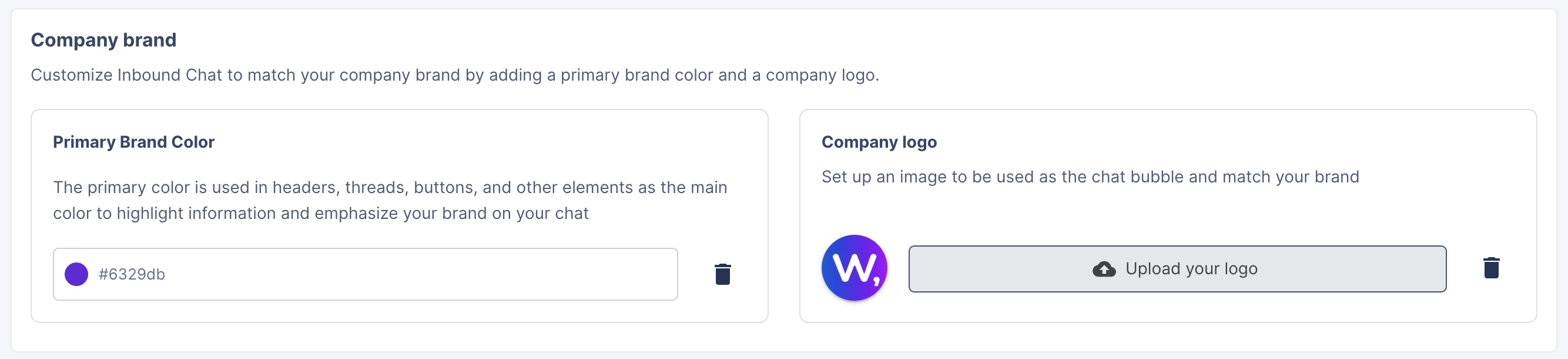
Set the company brand by selecting a chat color and uploading your logo
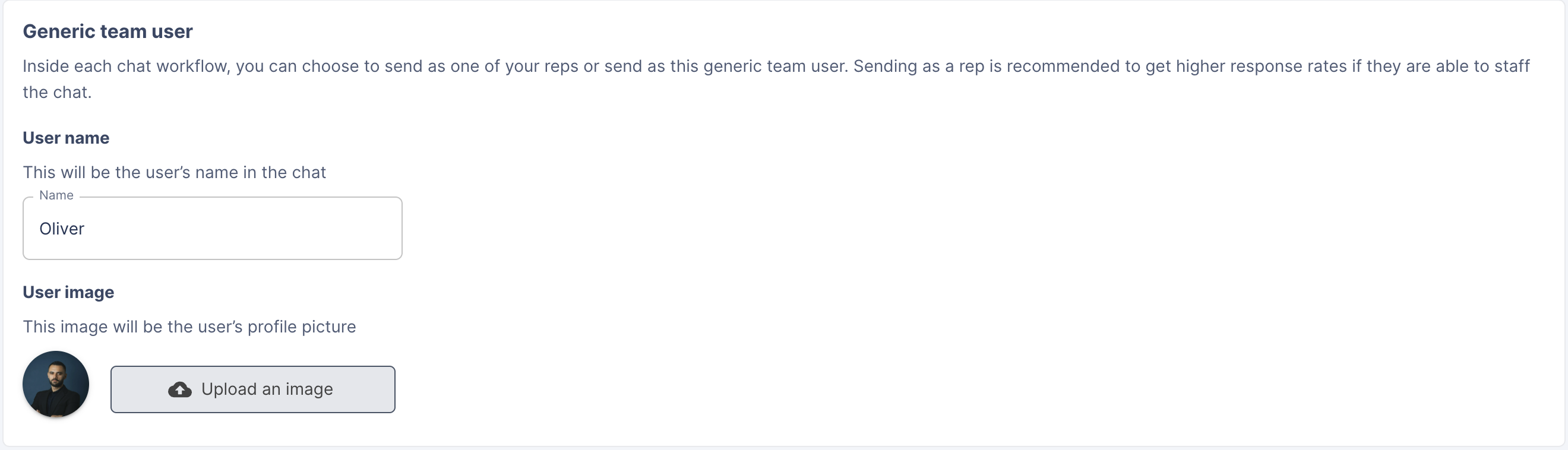
Name the Generic Team User and upload an image (likely the same as your logo), we suggest using [Your Company] Team
For Greeting, upload your company logo, or upload a Default company video (Warmly suggests uploading an engaging Default company video for increased engagement)

Add a team calendar link (likely a round robin link) so prospects can quickly book a meeting with the team

Set business hours where applicable (Warmly recommends selecting All days and times of the week to enable our chat to engage with as many prospects as possible, while providing them CTAs to book meetings or leave their email when reps are not available)

Adding Images into Chat
You can embed images into your Chat. Please make sure they are either png & jpeg. The maximum size you can embed is 300px width
This article was written by the Customer Success team at Warmly. Please feel free to reach out to your CSM directly or [email protected]