How to Build and Configure Your First AI Chat Agent
Last updated: June 15, 2026
Note: AI Studio is only available on paid plans and not accessible to Freemium users.
Warmly’s AI Studio makes it effortless for your team to build personalized AI chat agents that can engage visitors, answer questions, qualify buying intent, and even book meetings for you - 24/7.
Here's a quick guide to help you get your first Chat Agent up and running in just a few clicks!
🛠 Step-by-Step Instructions
Step 1: Create a new Chat Agent
This is where all your chat agents live.
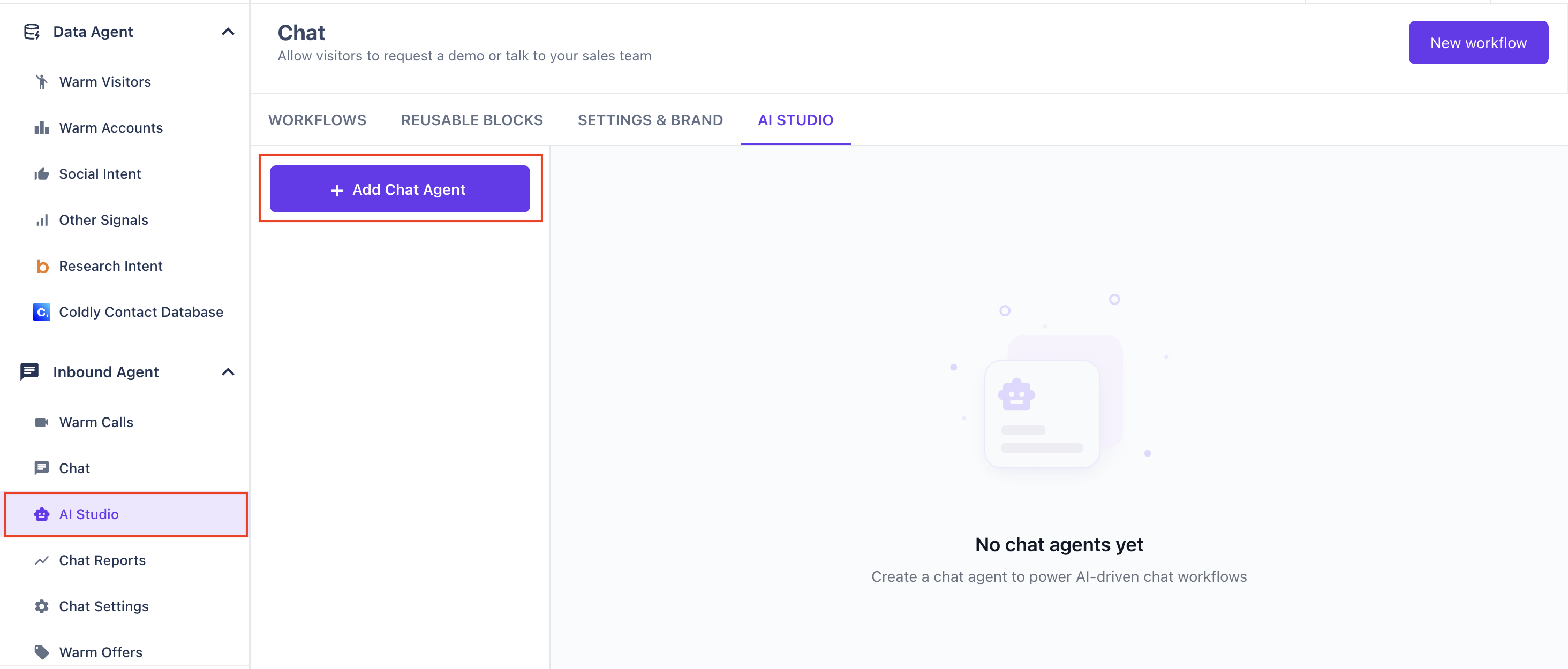
Go to Inbound Agent → AI Studio in the left-hand sidebar.
Click Add Chat Agent to create a new agent.
This will open the configuration flow where you’ll build, train, and customize your agent.
Step 2: Upload Training Content
This is where your Chat Agent learns everything it needs to know about your product, your customers, and how you want it to communicate. The more relevant content you add, the smarter and more accurate your agent will be.
You can train your agent using a variety of content types, including:
Product documentation – Teach your agent core features, functionality, and workflows.
FAQs – Help the agent quickly answer common visitor questions.
Sales playbooks – Let it follow your team’s qualification criteria, messaging, and objection-handling steps.
Help center articles – Provide step-by-step guidance for support-related questions.
Your agent will use all of this information to respond with accurate, context-aware answers during conversations.
To begin, click the 'Add Content' button and choose the type of training content you want to upload.
Step 2a: Upload PDFs
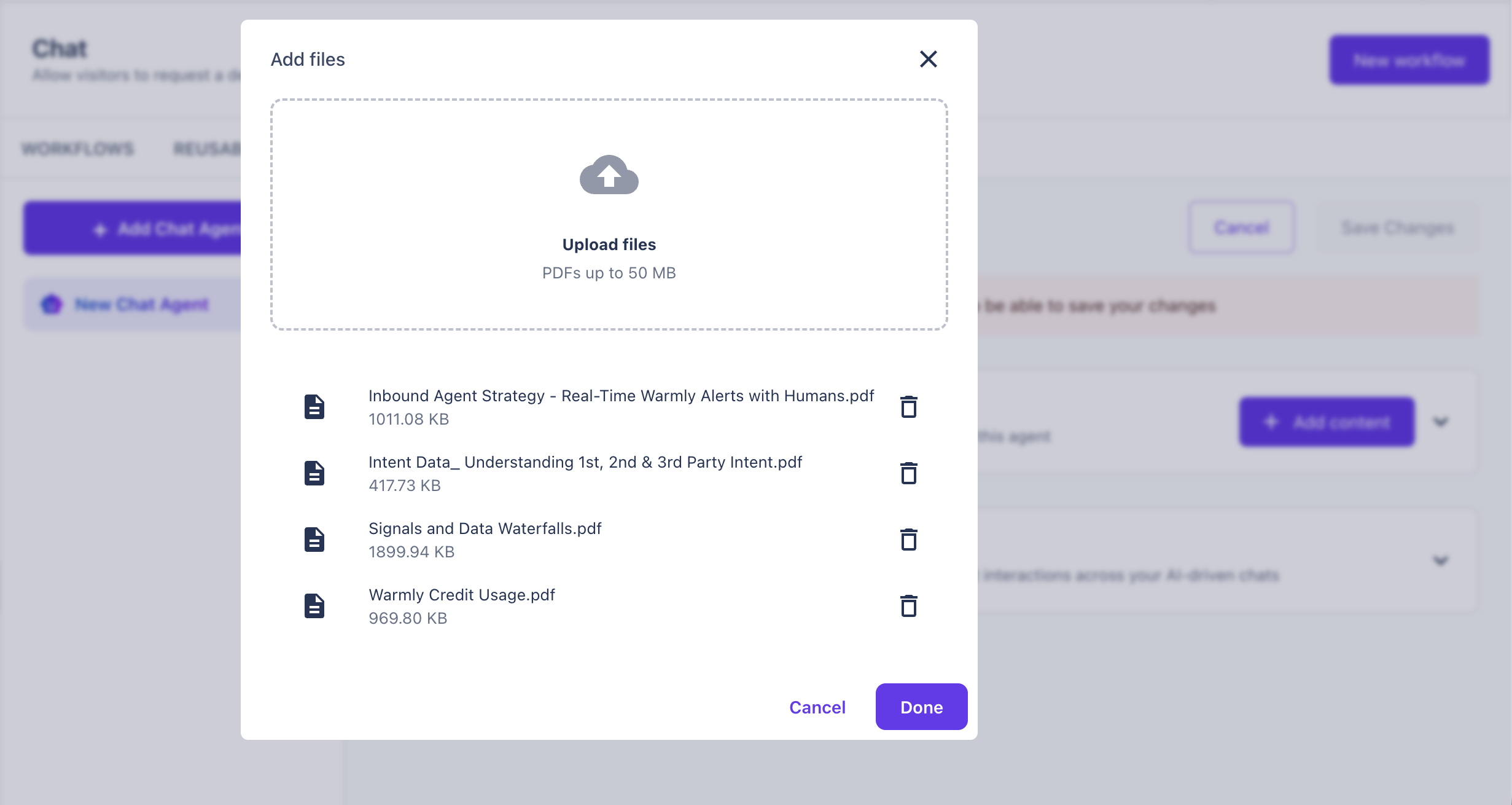
You can upload internal or customer-facing PDFs directly into the AI Studio:
Product sheets
Onboarding guides
Pitch decks
Internal process docs
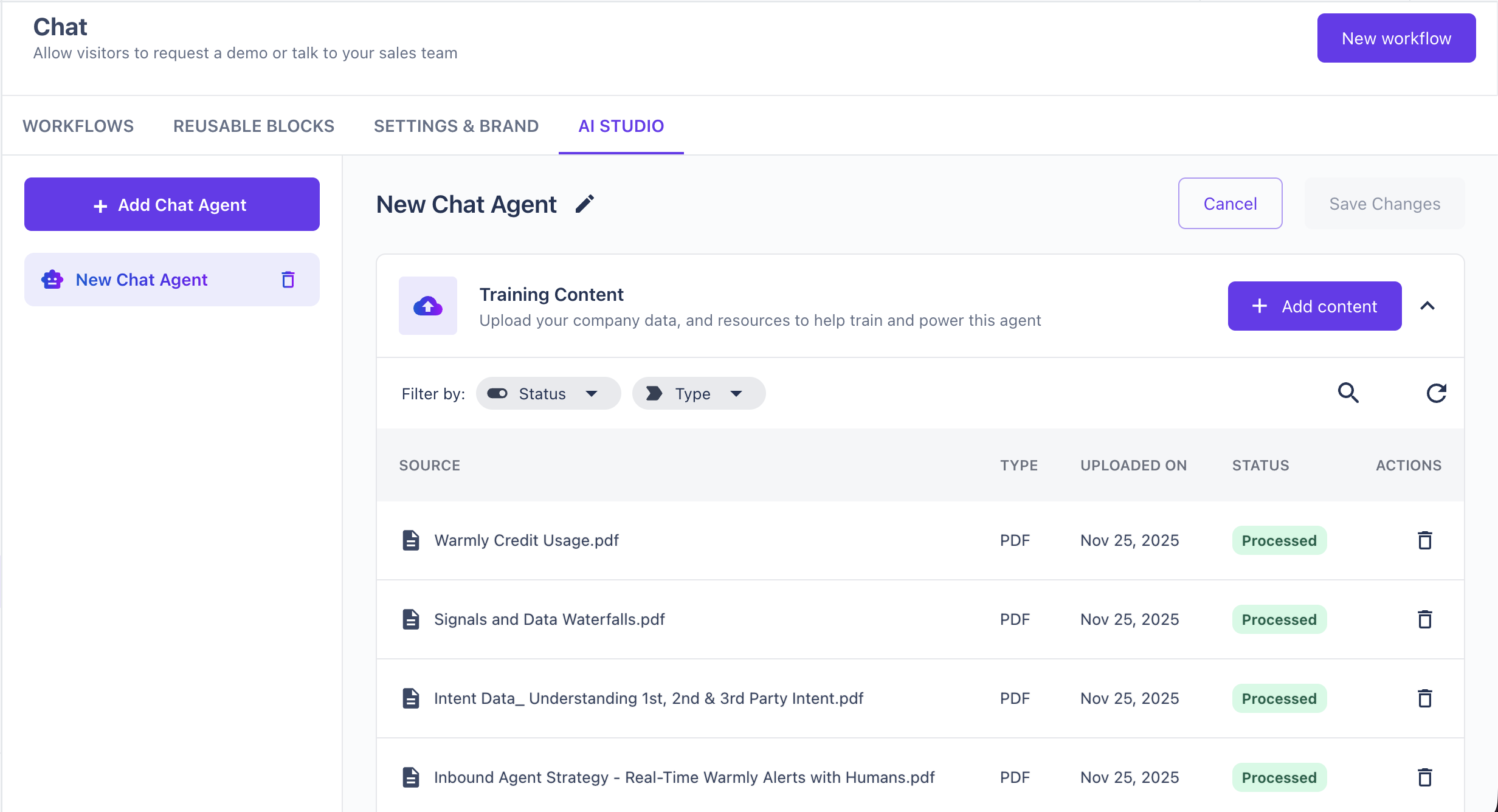
Once uploaded, the AI Studio automatically analyzes the content and adds it to your agent’s knowledge base.
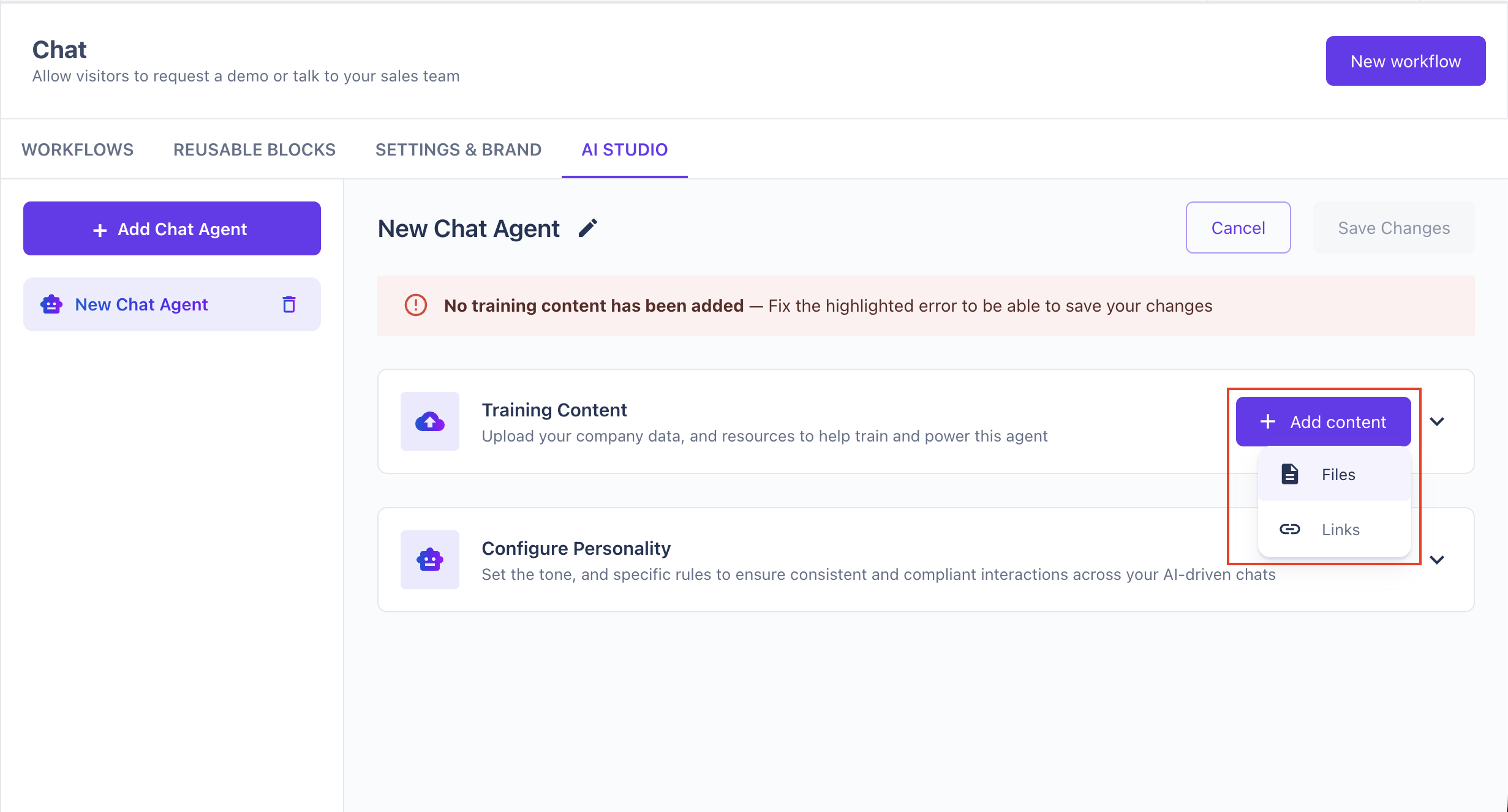
The maximum file size for each PDF is 50 MB. If your file is larger, consider splitting it or compressing it before uploading.
Step 2b: Upload Website Links
Train your agent using live website content such as your:
Marketing site
Documentation site
Blog posts
Knowledge base
Pricing pages
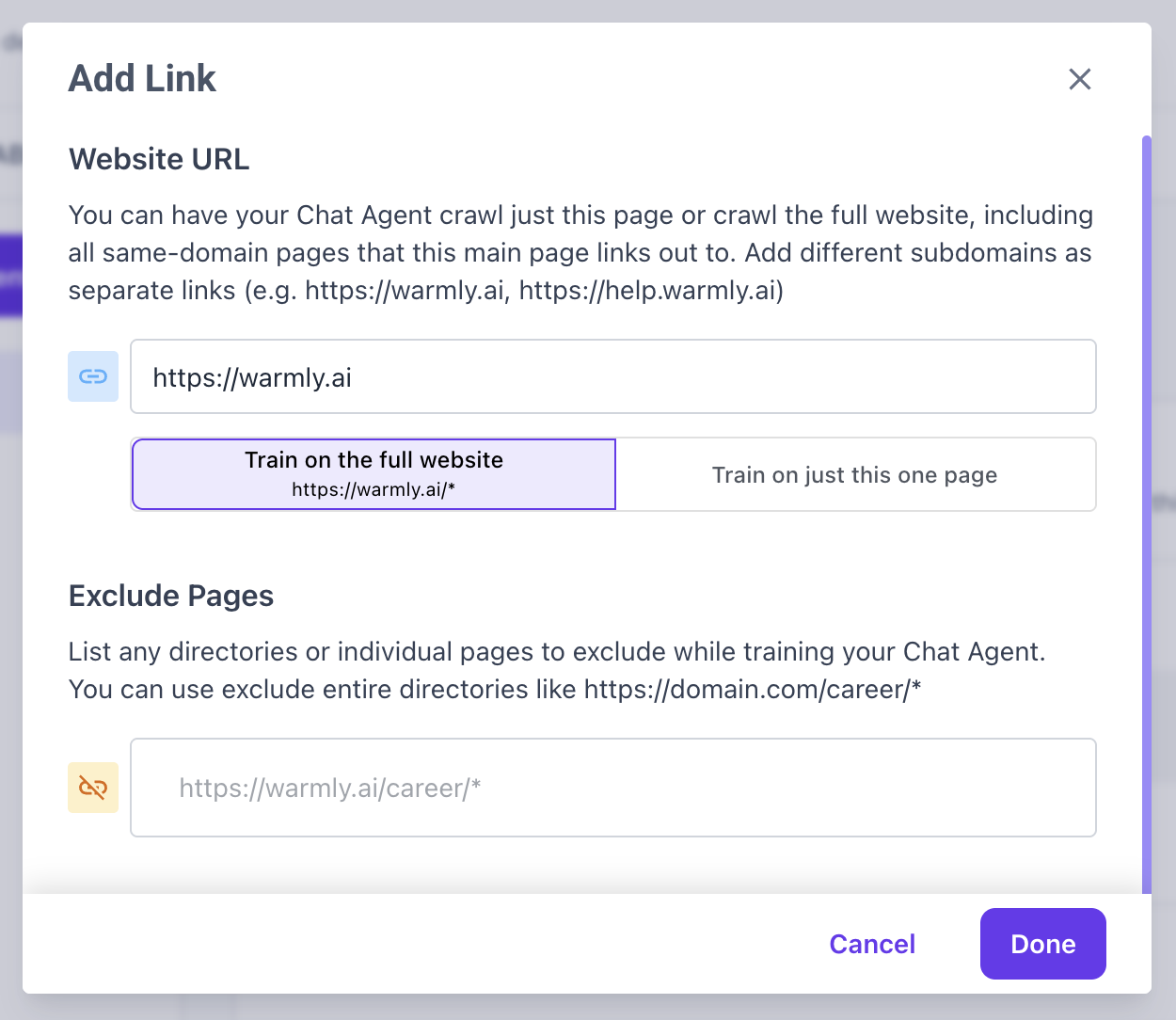
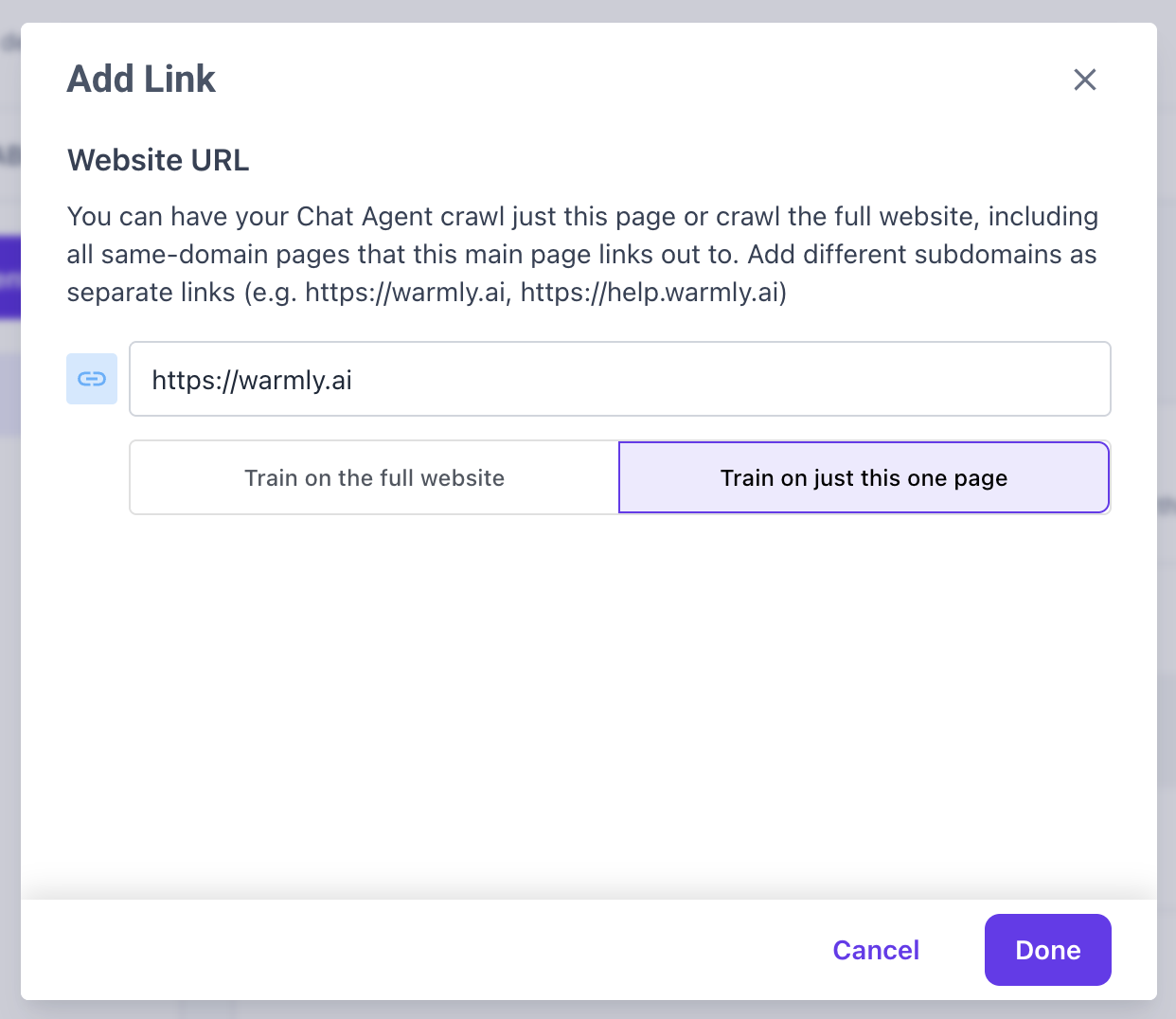
When adding a website link, you’ll be able to choose:
1. Train on Full Website or Single Page
Full website: Ideal if your agent needs a broad understanding of your product and company.
Single page: Best for highly focused or specialized training.
2. Exclude Certain Pages
If there are pages you don’t want your agent to learn from (e.g., outdated docs, blog posts, legal pages), you can manually exclude them. This keeps your agent trained only on the most accurate and relevant content.
Step 3: Configure Personality
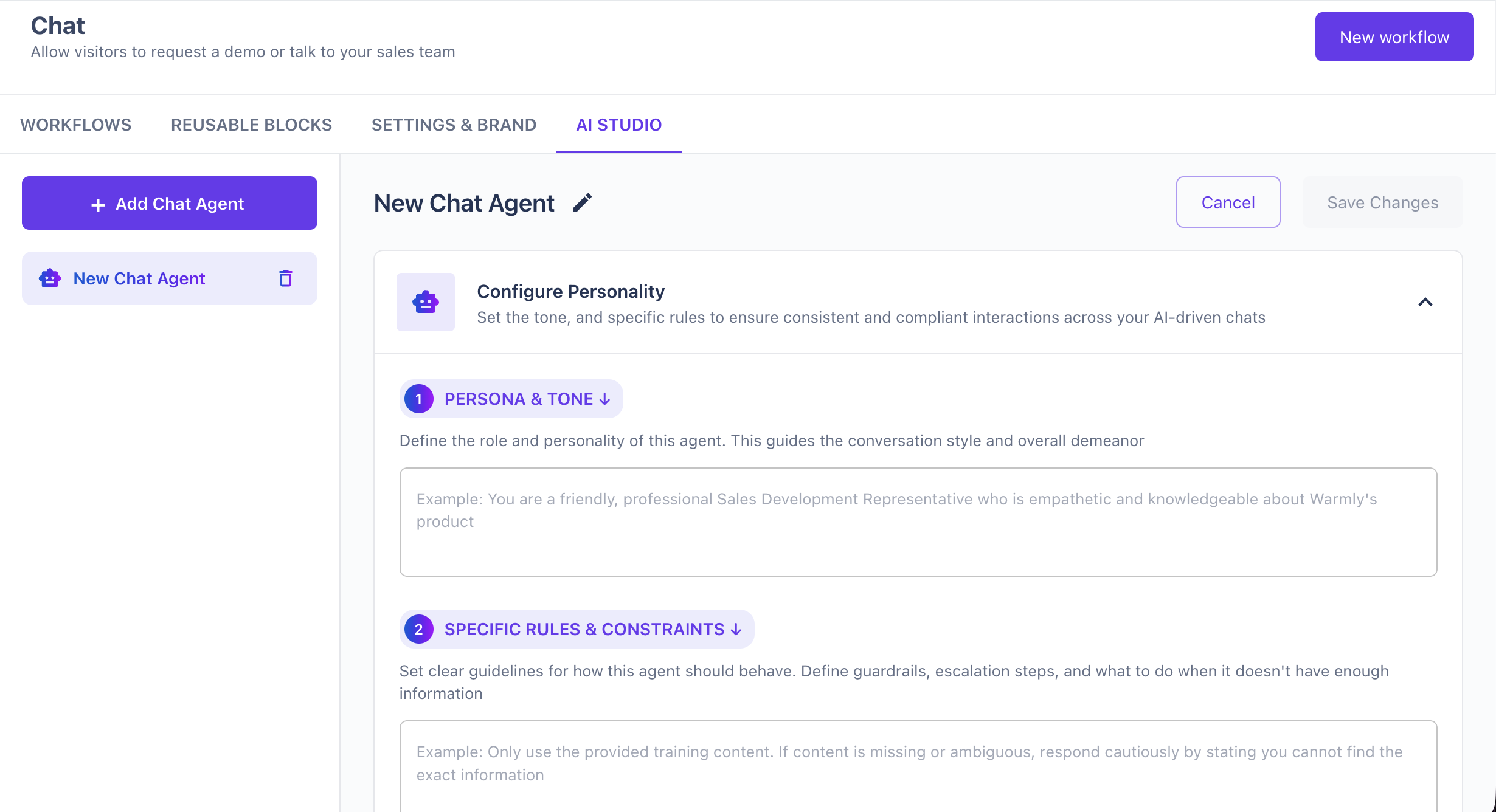
Once your agent has been trained with the right content, the next step is shaping how it sounds and behaves. This is where you customize the agent’s personality, tone, and rules so it feels aligned with your brand and operates exactly the way you want.
Step 3a: Set Persona & Tone
Define the role, style, and personality of your Chat Agent. This determines how it communicates with visitors throughout a conversation.
You can specify traits such as:
Professional and concise
Friendly and conversational
Playful and fun
Empathetic and supportive
Sales-driven and persuasive
Technical and detail-oriented
You can also assign a role - for example:
“Sales Development Representative”
“Customer Support Specialist”
“Product Expert”
“Onboarding Assistant”
This helps your agent understand the context it should operate in and the type of language it should use.
Step 3b: Set Specific Rules & Constraints
Rules ensure your agent responds appropriately, stays within brand guidelines, and handles edge cases gracefully.
Use this section to establish:
1. Behavior Guidelines
How formal or casual the agent should be
How long messages should be
Whether it should speak in first-person or third-person
How to handle sensitive questions or off-topic conversations
2. Fallback Behavior
Define what the agent should do when it lacks the required information:
Provide a generic helpful response
Ask clarifying questions
Redirect to a specific teammate
Share a help center link
These rules act as the guardrails that keep your agent aligned with your expectations and ensure a high-quality experience for every visitor.
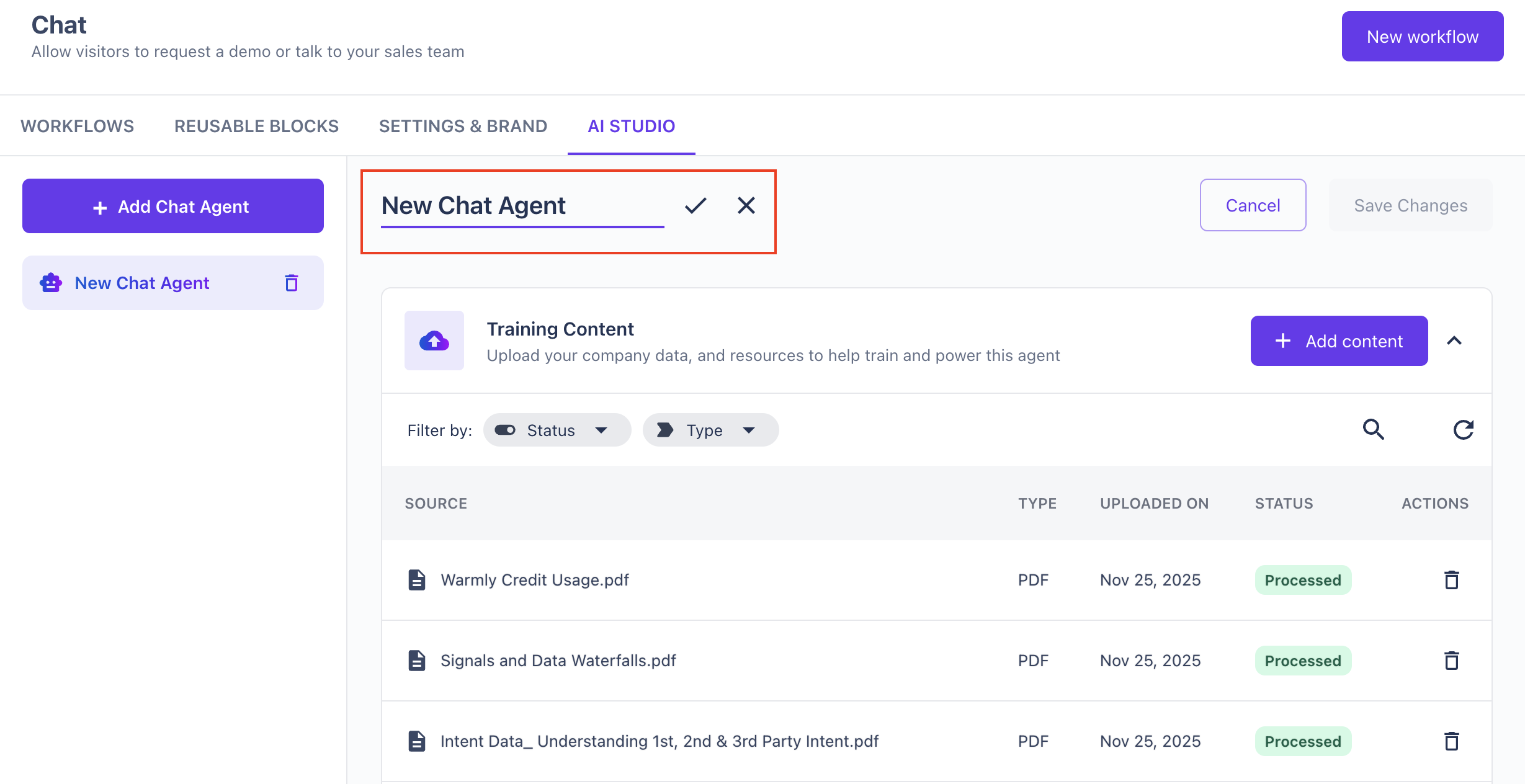
Step 4: Name your Chat Agent
The final step in setting up your agent’s configuration is giving it a name. Choose a name that reflects the agent’s role, tone, or purpose. A clear, descriptive name helps teammates instantly understand the agent’s responsibility.
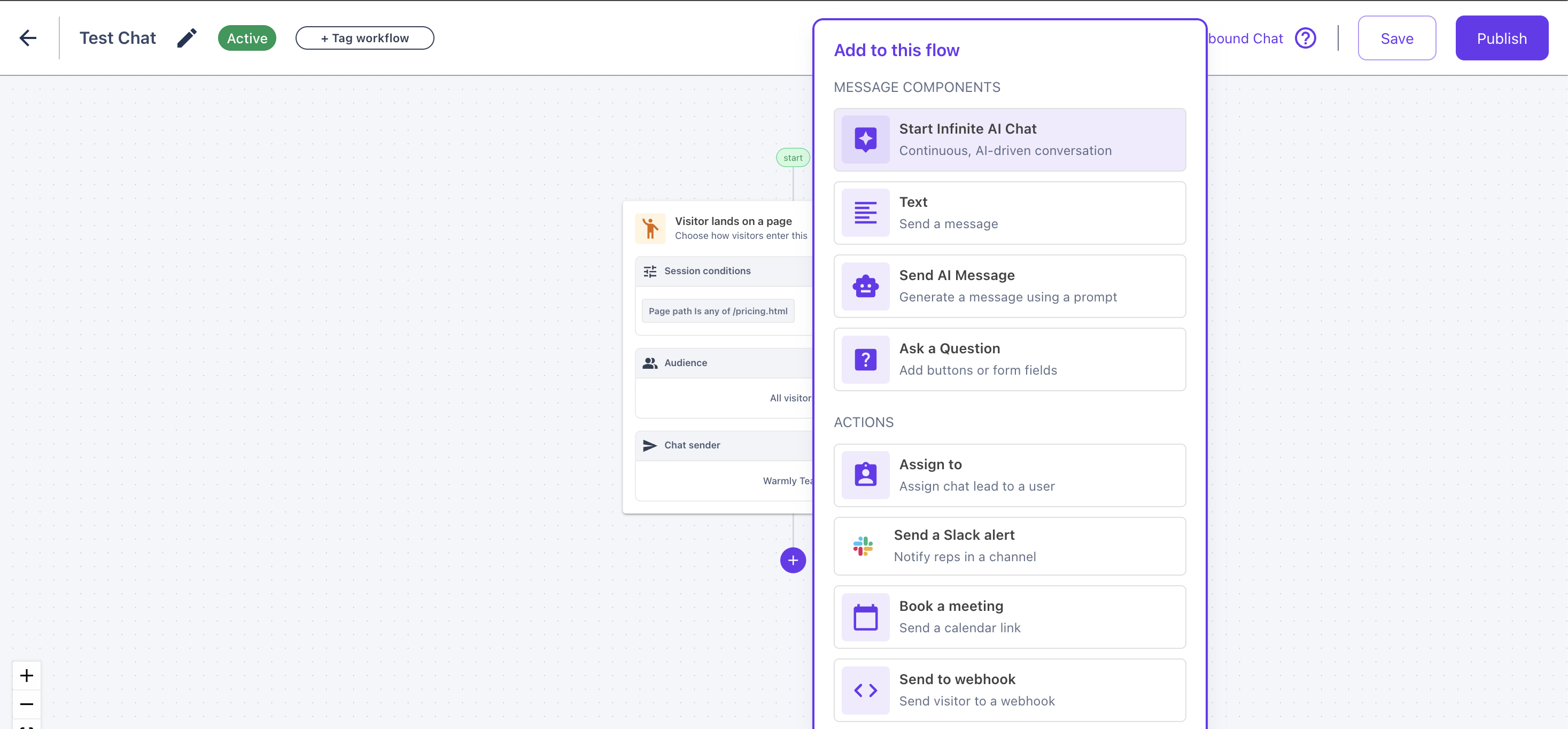
Step 5: Add Chat Agent to your Chat workflow
To activate your agent in conversations:
Open the chat workflow where you want the agent to run.
Add the Start Infinite AI Chat step.
Select your newly created Chat Agent.
Step 6: Assign a goal to your Chat Agent
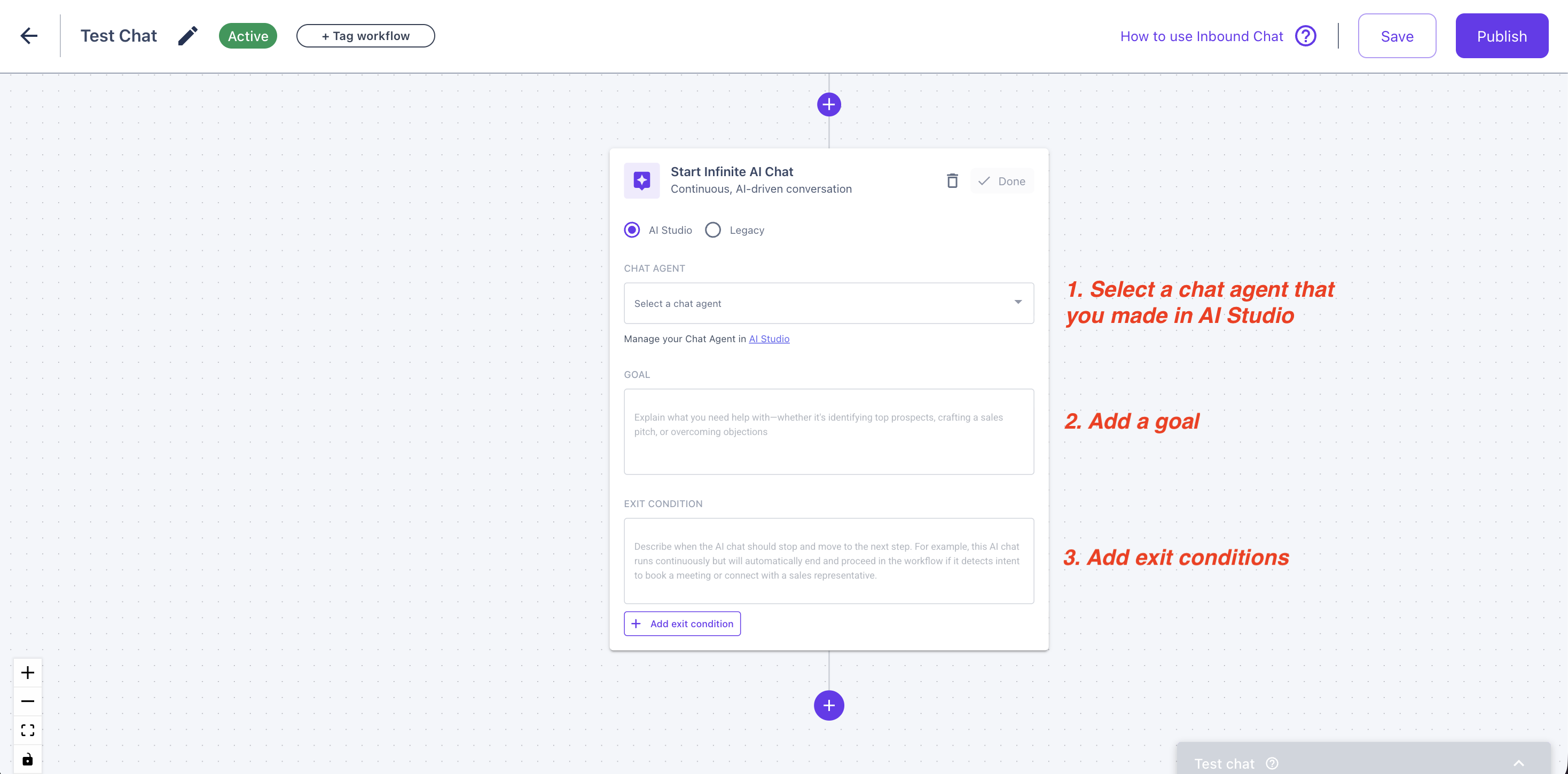
The chat agent should have a clear objective so it knows what success looks like in a conversation. Goals help the agent prioritize responses and navigate visitors toward the intended outcome.
Examples of goals include:
Qualify leads
Book meetings
Answer product questions
Route visitors to the right team
Provide onboarding guidance
Troubleshoot support issues
Once a goal is assigned, your agent will use its training data and personality settings to steer conversations toward completing that objective.
Step 7: Add Exit Conditions + Branching
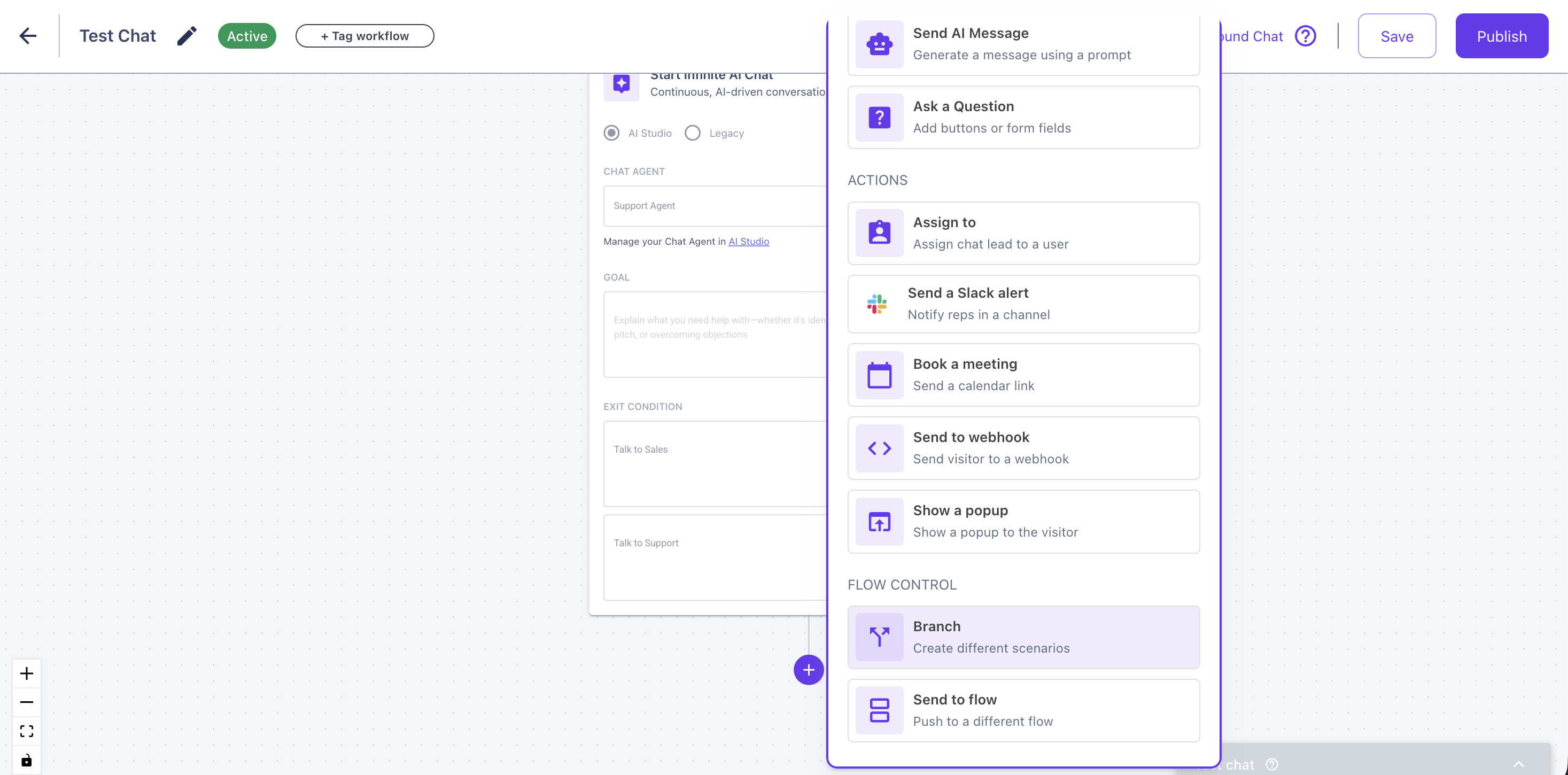
Exit conditions tell the agent when to end the chat, move to a new workflow step, or trigger an action. Branching allows you to build dynamic conversation paths based on visitor responses.
Use this section to define:
Step 7a: Exit Conditions: When should the agent stop or transition?
Common exit conditions include:
Lead fully qualified
Visitor requested human assistance
Visitor becomes unresponsive
Agent cannot answer the question
Step 7b: Branching Logic
Create conversational paths that adapt to what the visitor says or does. For example:
If the visitor expresses buying intent → qualify + offer to book a meeting
If the visitor needs support → route to support flow
If the visitor asks pricing questions → show pricing content
If the agent detects confusion → offer clarifications or ask follow-up questions
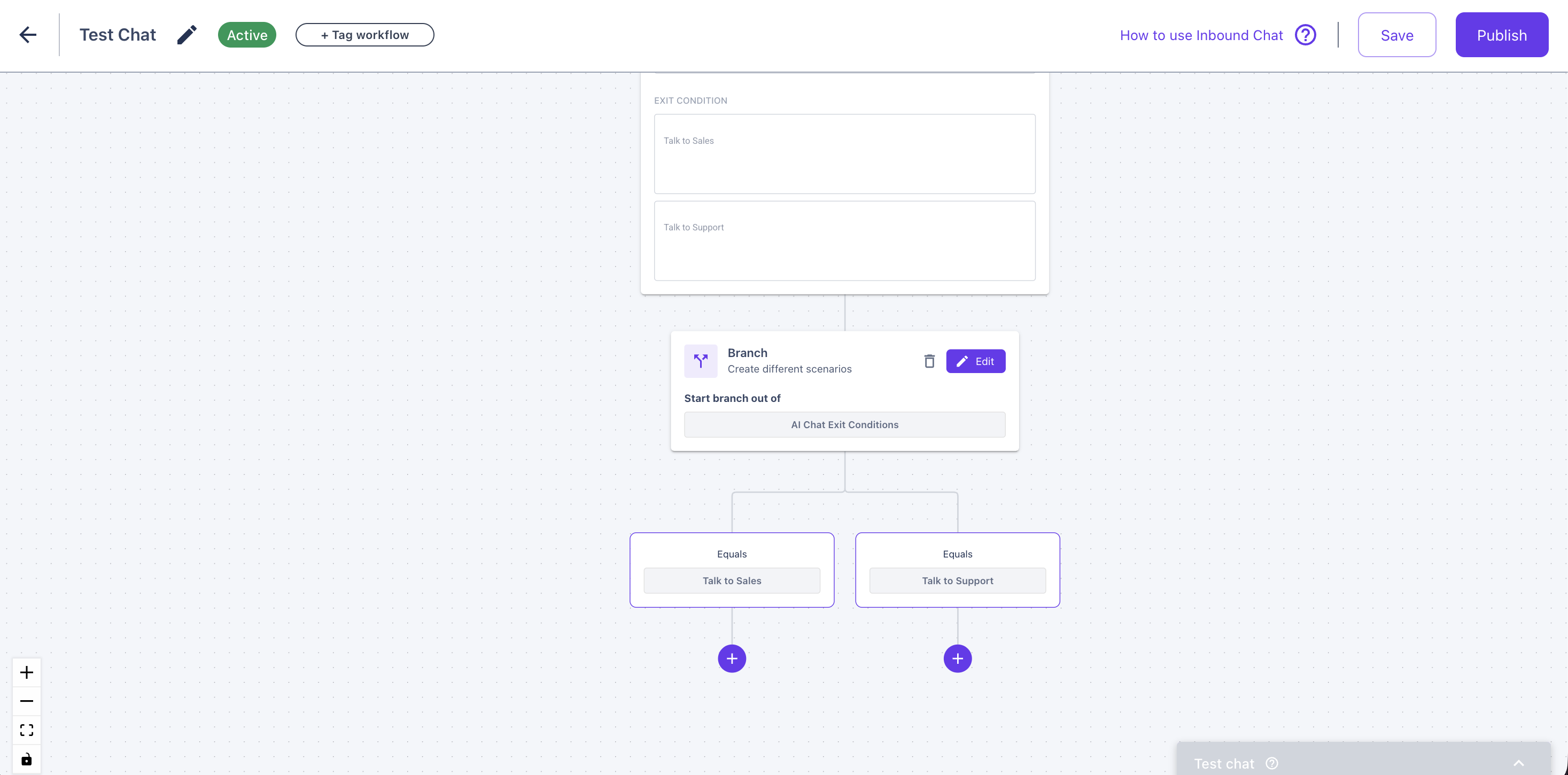
Once you’ve built your branching flows, tested your updates, and published your changes, you’re all set! Watch your inbound conversations instantly become smarter, faster, and more efficient.
Have questions or feedback? Reach out to your CSM or email us at [email protected]