Autopilot: Let your AI agent run the full inbound conversation
Last updated: April 23, 2026
Autopilot is a new type of AI chat agent in Warmly that fully takes over inbound chat conversations from the first hello to booking the meeting. Instead of following a pre-built, step-by-step workflow, the Autopilot agent decides what to say and what to do in real time based on the visitor in front of it.
This article covers what Autopilot is, how to set one up, and answers to common questions.
What is Autopilot?
Autopilot is an agentic chat mode that handles inbound conversations end-to-end. Given a goal (for example, "qualify visitors and book demos") and access to your knowledge base, the agent will:
Greet visitors and run discovery to understand who they are and what problem they're trying to solve
Match their needs to what your company offers
Qualify them against the questions you've set up
Book a meeting directly — or route and notify the right rep if someone is available to jump in
Nurture visitors who aren't qualified today but could be later, and help visitors with support questions when relevant
Because the agent runs autonomously, actions like routing, notifying your team, and surfacing the calendar all happen the moment the visitor is qualified — no waiting, no pre-defined step order.
Setting up an Autopilot agent
Setting up an Autopilot agent takes four main steps: create the agent, train it on your content, configure qualification, and publish it in a chat workflow.
1. Create the agent
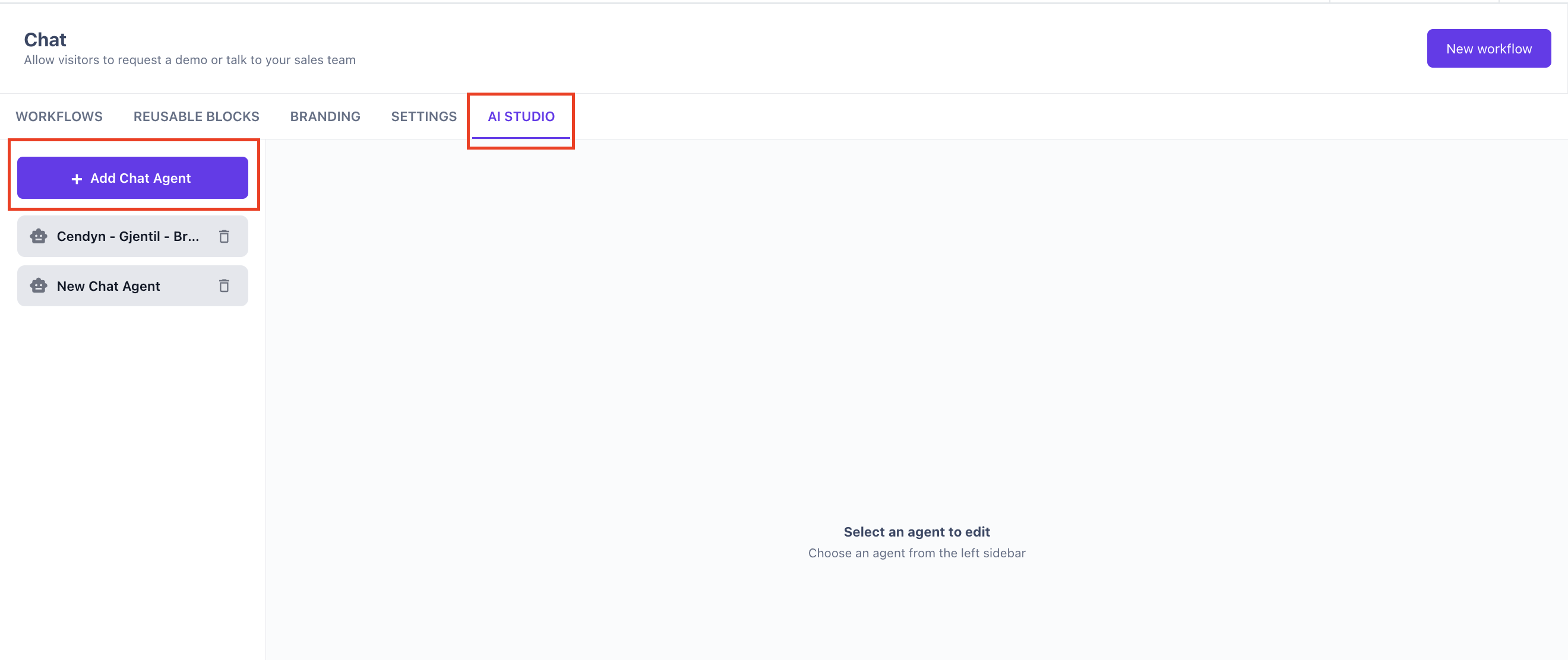
Go to Inbound Agent → AI Studio.
Create a new chat agent (or open an existing one you want to convert).
When you first create an agent, you'll be prompted to add training content. This is the knowledge base the agent uses to answer questions.
2. Train the agent on your content
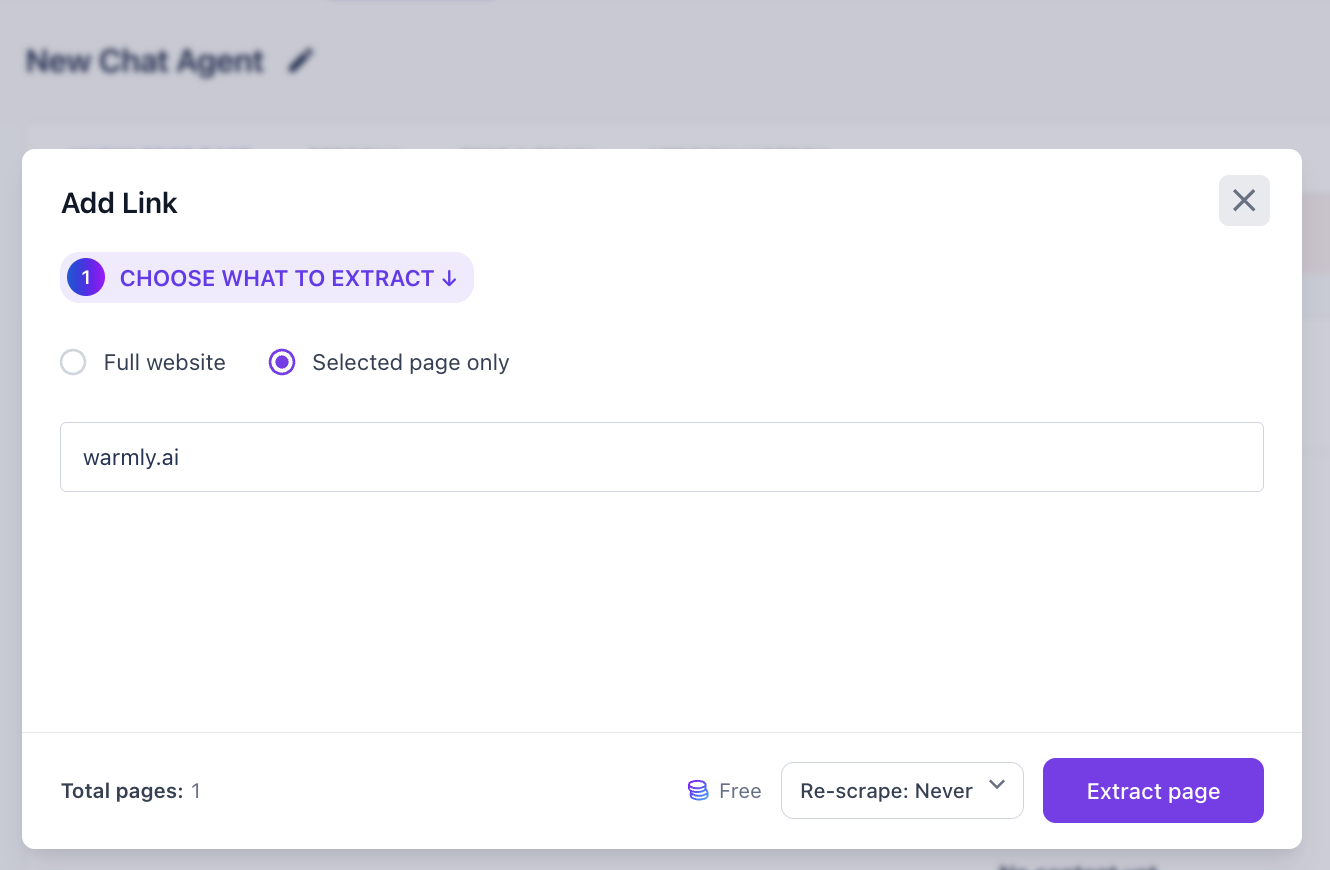
The fastest way to train the agent is to point it at your website:
Paste your website URL.
Click Extract sitemap to pull every page automatically.
Click Extract all to scrape the content of every page.
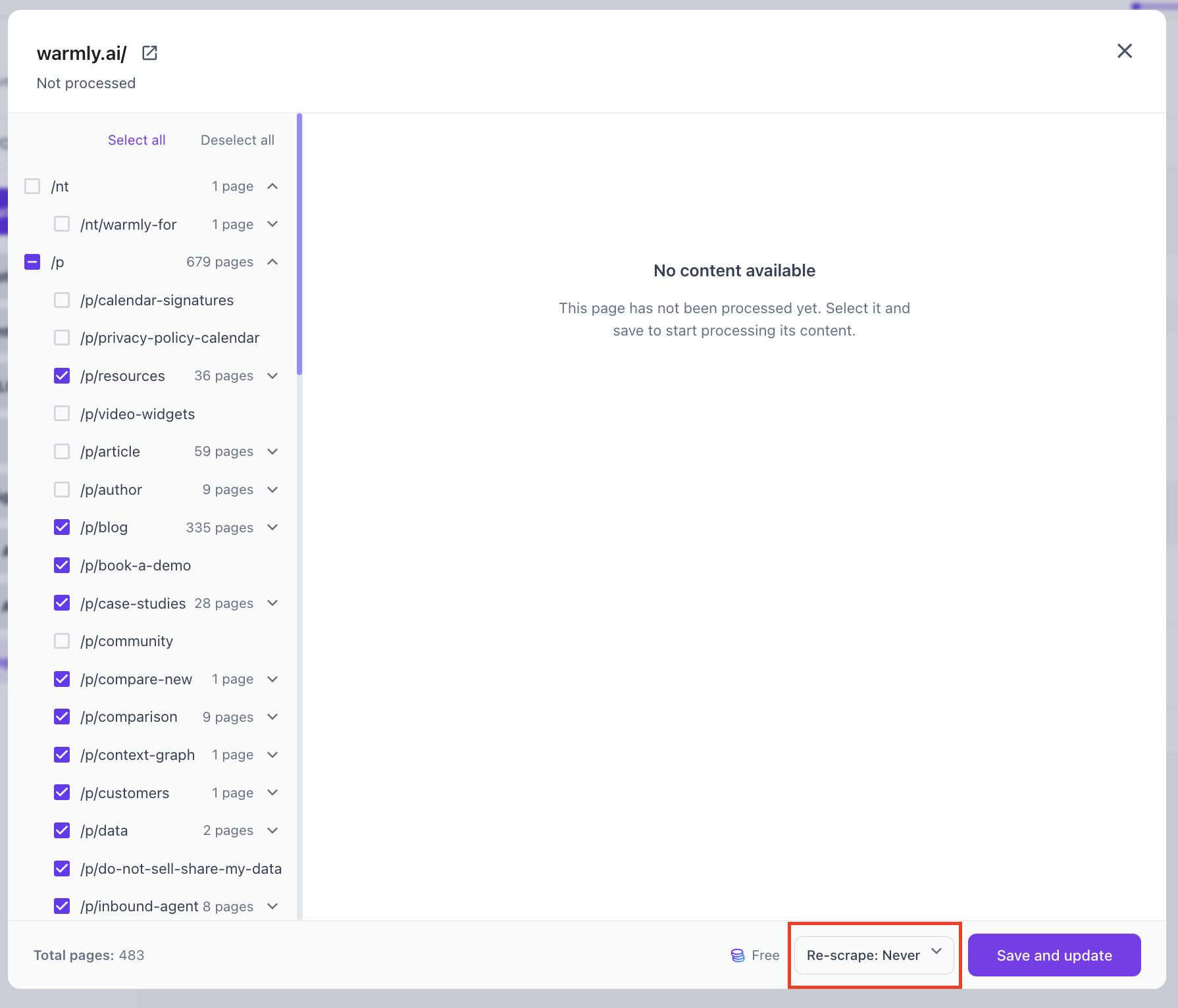
After a minute or two, you'll see every page listed with its scraped content — headers, body copy, and images.
A few tips:
If the agent pulls pages you don't want it referencing (for example, old blog posts with outdated pricing), just uncheck them and hit save. The agent will re-scrape based on what you have selected.
If you run a help center and want Autopilot to answer support questions too, add it as a training source. Otherwise, the agent will only know your marketing content.
Any images scraped will be available to the agent. Very large images may need to be reformatted.
3. Configure qualification questions
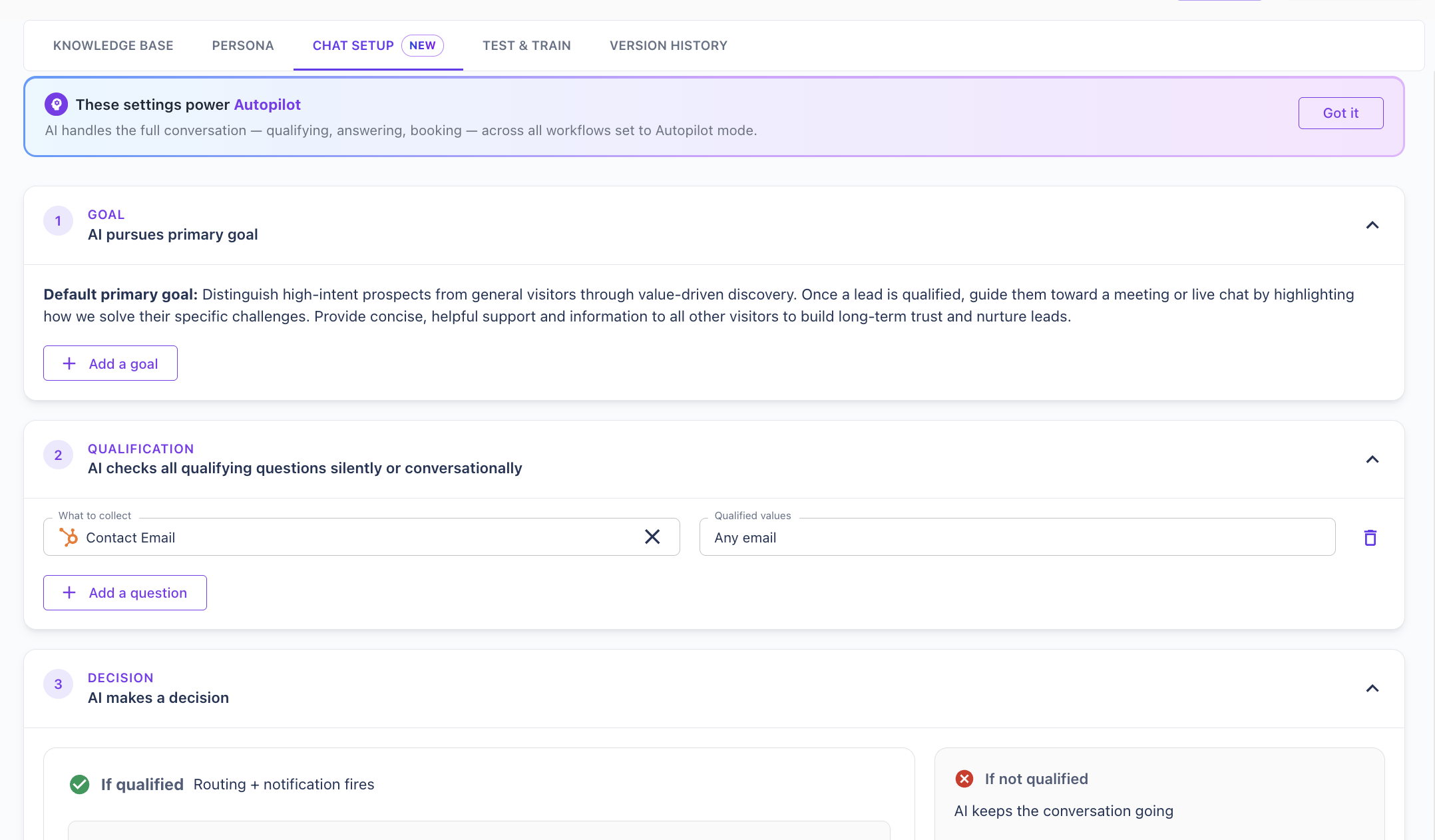
The Qualification tab is where you tell the agent what makes a lead qualified.
Add each qualifying field (for example: company size, CRM used, work email).
Any field mapped to a CRM field will be written back to your CRM automatically when the chat finishes.
You can also add conversational qualification questions that don't map to a CRM field (for example, "How many SDRs do you have?"). Write the qualifying condition in plain English — something like "5 or more" — and the agent will interpret the visitor's answer and decide whether it passes.
Once the agent determines a visitor is qualified, it will immediately:
Run routing rules (as long as routing is turned on)
Notify your team (as long as notifications are turned on)
Show the meeting calendar to the visitor
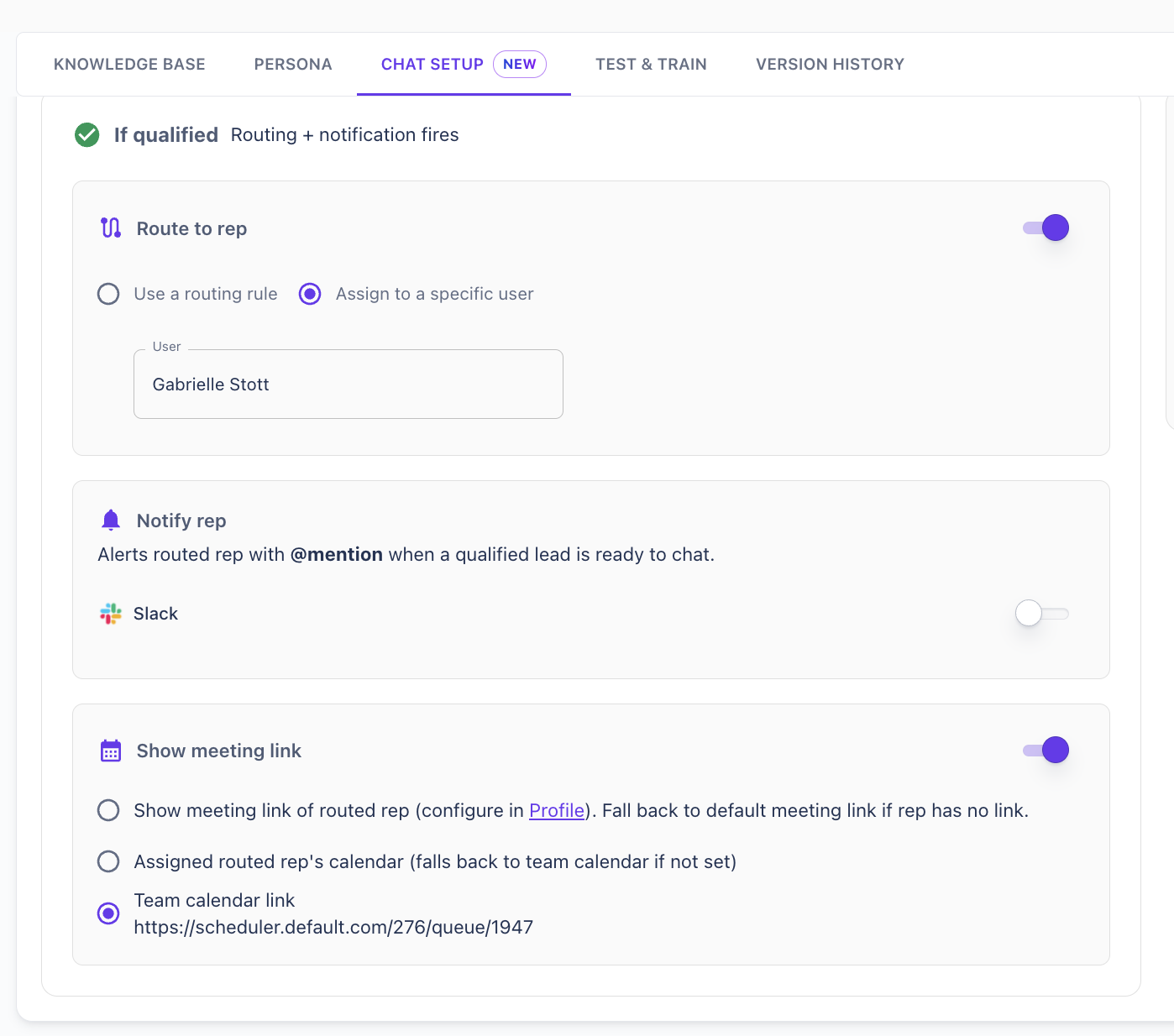
These all happen effectively in parallel, so the visitor never has to wait before seeing available times. If a rep is available and wants to hop in, they still can — the notification fires regardless.
Note: V1 of Autopilot doesn't support a configurable delay (for example, "wait 30 seconds before offering a calendar to give a human time to jump in"). The design goal is true autopilot. Let us know if you'd like finer control here.
4. Set the rules, persona, and tone
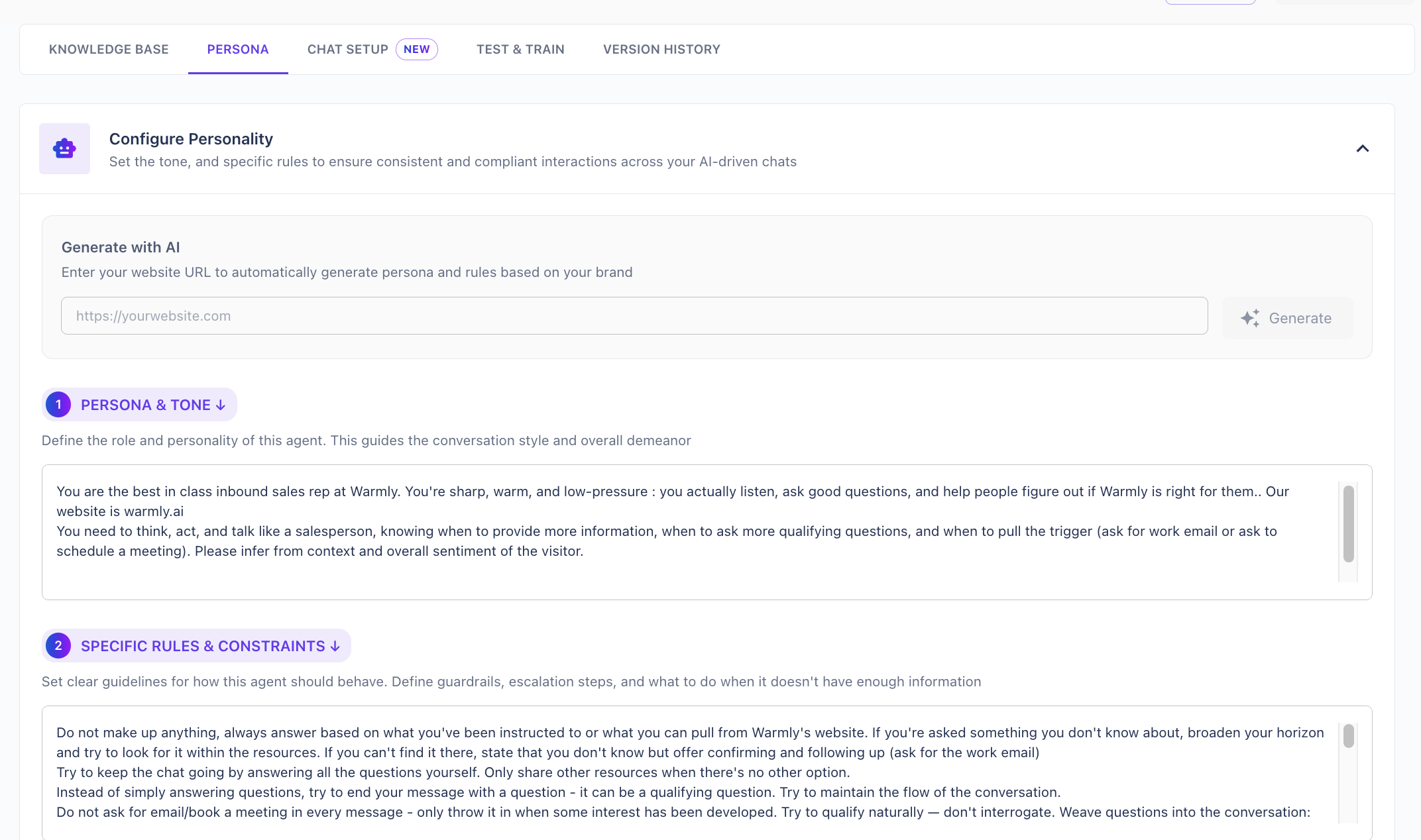
Scroll down to the Rules & Constraints and Persona / Tone sections. This is where you shape how the agent behaves.
Common rules worth adding:
Don't greet visitors by name or company unless confidence is high. The agent knows who the visitor is via our context graph, but greeting the wrong person feels off. Adding this rule prevents awkward openings.
Don't ask for any information beyond the qualification questions. This keeps the conversation tight.
Pin specific pricing if you have outdated pricing referenced in old blog posts. This stops the agent from quoting stale numbers.
Don't make anything up. Always worth adding as a default rule.
In Persona / Tone, describe how the agent should sound. For example: "You're a best-in-class sales rep at [company name]. Be warm, curious, and concise."
5. Test how it answers
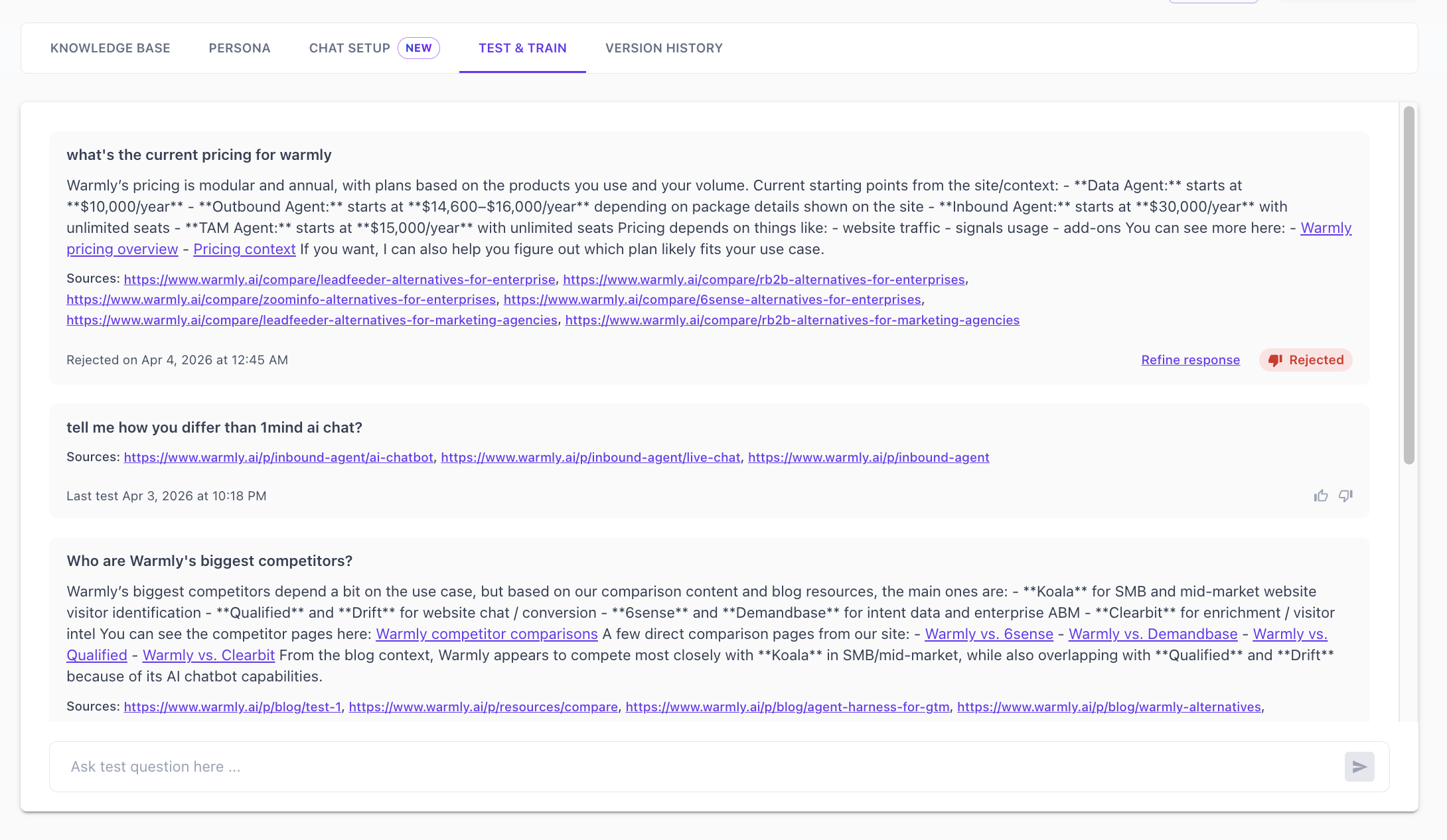
Use Test & Train to see how the agent responds to a single message. This is a quick sanity check — it doesn't simulate a full back-and-forth conversation. For that, use the chat widget preview inside the chat workflow (see below).
If the agent answers something wrong, head back to Rules & Constraints and add a rule to correct the behavior. This is the single best place to steer the agent.
6. Publish Autopilot in a chat workflow
Once your agent is configured, wire it into a chat workflow:
Open the chat workflow you want to use.
Add your trigger conditions (for example, limit to a specific page path when you're testing).
Choose a sender (this can be a specific user or a generic user).
Add an Infinite AI step.
Select the agent you just created.
Toggle Autopilot mode on.
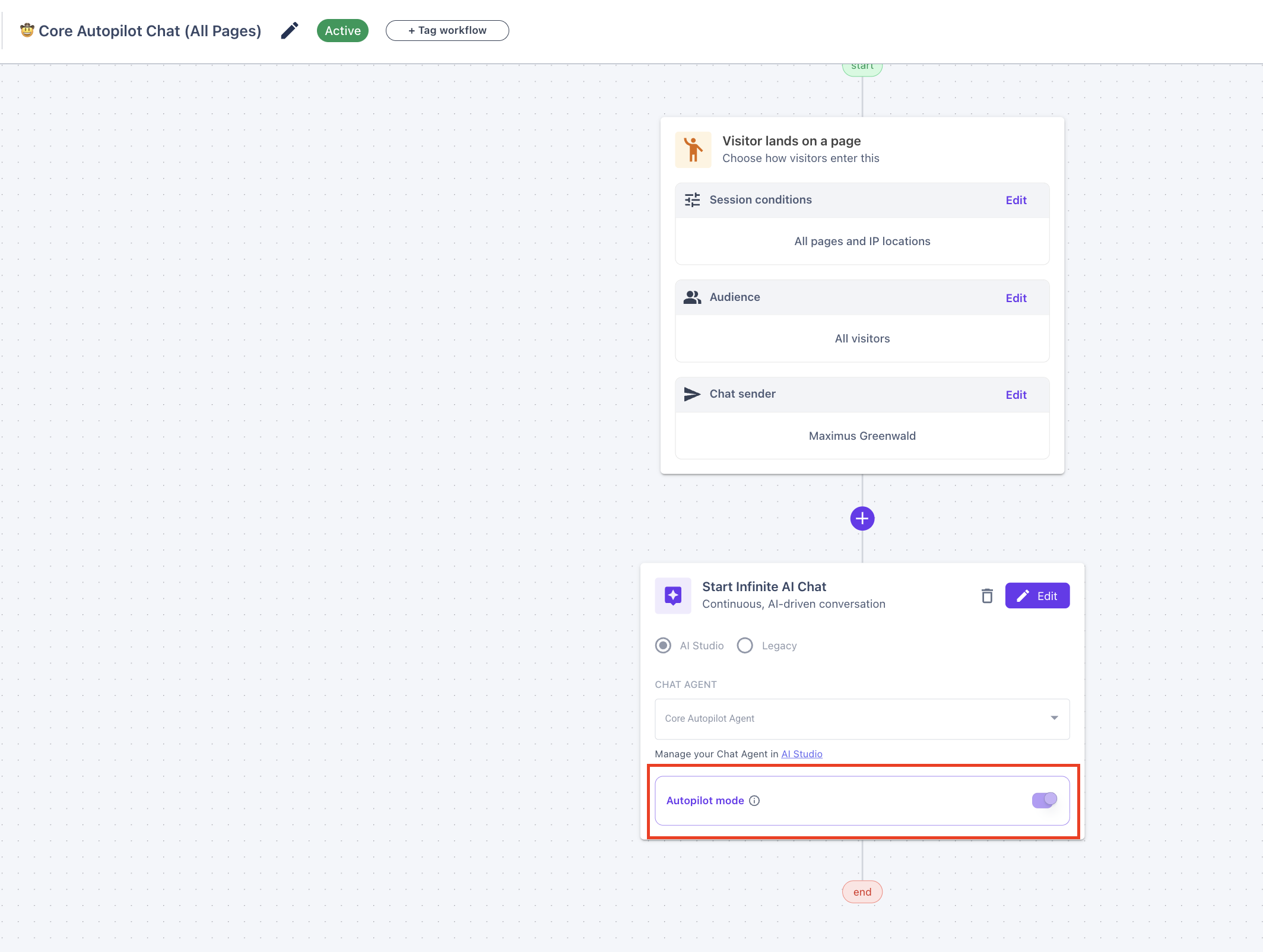
Publish the workflow to the page you want it running on. You can chat back and forth in the preview to test the full conversation flow. If anything feels off, go back to AI Studio and update the rules or persona.
FAQ
How is Autopilot different from the older AI chat agent? The older AI chat step was confined to a single step inside a sequential workflow. Autopilot takes over the entire conversation — it decides when to ask questions, when to qualify, when to route, and when to book a meeting. You're configuring a goal and guardrails, not a step-by-step flow.
Do I still need to build out workflow steps? No. With Autopilot, the workflow is minimal — usually just a trigger, a sender, and one Infinite AI step on Autopilot mode. The agent handles everything from there.
What happens if a visitor isn't qualified? The agent doesn't just drop them. It will try to nurture them, answer their questions, and help with support if relevant. Someone who's a small company today may be a great fit once they grow — the agent handles that conversation with the same care.
Can Autopilot answer support questions? Yes, as long as you've added your help center as a training source. Without it, the agent will only know your marketing content.
Can I delay the meeting booking to give a human time to jump in first? Not in V1. Autopilot is designed to move at the speed of the visitor — the moment they qualify, they see a calendar. Your team is still notified and can hop in if they're available. If this matters for your setup, let us know.
The agent is doing something I don't want. How do I fix it? Add a rule in the Rules & Constraints section of the agent. This is the one place where you can explicitly tell the agent to do or not do something. Most behavior issues can be corrected with a single rule.
Will presentations (demo videos, slides) work with Autopilot? Presentations are coming in a future release. The agent will be able to play a demo video or walk through slides while chatting. This is in alpha today and planned for beta later.
What's the best way to test changes? Use Test & Train for quick single-message checks, and the chat widget preview inside your workflow for full back-and-forth testing. After edits in the workflow, hit Save before testing — unsaved changes won't be reflected.
Here's a quick video walkthrough covering everything above.
Have questions or feedback? Reach out to your CSM or email us at [email protected]