Creating and Connecting Your Salesflow Account
Last updated: January 7, 2026
If you're logging in to Salesflow for the first time, this article will outline the steps to create your account and connect your Social Networking profile. We also have a guided walkthrough available here.
Please note that you'll need a unique invitation code for each individual who is creating a Salesflow account. We recommend that each rep using Salesflow Campaigns to send Social Platform's sequences creates an account.
Reach out to your CSM if you haven't received your code(s) yet.
Creating your Salesflow Account
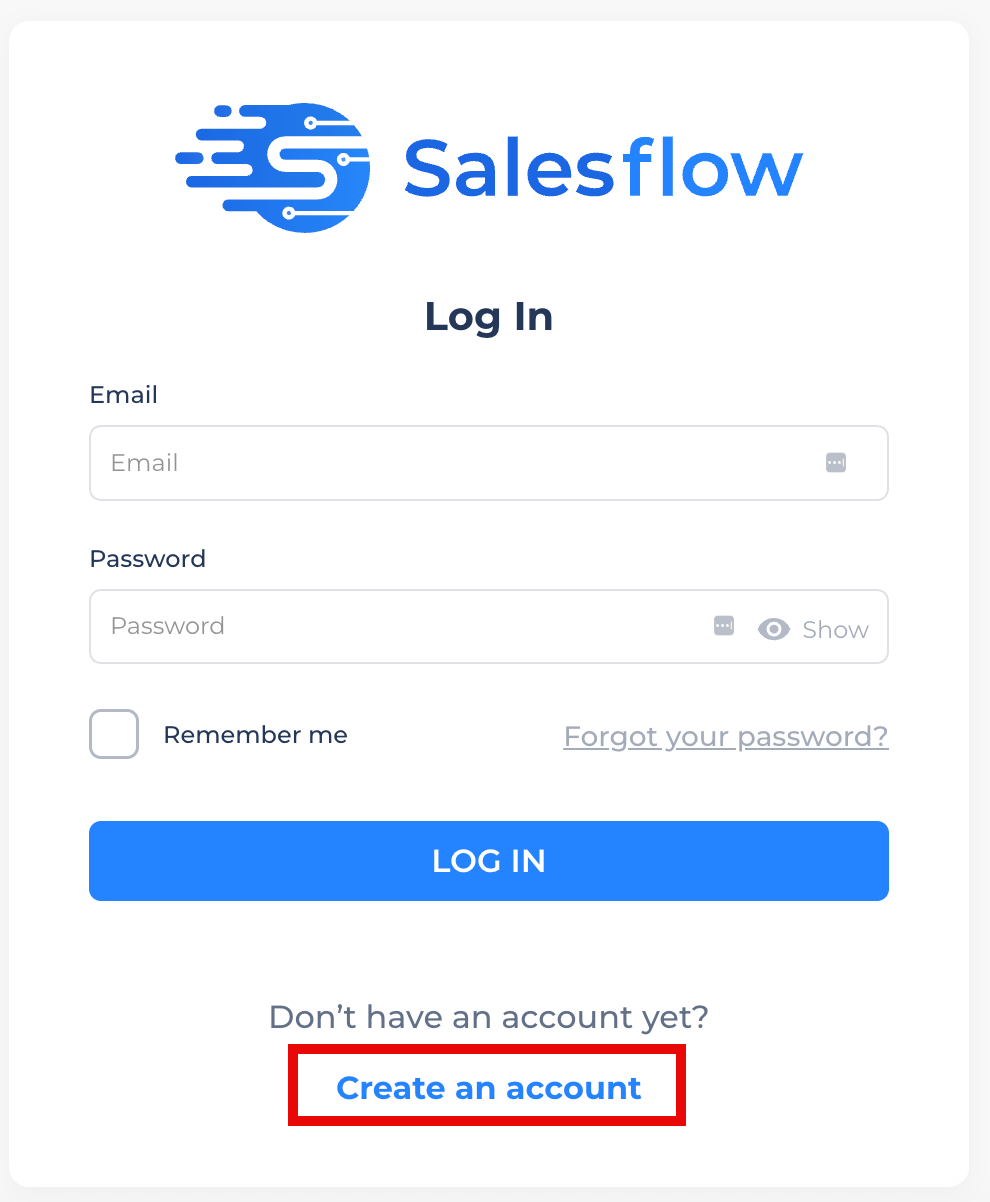
Navigate to the Salesflow log-in page here: https://ai.salesflow.io/auth/login
Select "Create an account"
Set your email and password
You should have received a unique 6-digit Invitation Code provided by Warmly. You'll insert that code in the "Invitation Code" section.
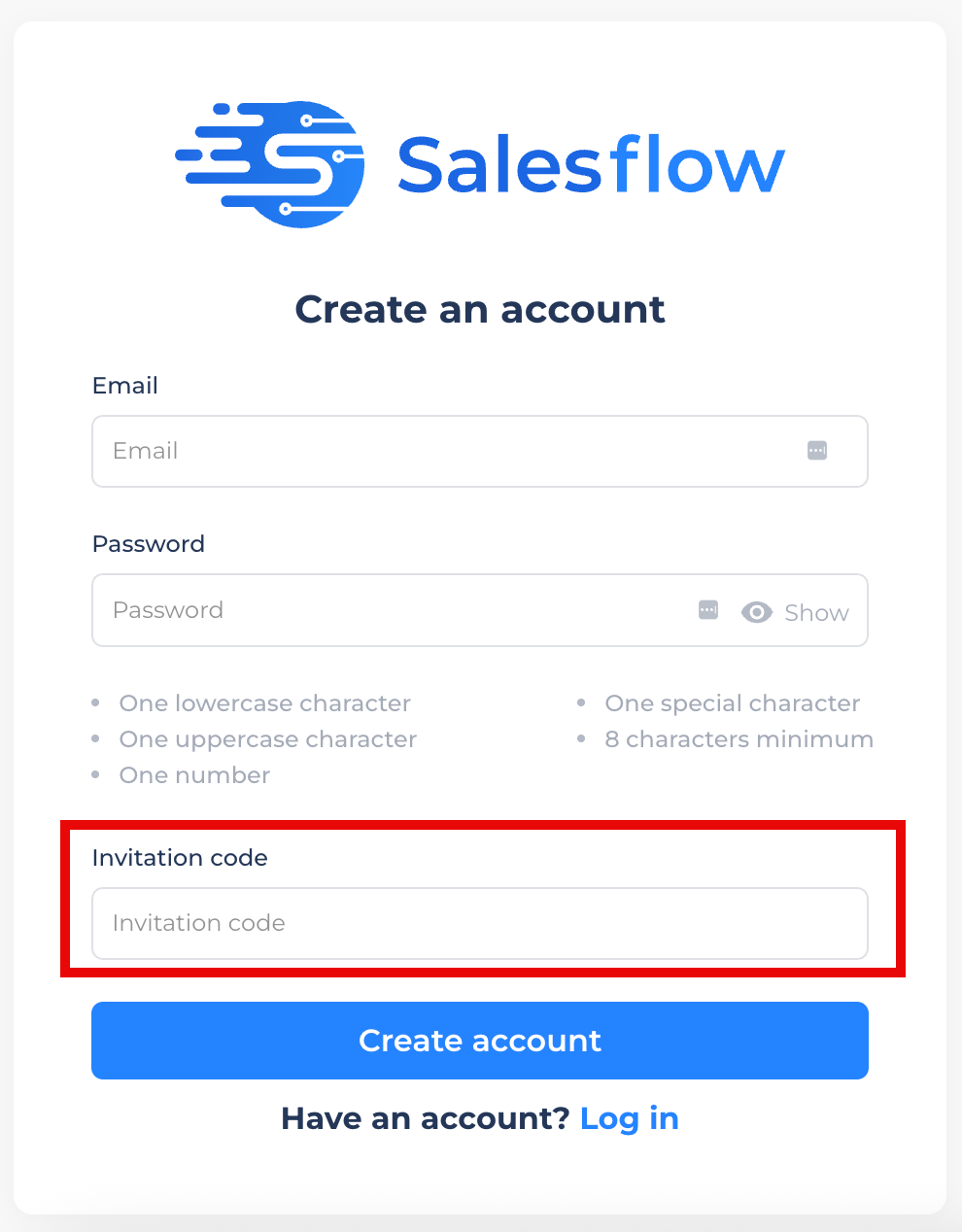
Click "Create account" and you're in!
Connecting your Salesflow Account to Social Networking Platform
After you've created your Salesflow account, you'll be prompted to connect your Social platform's profile so you can run campaigns using that profile.
Please note that when connecting Salesflow to Social platform, you will need to have the correct log-in credentials associated with your Social platform's account, such as email and password.
Log in to Salesflow
Click Social Platform's Account Settings
Select the "Add Account" button
Enter your Credentials
Choose your location and timezone
Leave the proxy settings toggled off
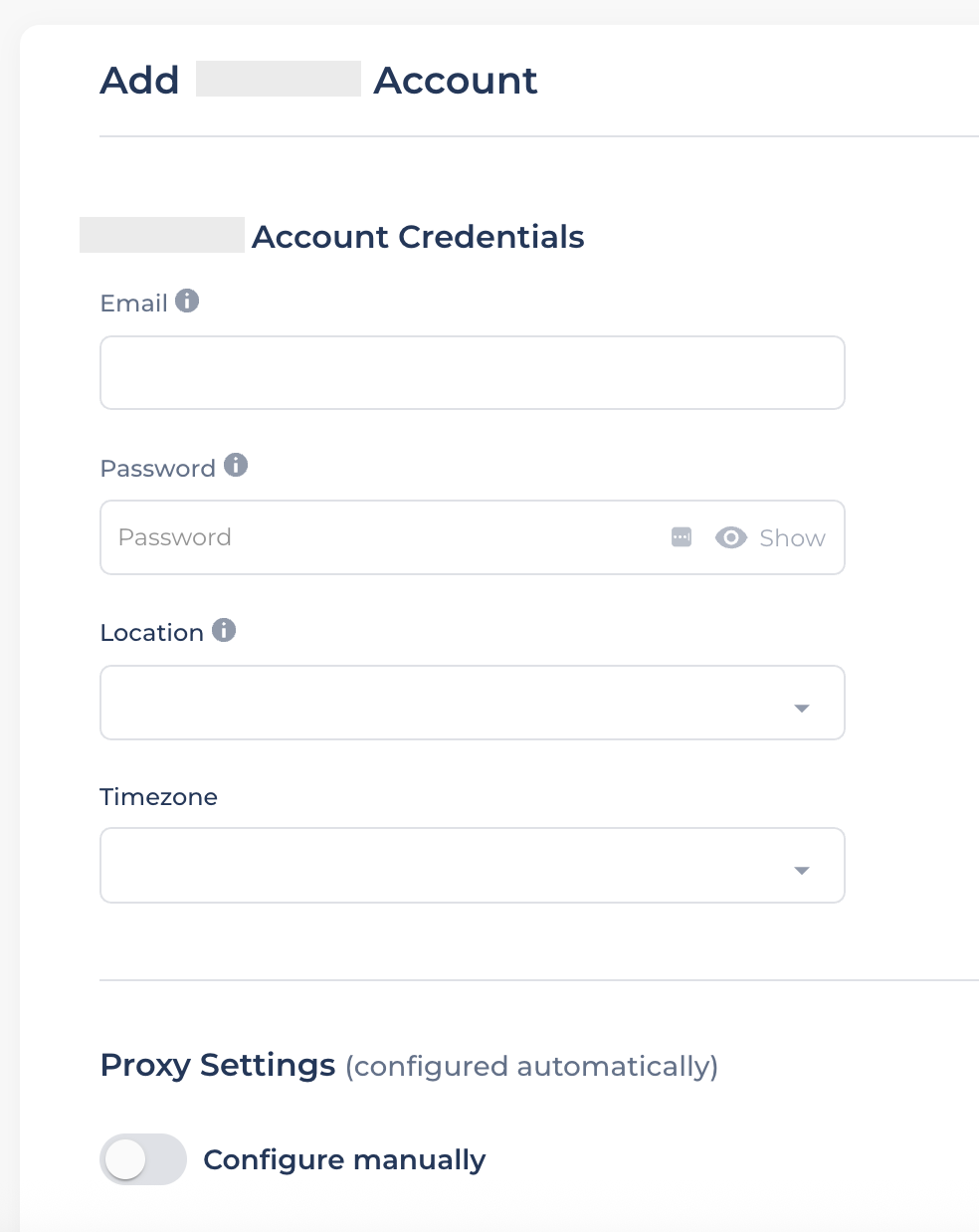
Click "Add account"
When connecting a Social platform's profile to Salesflow for the first time, it is expected from platform to ask for a verification. Therefore, you will get a code on your social platform's email, a code on your phone, prompted to enter authenticator app code, or to tap yes on a notification sent to the social platform's mobile app to verify your new login attempt.
If you have any difficulties in the process, don't hesitate in reaching out to the Salesflow support team through [email protected] and their team will be happy to assist you.
Integrating Salesflow and Warmly
Once your Salesflow account has been connected and verified with the social platform, copy the API Access Token. Navigate to Settings > Account Settings and copy the Account API Token in Salesflow.
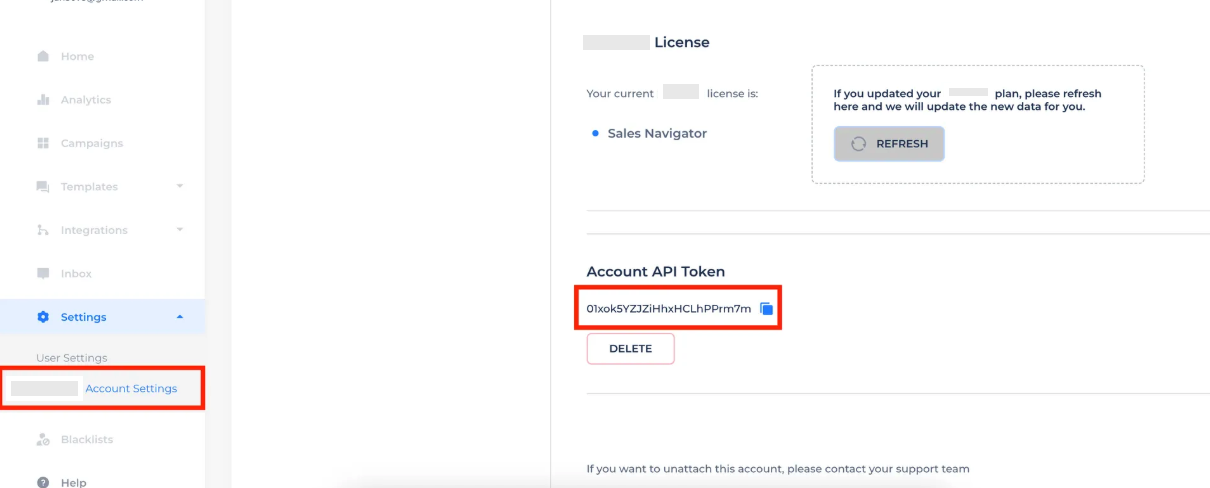
In Warmly, select Settings > Salesflow and paste the Admin API Token to complete the integration set up.
NOTE: We recommend that the Warmly Admin create and connect their Salesflow account to your Warmly instance first. After each of your reps have successfully created their Salesflow account and connected their social networking platform, please email your CSM to connect their accounts to the Admin API Token on the back end. This will pull in all available Salesflow campaigns into your Warmly instance.