How to add team members to Coldly
Last updated: May 6, 2025
Admins and Owners of an account on Immagnify can add new team members from their company to the account, according to the number of users included on the plan.
By default, each Coldly account is limited to 5 users. If your Warmly contract includes additional seats, let your AE or CSM know.
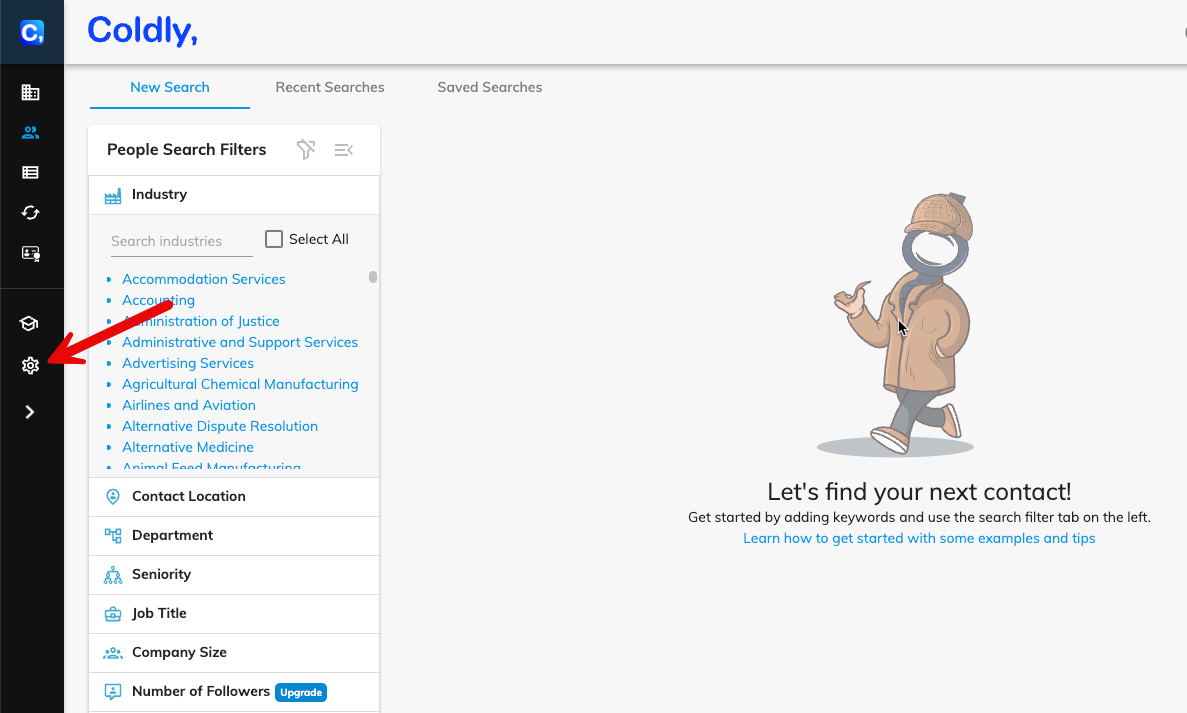
Click on the Settings icon on the left navigation bar.
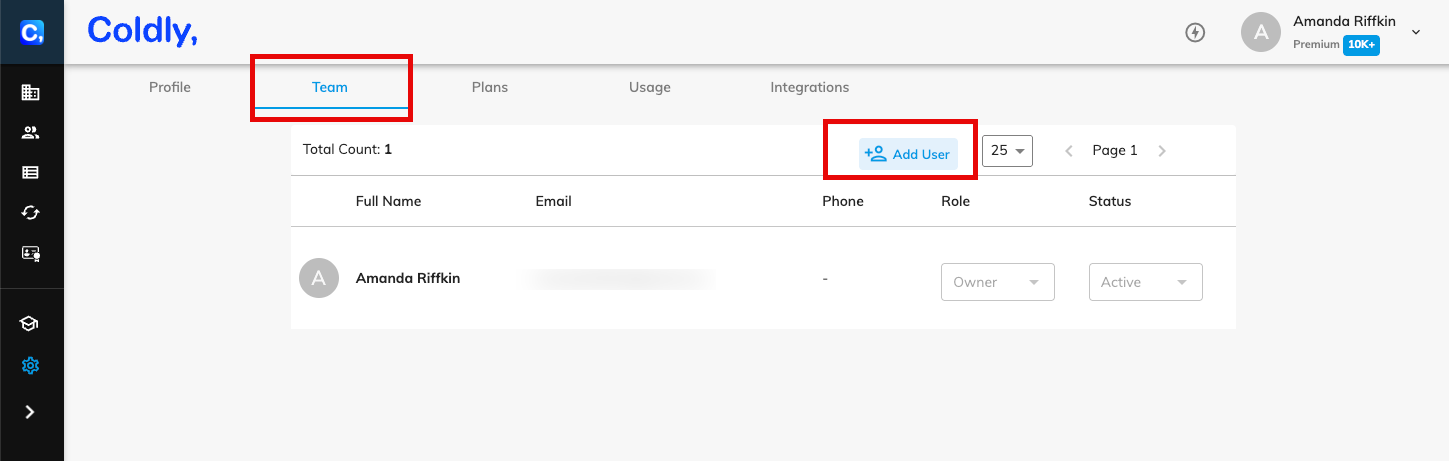
Go to the Team tab, and click on Add User.
Enter the user’s Full Name in the Name box, and the user’s Work Email Address in the Email box.
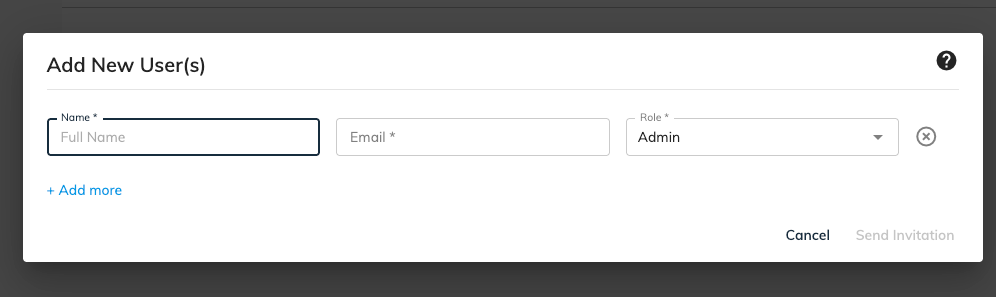
Open the drop-down menu of the Role box, and select the relevant user’s role: Admin OR User.
To invite several users simultaneously, click on Add More, and repeat the above process.
Once done entering the new users’ details, click on Send Invitation.
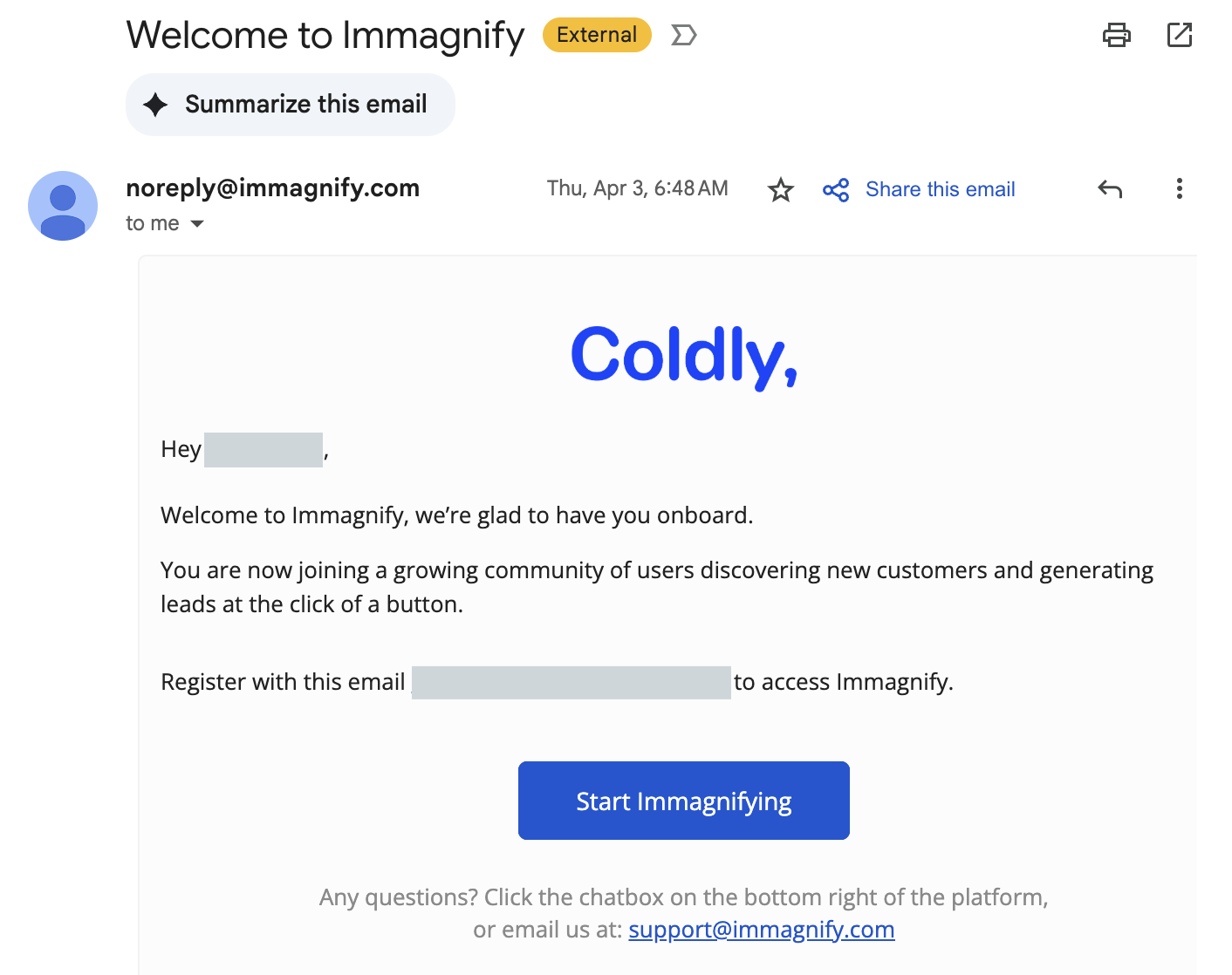
The new user(s) will receive an invite within 3 minutes in their Inbox to log in to Immagnify.
In case it lands in Spam, make sure to look for an email titled Welcome to Immagnify sent from [email protected]