Using Chili Piper Booking Links in Warmly Chat & AI Inbound Autopilot Agent
Last updated: June 8, 2026
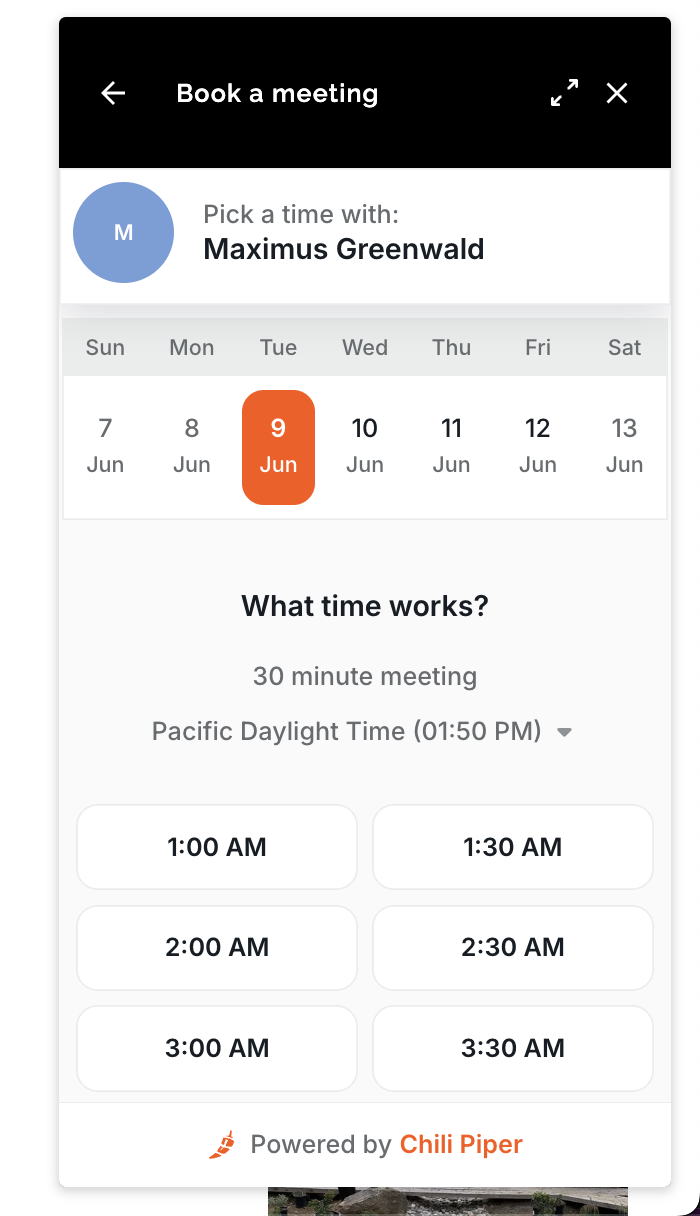
Warmly supports Chili Piper as a calendar provider. You can use any Chili Piper calendar URL — a personal rep link, round robin link, group link, or router link — as your booking link inside chat workflows or your AI Inbound Autopilot Agent. Warmly will automatically detect the link as Chili Piper, pass the visitor-filled email to Chili Piper, forward any UTMs for marketing attribution, and open the Chili Piper calendar inside Warmly's chat.
Step 1: Set Your Team (Org-Level) Chili Piper Link
This is the default booking link shown when no rep-specific link is available.
1. Go to Chat Settings in your Warmly sidebar.
2. Click the Calendar Link section.
3. Paste your Chili Piper URL — this is typically your inbound router, round-robin, or group link (e.g., https://yourcompany.chilipiper.com/router/inbound-router).
4. Configure the options in Chat Settings:
Option | What it does |
|---|---|
Pre-fill visitor email | Appends |
Attach UTMs from starting website visit | Forwards the visitor's original UTM params (utm_source, utm_medium, etc.) to the booking link. Useful for marketing campaign attribution. |
Open calendar link | Choose how the link opens: Inside chat window (embed), In current tab, or In new tab. |
5. Click Save.
Tip: "Inside chat window" gives the smoothest experience for Chili Piper Concierge flows. For standard Chili Piper routing pages, "In new tab" may work better depending on your embed configuration.
Step 2: Set Per-Rep Chili Piper Links
Individual reps can set their own personal Chili Piper links. When a rep is assigned to a visitor, their link takes priority over the team link.
1. Each rep goes to their Profile Settings in Warmly.
2. Under Calendar Link, they paste their personal Chili Piper URL (e.g., https://yourcompany.chilipiper.com/me/rep-name).
Or you can do this on behalf of all your reps via Members tab in Settings and editing each rep's calendar links.
Step 3: Add a Booking Step to a Chat Workflow
If you use manual/static chat workflows (not the AI Inbound Autopilot):
1. Go to Chat Settings → Chat Flows.
2. Open or create a workflow and add a Book a Meeting step. Typically before this customers add Ask A Question steps for all required qualification questions, followed by an Assign To step for routing. And if you want your reps to jump in live, add a Slack / Microsoft Teams alert to notify the assigned rep, and wait 30 seconds before letting the visitor know the rep is unavailable and they can Book a Meeting instead.
3. In the Book a Meeting step config, choose which link to use:
Assigned rep's calendar — Shows the rep's personal Chili Piper link, falling back to the team link if the rep hasn't set one.
Team calendar link — Always shows the org-level Chili Piper link you configured in Step 1.
4. Save the workflow.
When a visitor reaches this step, Warmly sends them a "Book a meeting" button in the chat bubble. Clicking it opens the Chili Piper link with email pre-filled (if enabled).
Step 4: Configure Booking in the AI Inbound Autopilot Agent in AI Studio
If you use the AI Autopilot agent, you configure the booking link in AI Studio → Chat Setup
1. Open your agent in AI Studio.
2. Click the Chat Setup tab.
3. Scroll to the Decisions section and find the Show meeting link toggle. Turn it on.
4. Choose a link mode:
Mode | When to use |
|---|---|
Assigned rep's calendar | Shows the assigned rep's personal Chili Piper link. Falls back to the team link automatically. |
Team calendar link | Always shows your org-level Chili Piper link regardless of rep assignment. Good for high-volume inbound where you want consistent routing. |
5. This will show the rep's Chili Piper link after the Autopilot Agent qualifies the visitor (based on your configured qualification requirements) and runs your selected routing rule.
Troubleshooting
The booking button doesn't appear in chat.
Check that a calendar link is saved in Chat Settings → Calendar Link, or that the rep has set a personal link.
In workflow-based chat, confirm the Book a Meeting step is active in the flow.
In AI Studio, confirm the Show meeting link toggle is on in Chat Setup → Decisions.
Visitor email isn't pre-filling in Chili Piper.
Make sure Pre-fill visitor email is enabled in Chat Settings (or in the rep's profile settings).
Email pre-fill only works if Warmly has captured the visitor's email earlier in the conversation — either from a form fill, identification, or a previous chat step that collected it.
UTMs aren't showing up in Chili Piper.
Enable Attach UTMs from starting website visit in Chat Settings → Calendar Link.
Confirm the visitor arrived via a UTM-tagged URL (check the Session in your Warmly dashboard).
The Chili Piper form opens but immediately closes inside the chat window.
Some Chili Piper Concierge/Distro flows block iframe embedding. Switch the open mode to In new tab in Chat Settings → Calendar Link.
Links open in the wrong tab.
Adjust the Open calendar link setting in Chat Settings → Calendar Link.