Sync Warmly Visitor Activity from HubSpot to Outreach for your SDRs
Last updated: July 9, 2025
Summary
You can import Warmly data into where your SDRs spend most of their day. This doc will walk you through how to import and view Warmly website visitor data within Outreach so your SDRs can prioritize prospecting based on the visitors who are showing higher or recent intent
Pre-reqs
Orchestration is live in Warmly (collecting intent signals and sending to HubSpot)
Warmly is pushing contact data with custom fields (e.g.,
Warmly: Last Seen,Warmly: Total Sessions) into HubSpotYou have admin or integration access to HubSpot
Outreach App is installed in HubSpot
Step 1: Create Custom Fields in Outreach to Map HubSpot Fields into
Login to Outreach
We recommend creating custom fields for these fields
🏢 Outreach Accounts |
|
|
|
|
|
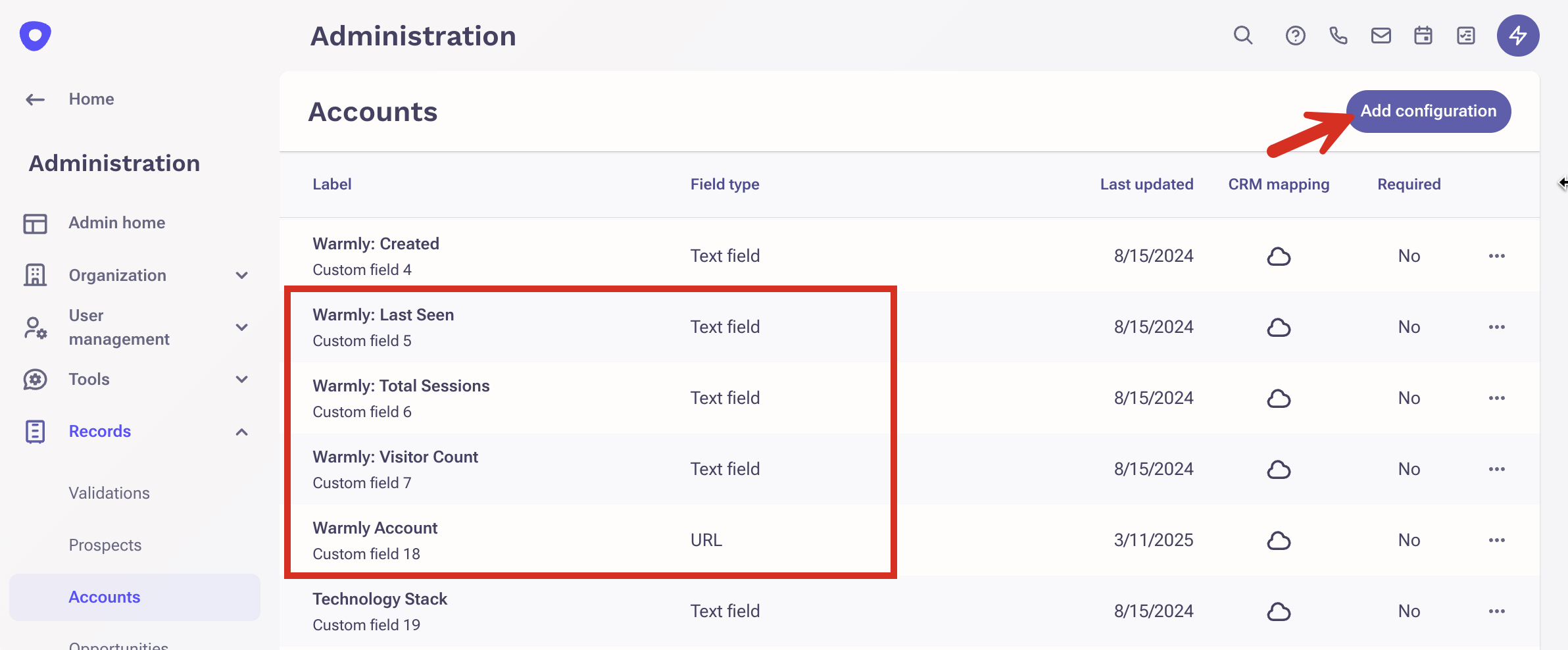
Go to Administration > Prospects > Fields Configuration
We recommend creating custom fields for these fields
🙋♂ Outreach Prospects |
|
|
|
|
|
|
|
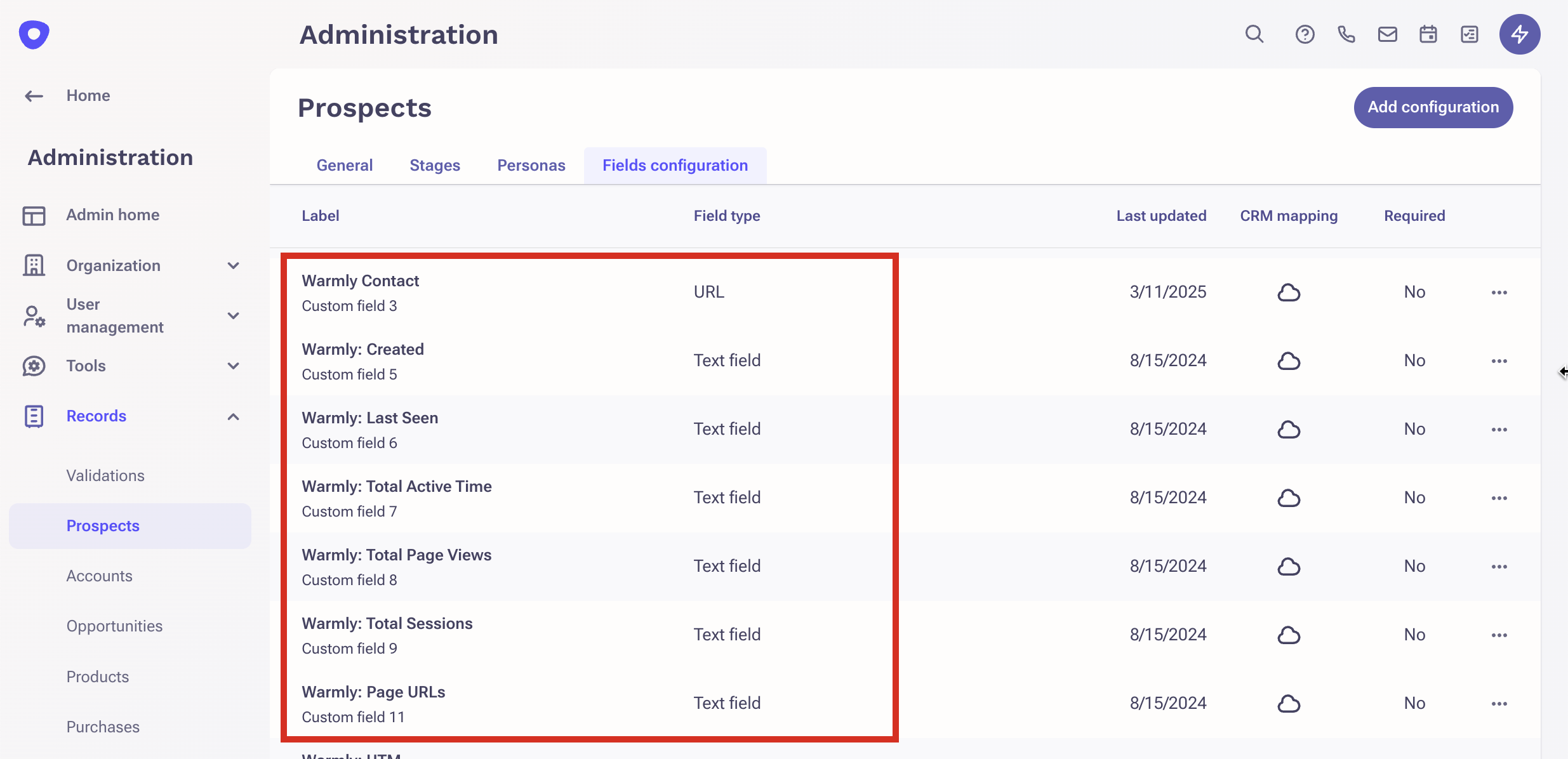
Step 2: Navigate to Connected Apps in HubSpot
Login to HubSpot
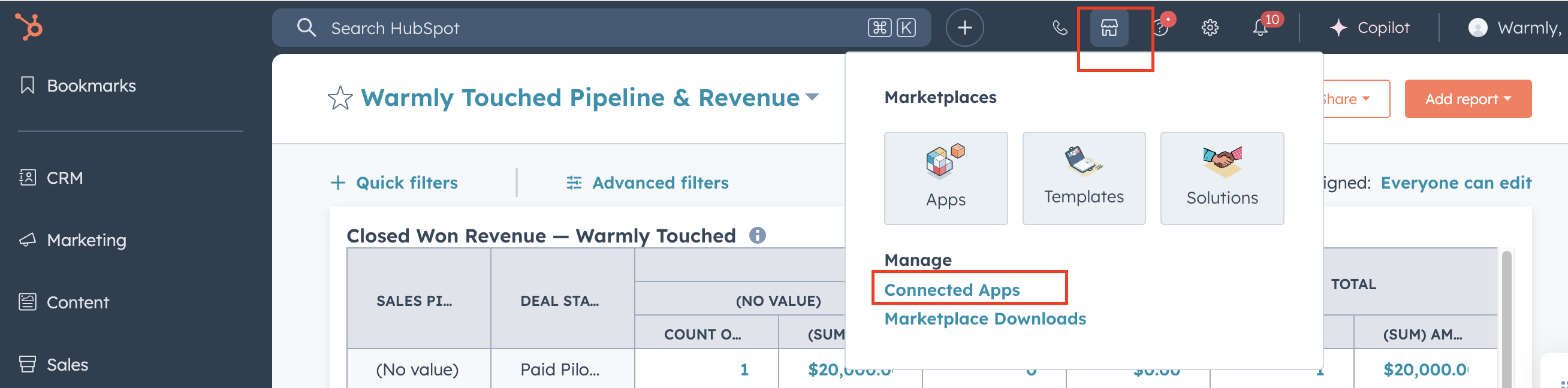
In the top right, click the Marketplace icon → Connected Apps
Search for Outreach in the list of apps
Click into the Outreach integration app
Step 3: Set Up Field Mappings to Sync Warmly Signals
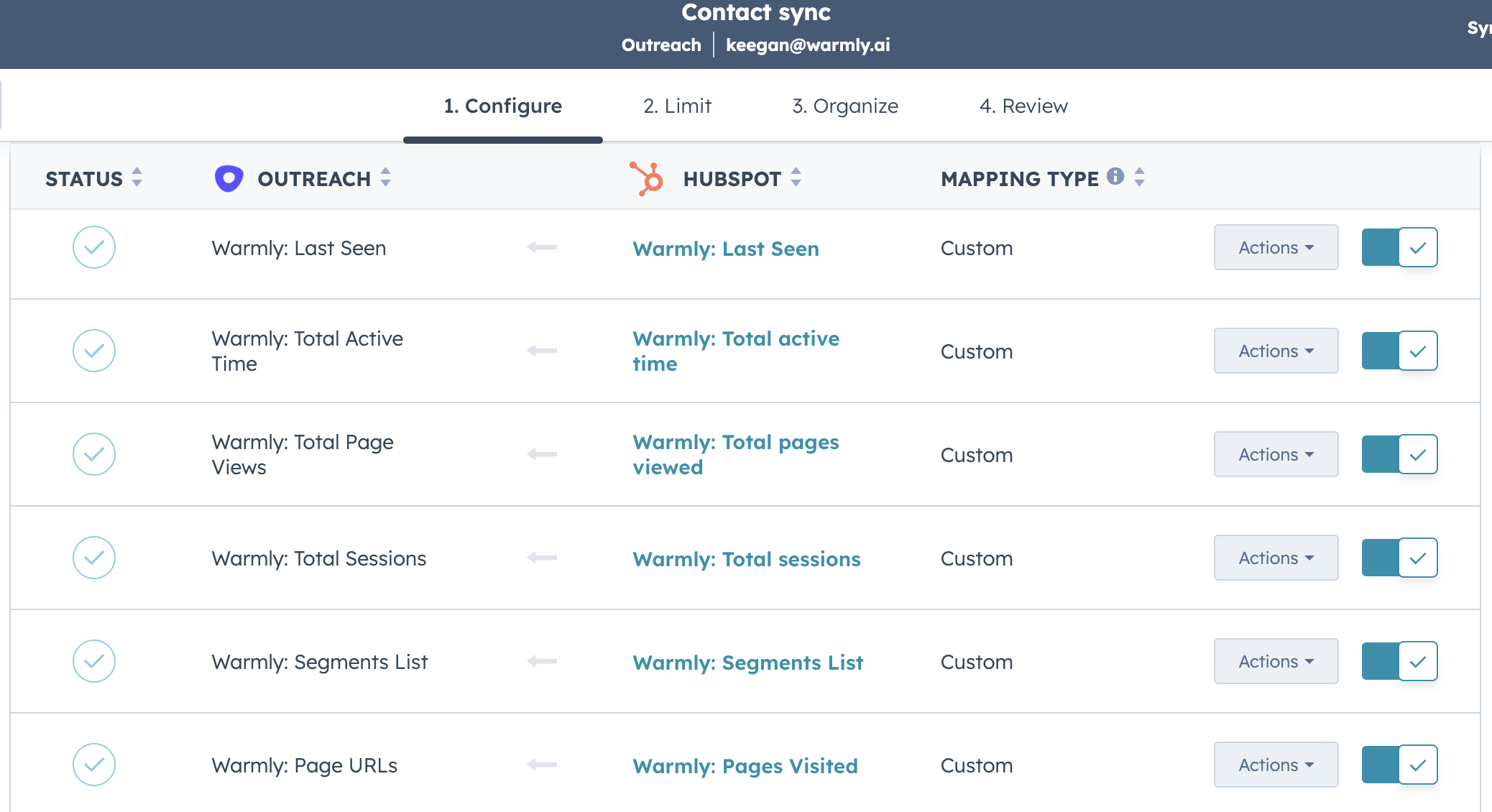
Inside the Outreach app settings in HubSpot, locate the data sync section
Create a new sync if one doesn’t exist already
At the bottom of the sync config page, click “Add Mapping”
Map the following fields from HubSpot → Outreach:
🏢 Company Fields
Outreach Account | HubSpot Company |
|
|
|
|
|
|
|
|
|
|
🙋♂ Contact Fields
Outreach Prospects | HubSpot Contact |
|
|
|
|
|
|
|
|
|
|
|
|
|
|
Ensure each mapping is enabled and syncing
Save and turn on the sync
🔍 PART 2: Setup Outreach View Using Warmly Intent Signals
Pre-reqs
Warmly fields are successfully syncing to Outreach
Outreach fields (custom if needed) are visible in Prospect records
Step 1: Navigate to Account or Prospects in Outreach
Log into Outreach
Click on “Accounts” or “Prospects” in the sidebar
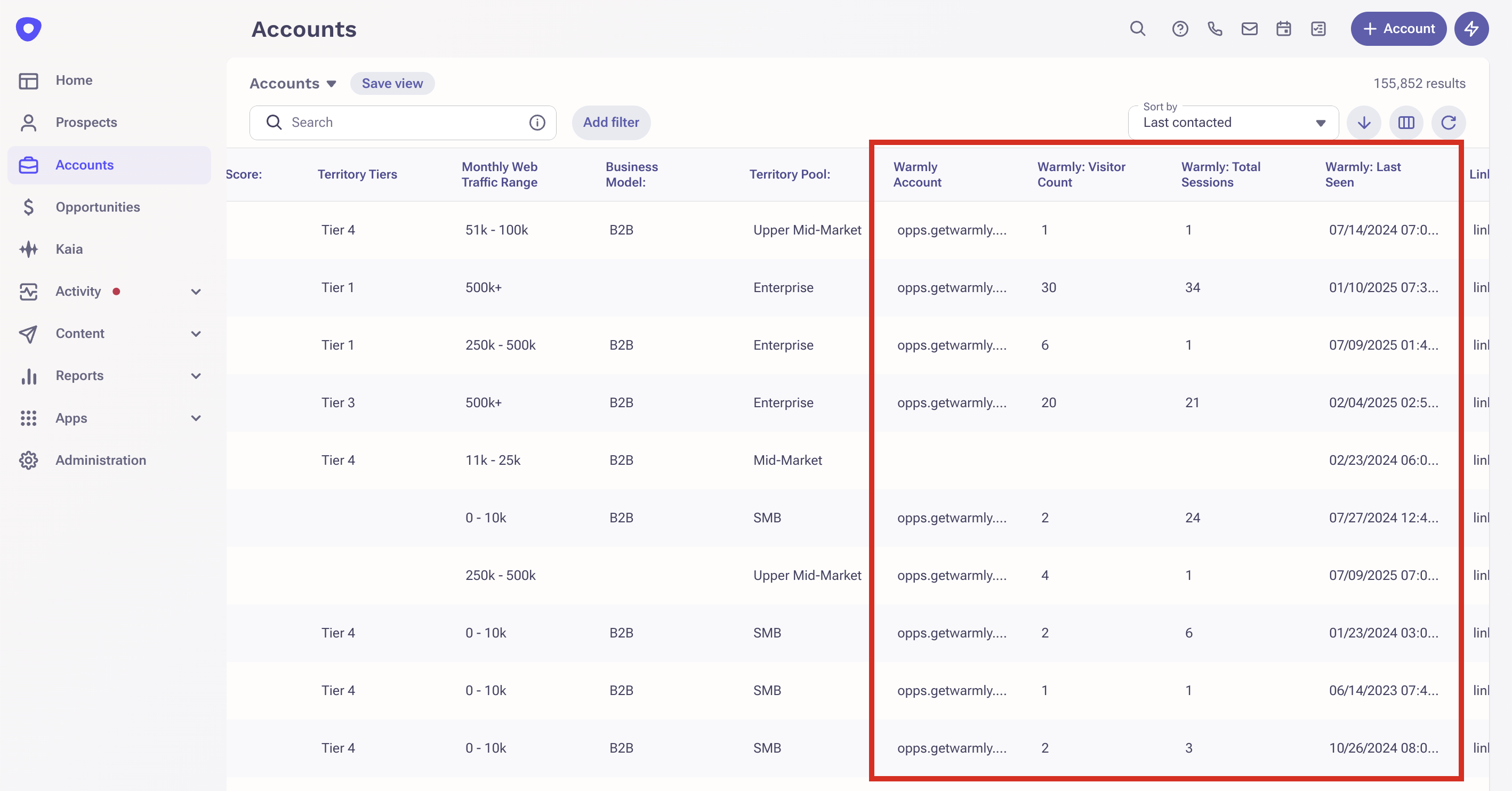
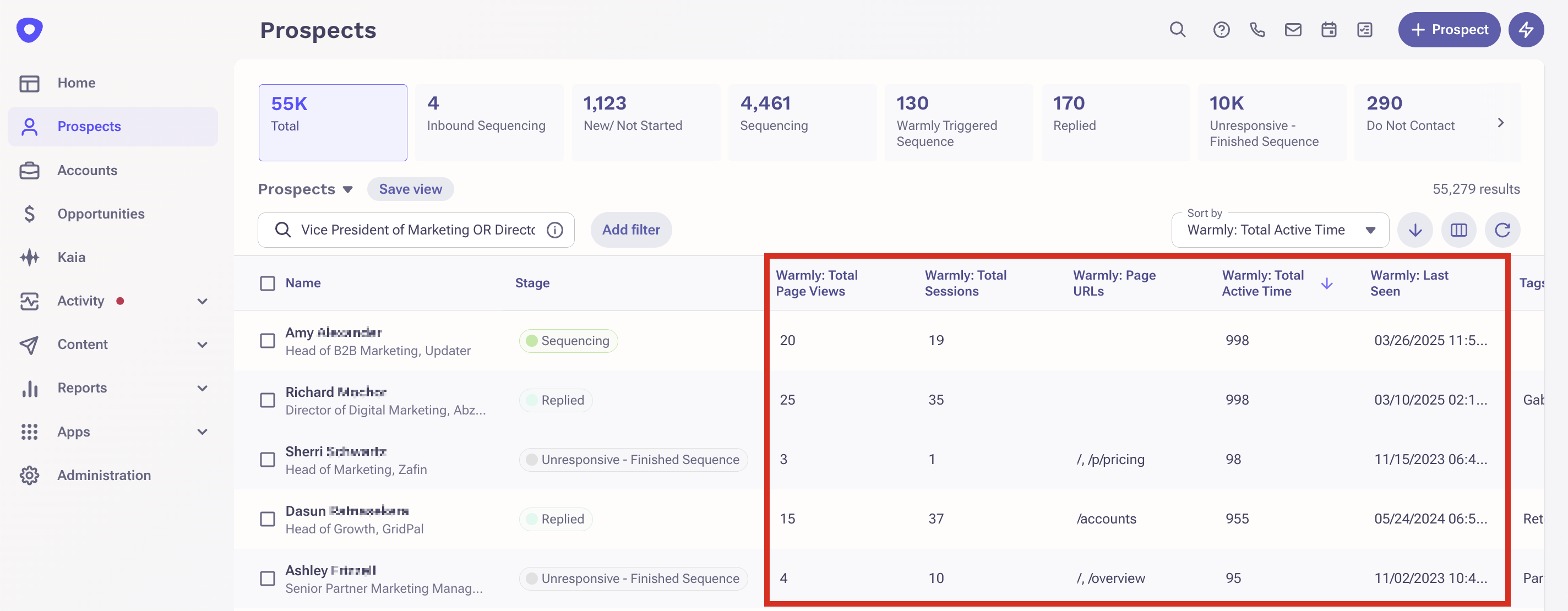
Step 2: Add Warmly Signal Columns to Accounts or Prospects
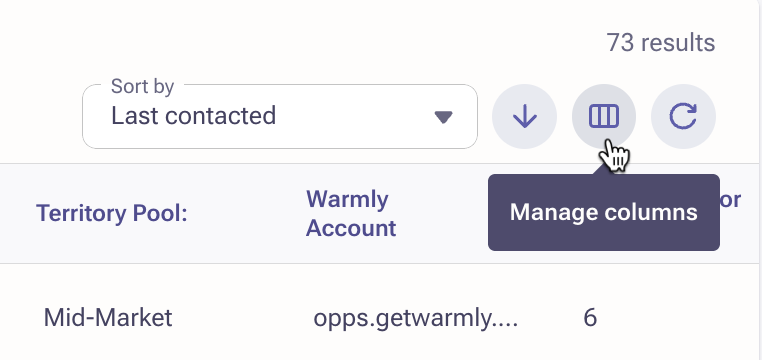
Click the “Manage Columns” icon
Add the custom fields you created for Warmly
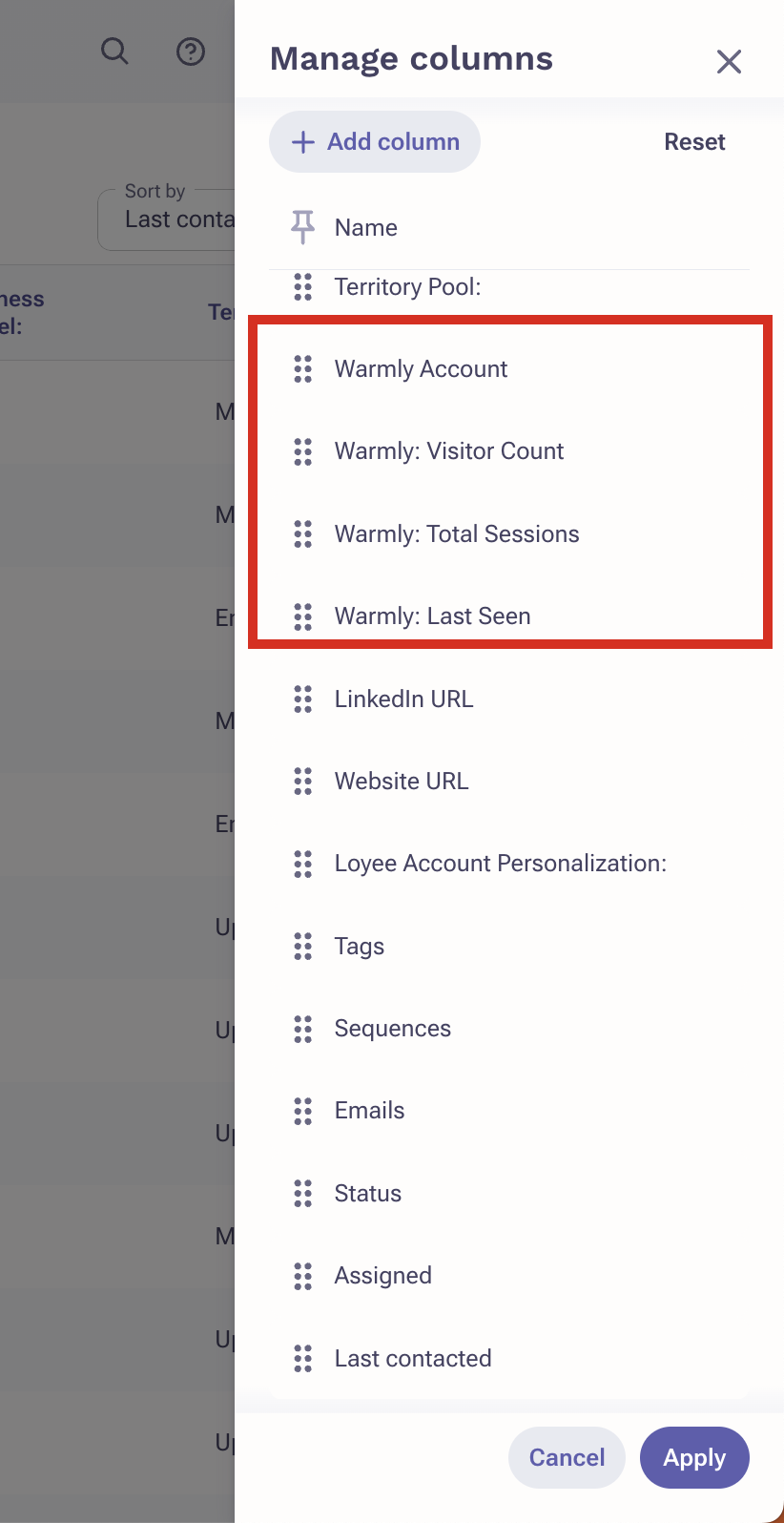
Drag and drop them to the top of the column list for easy visibility
Click Apply
Step 3: Filter to Create an Intent-Based Call List
In the Prospect view, click the Filters icon
Add filters such as:
FieldOperatorValue | ||
| is not empty | — |
| is not empty | — |
| is not empty | — |
| is [your name] | (optional) |
These filters will narrow your view to high-intent, reachable prospects
Step 4: Save the View
Click “Save View”
Name it something like “🔥 Warmly Intent Call List”
Optionally, make it shared with team for visibility
🎯 Final Tips & Best Practices
Test the Sync with a few dummy records to verify field mapping
Use “WarmlyLastSeen” to prioritize recently active accounts
Filter further by job title, region, or pageviews to tailor lists for different reps
Update the Outreach fields dynamically using HubSpot Workflows if needed