Adding Warmly’s Code Snippet to Your Website
Last updated: August 7, 2025
Overview
This guide covers three methods to install Warmly's script on your website:
Using Google Tag Manager (Recommended Method)
Direct Installation on Your Webflow Website
Indirect Installation on Your Wordpress Website
Before Getting Started
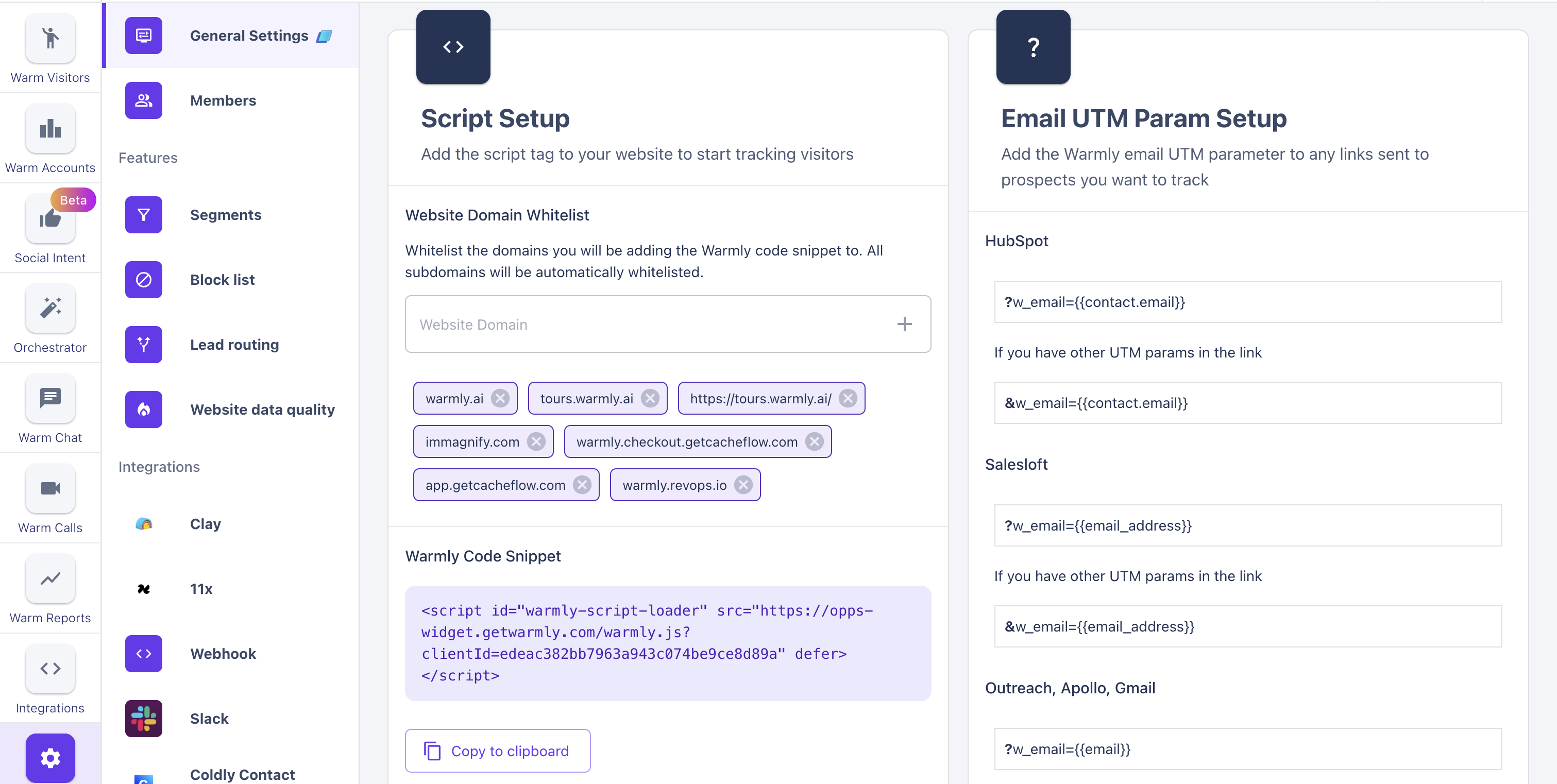
Before you start, visit the General Settings in your Warmly dashboard to access your unique script tag. Use the 'Copy to clipboard' button to copy the script accurately. This prevents errors, such as adding extra quotation marks, when manually entering the script on your site.
Method 1: How to Install Warmly's Script using Google Tag Manager (Recommended)
Please watch the attached video to see how to add Warmly’s code snippet to your company’s website (both the entire site as well as specific pages). Note that if you only add Warmly’s code snippet to a specific set of your website’s pages, those will be the only pages that Warmly will be able to track website traffic.
Warmly encourages our customers to add Warmly's code snippet to their website via Google Tag Manager or a tag manager equivalent.
Method 2: How to Install Warmly's Script on your Webflow Website
Please watch the attached video to see how to add Warmly’s code snippet to your company’s website (both the entire site as well as specific pages). Note that if you only add Warmly’s code snippet to a specific set of your website’s pages, those will be the only pages that Warmly will be able to track website traffic.
Warmly encourages our customers to add Warmly's code snippet to their website via Google Tag Manager or a tag manager equivalent.
Method 3: How to Install Warmly's Script on Your Wordpress Website
Overview
Method 1: Using a Plugin (Recommended for Ease)
Copy and Paste the Warmly Script
Brief Overview of Alternative Methods
Step 1: Download the Head & Footer Code plugin
Using a plugin is the simplest way for non-technical users to add custom JavaScript, like Warmly’s script, to a WordPress site. We recommend the Head & Footer Code plugin, an easy-to-use tool for adding various scripts and codes to your site.
Download the plugin into your website (instructions can be found here). Access your admin dashboard, proceed to Plugins → Add New, and search for "Head & Footer Code."
After installing and activating the plugin, navigate to its settings under Tools → Head & Footer Code. Here, you'll find separate sections for inserting code into the header, footer, or main body of your site:
Step 2: Copy and Paste the Code
After installing the Head & Footer Code plugin, navigate to Tools → Head & Footer Code in your WordPress dashboard. Here, paste your Warmly script (which you can access on your Warmly dashboard, or, in General Settings) into the Header box:
Pros and Cons of Using a Plugin
Pros:
Beginner-friendly and no need to edit theme files.
Useful for adding other scripts & custom CSS (Google Analytics, Facebook Pixel)
Cons:
Involves installing a third-party plugin.
Designed for site-wide changes rather than specific pages.
Alternative Methods (Brief Overview)
Editing functions.php File: For those comfortable with code, adding the script via the functions.php file offers more control.
Inserting Script in Header: Advanced method using wp_enqueue_script function or wp_head hook for site-wide JavaScript changes.
For detailed steps on these methods, click here.
Advanced Script Options: Limit Script Execution by Geography
If you’d like to restrict Warmly's tracking script to only fire based on geolocation (e.g., due to data regulations or ICP filtering), you can use a geolocation-based wrapper to control script execution.
The example below uses ipapi to detect a user’s location and block tracking for selected countries:
/<script>

(function() {

  // Prevent multiple calls

  if (window.locationCheckDone) return;

  window.locationCheckDone = true;

  fetch('https://ipapi.co/json/')

    .then(response => response.json())

    .then(data => {

      const blockedCountries = ['CA', 'KP']; // Replace with desired country codes

      const userCountry = data.country;

      if (blockedCountries.includes(userCountry)) {

        window.blockTracking = true;

        console.warn('Tracking blocked for user in: ' + userCountry);

      } else {

        window.blockTracking = false;

        // Load Warmly script only if not blocked

        const warmlyScript = document.createElement('script');

        warmlyScript.src = 'https://opps-widget.getwarmly.com/warmly.js?clientId=YOUR_CLIENT_ID';

        warmlyScript.defer = true;

        warmlyScript.id = 'warmly-script-loader';

        document.head.appendChild(warmlyScript);

      }

    })

    .catch(err => {

      console.error('Geolocation API failed:', err);

      // Decide whether to block or allow script on failure

      window.blockTracking = false;

    });

})();

</script>
Setup Notes
Replace
YOUR_CLIENT_IDwith the actual value from your Warmly dashboard.Adjust the
blockedCountriesarray to suit your needs. Use ISO 3166-1 alpha-2 codes (e.g.,'US','CA','FR').This setup replaces the standard script tag — do not include both.
How to Install Warmly's Script on Other Website Editors
If you're struggling adding Warmly's code snippet to your website, Please feel free to reach out to your CSM directly or [email protected]